

How do I change my workout chart colors in TrainerDay?
Change your workout chart colors on the TrainerDay website under Account → Display by ticking Use classic workout charts (all blue), or in the mobile app under Settings → Other Options → Classic blue charts.
- On the website, click the gear icon at the top of the left menu, then Account.
- Under Display, tick Use classic workout charts (all blue) for one-color blue charts. Untick it to get zone colors back.
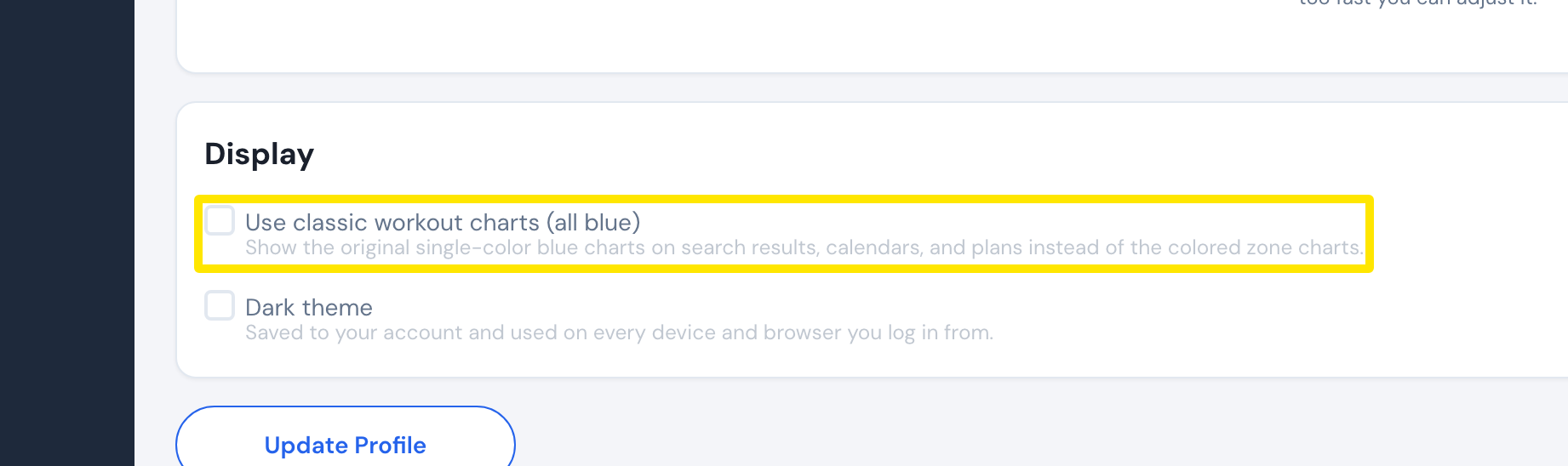 Where: Website · Account · open it
- Click Update Profile, then Confirm.
- In the mobile app, the same choice is under Settings → Other Options → Classic blue charts.
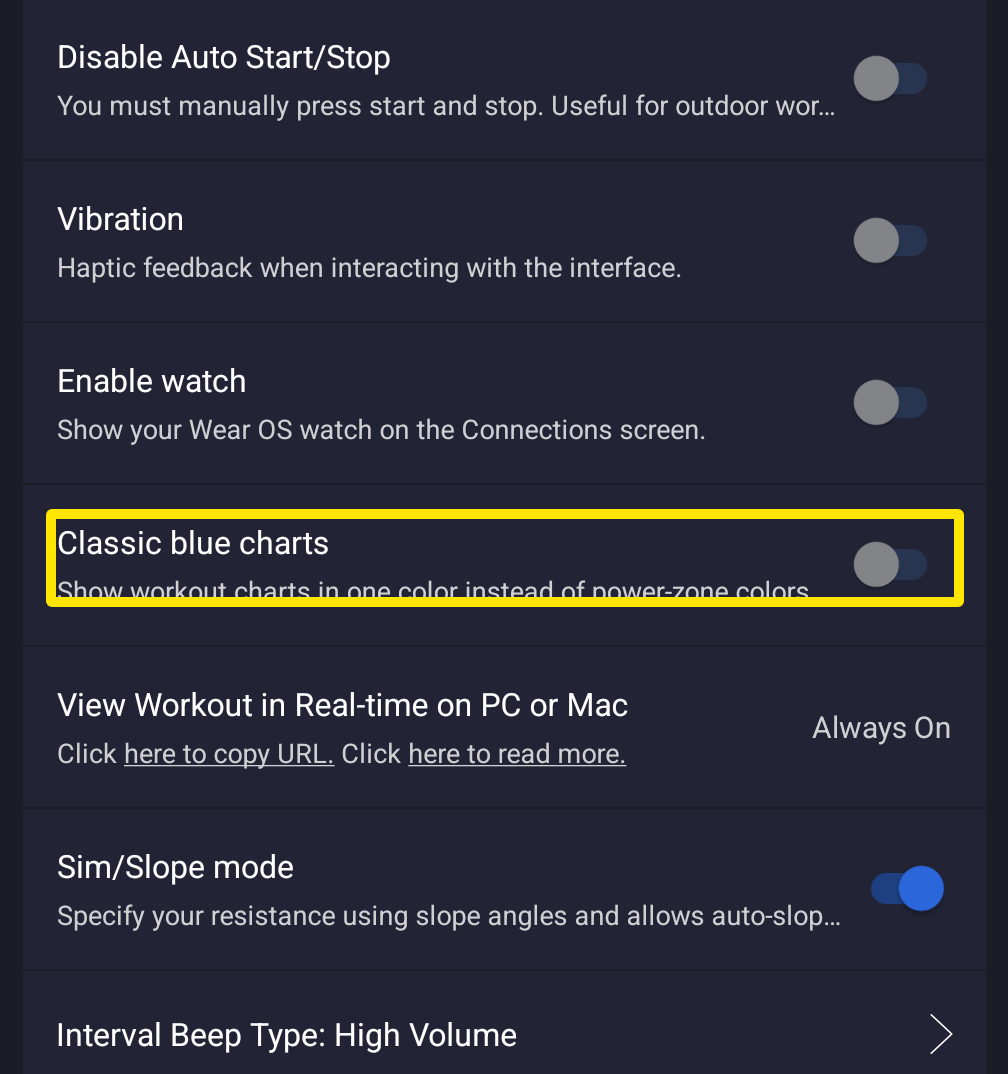 Where: Mobile app · Settings tab → Other Options
Good to know: The choice is shared between the website and the mobile app, so you only need to set it once.
Works on: Website and mobile app. The desktop app has no chart color setting.