

How do I play videos while riding?
Play YouTube videos, your own video files or a website beside your workout in the TrainerDay desktop app, using the Media button at the top of the workout screen.
- Open the TrainerDay desktop app and load a workout in the player.
- On the workout screen, click Media at the top of the window.
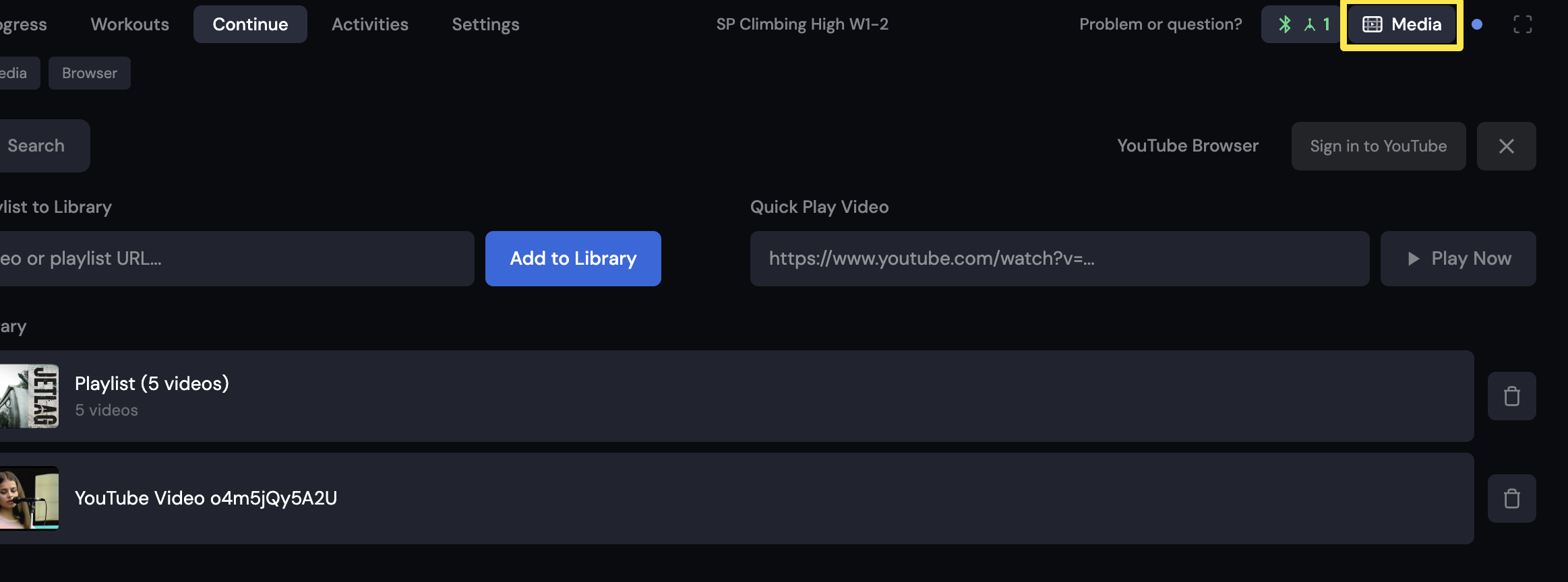 Where: Desktop app · the workout screen during a ride (Today tab → Ride Now)
- For YouTube, open the YouTube tab. Paste a youtube.com or youtu.be video or playlist link under Quick Play Video and click Play Now, or click Add to Library.
- For your own videos, open the My Media tab and click a video.
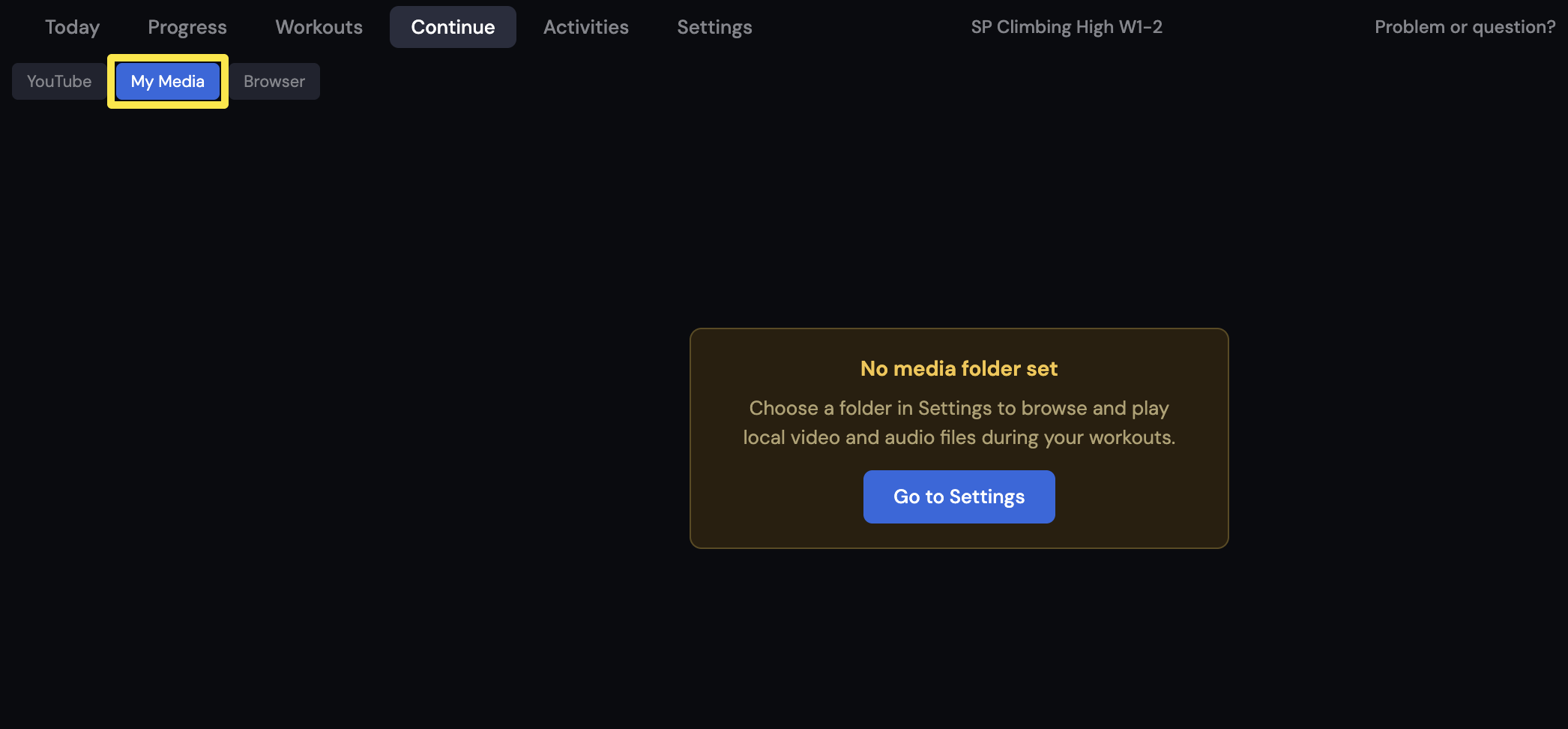 Where: Desktop app · the workout screen during a ride (Today tab → Ride Now)
- If no folder is set, go to Settings and, under Local Media, click Choose Folder next to Media Folder.
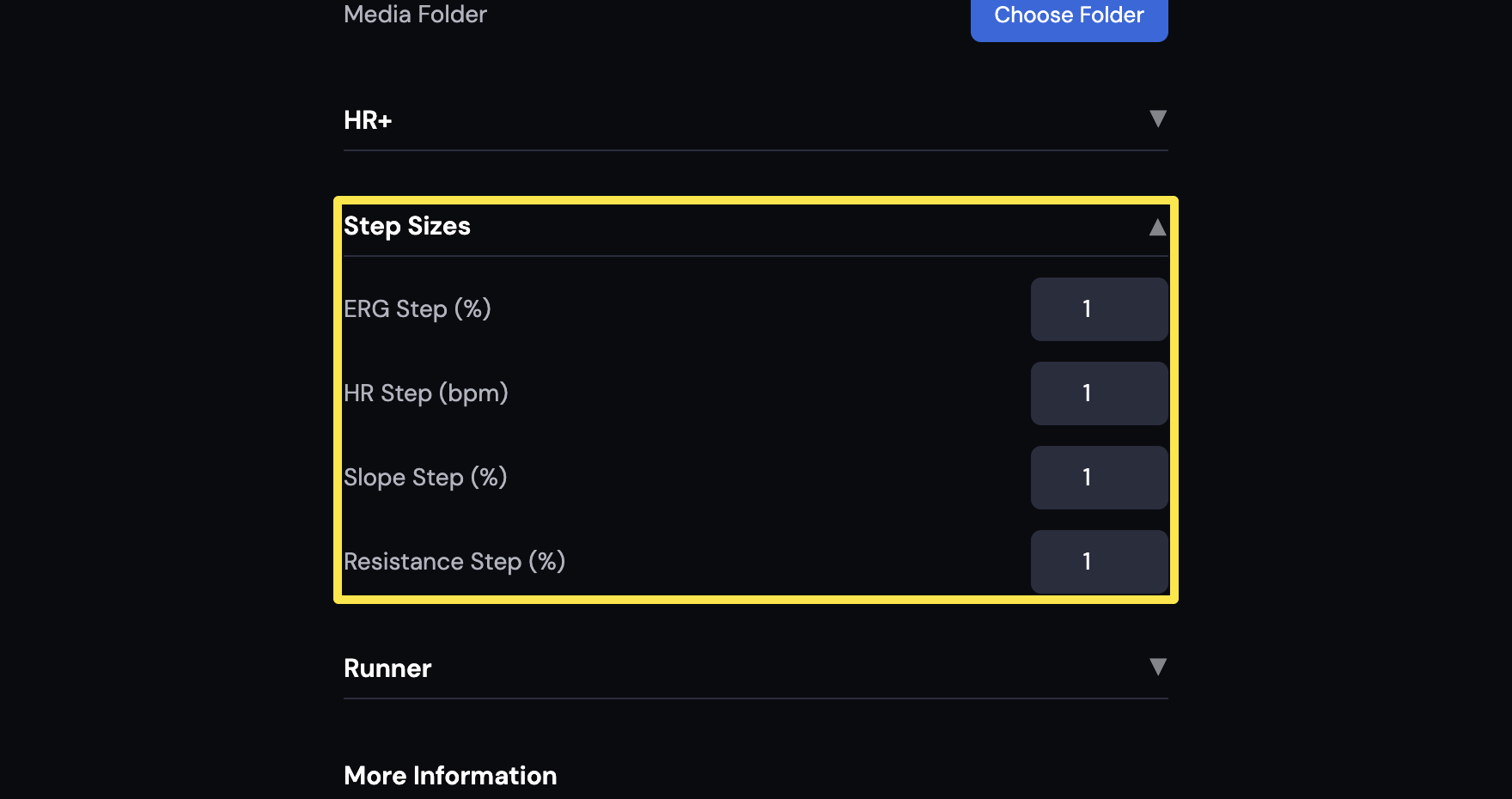 Where: Desktop app · Settings tab
- For a website, open the Browser tab. Netflix and other protected video open in your normal browser instead.
Good to know: Your own videos play at normal speed. They are not synced to your speed, power or a route's GPS. Supported video files are .mp4, .mkv, .webm, .ogg, .ogv, .m4v and .avi. Private YouTube videos and playlists cannot be added.
Works on: Desktop app only. The mobile app and the website have no video player.