

How do I move between screens in the TrainerDay app?
Use the tab bar at the bottom of the TrainerDay mobile app (or the tabs along the top of the desktop app) to move between Today, Workouts, Quick Start, Activities and Settings.
- Open the TrainerDay mobile app. The tab bar at the bottom has Today, Workouts, Quick Start, Activities and Settings.
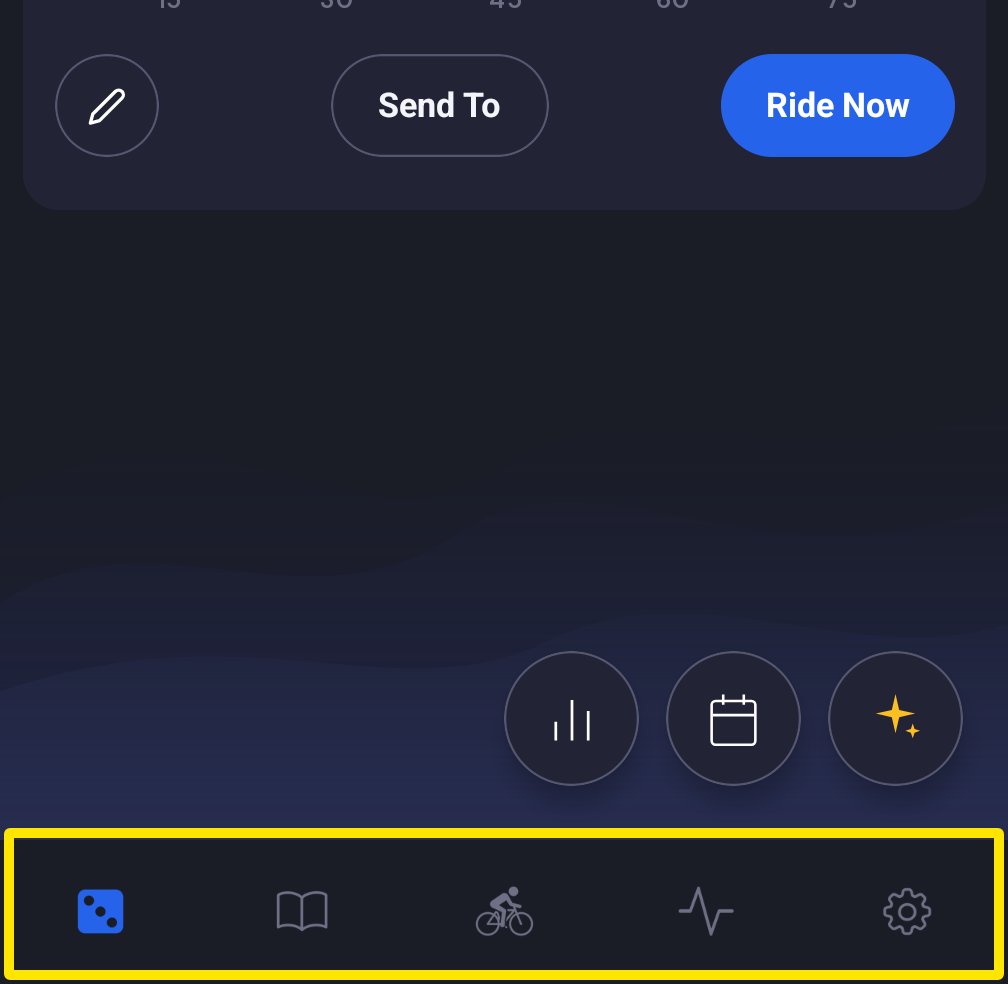 Where: Mobile app · the tabs at the bottom of the screen
- Tap a tab to go to that screen. Tap Settings for your settings. The workout controls (auto start, step sizes and more) are under Settings → Other Options.
- While a ride is going, the Quick Start tab is called Continue. Tap Continue to get back to the active workout.
- In the desktop app, the tabs are along the top: Today, Progress, Workouts, Quick Start, Activities, Settings. Click a tab to switch screens.
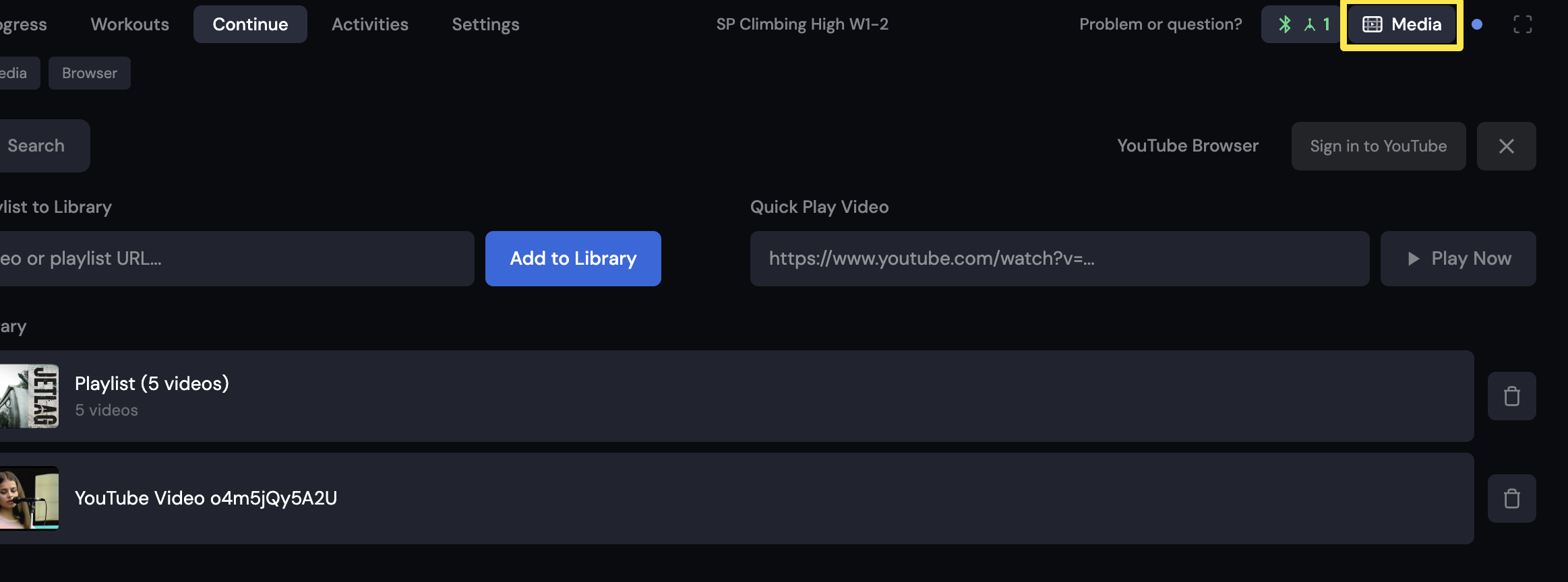 Where: Desktop app · the workout screen during a ride (Today tab → Ride Now)
Good to know: You cannot reorder the items in the app menu.
Works on: Mobile app (tabs at the bottom), desktop app (tabs along the top, plus a Progress tab).