

How do I connect TrainerDay to Intervals.icu?
Connect Intervals.icu to TrainerDay from the Connections page on the website, the mobile app or the desktop app.
- On the website, click the gear icon in the left menu and choose Connections (app.trainerday.com/apps-and-devices).
- Click the Intervals.icu tile and click Connect.
- Sign in to Intervals.icu and allow every permission TrainerDay asks for. You return to Connections with Intervals.icu connected.
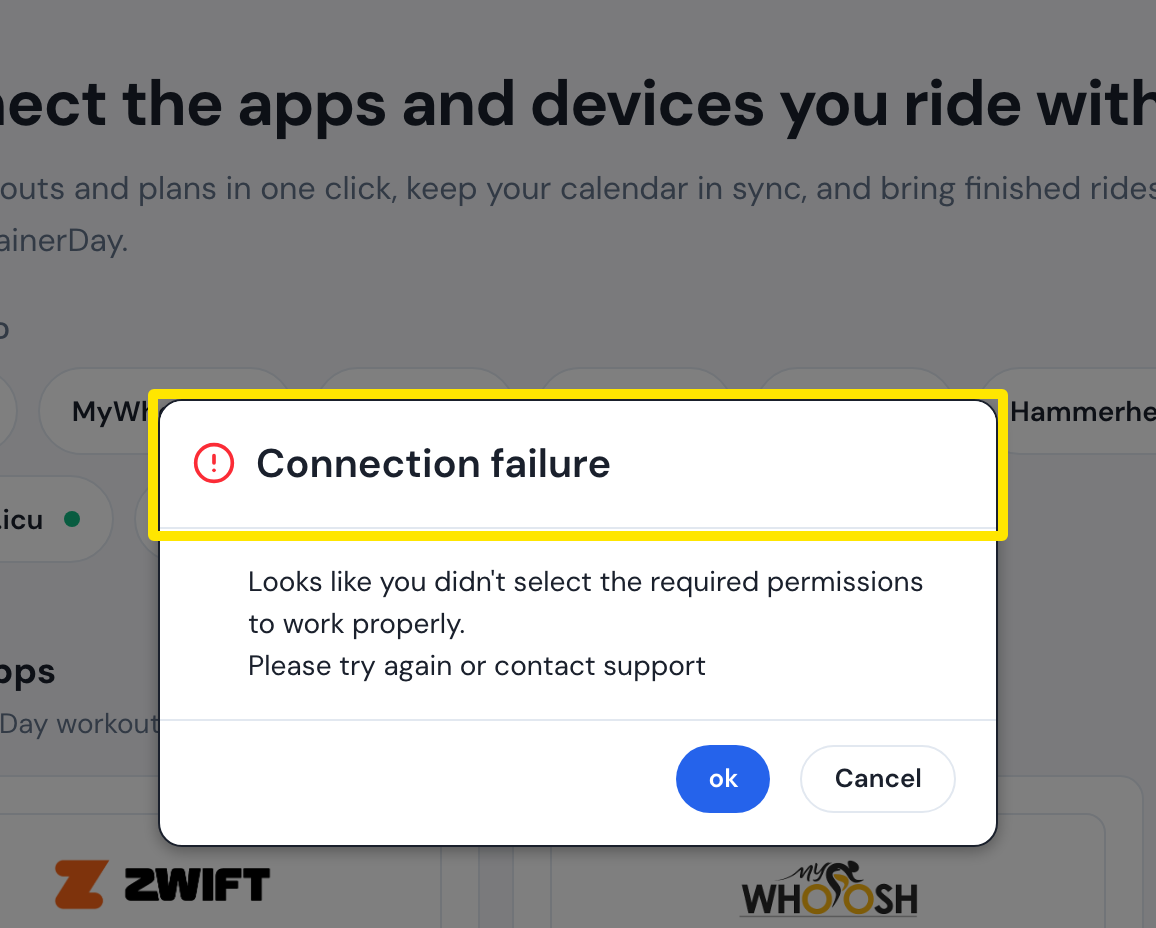
- If "Connection failure: Looks like you didn't select the required permissions…" appears, click Connect again and allow all permissions.
 Where: Website · Connections · open it
Good to know: TrainerDay needs every permission because it writes to your Intervals.icu calendar.
Works on: Website; mobile app (Settings → Connections → Intervals.icu → Connect); desktop app (Settings → Connections → Manage Connections → Intervals.icu opens the sign-in page in your browser).