

How do I check whether PowerMatch is on?
Check the Power Match switch in the TrainerDay mobile app under Settings → Other Options, then confirm it is working during an ERG ride by looking for the watt offset next to the target percent.
- In the TrainerDay mobile app, open the Settings tab, tap Other Options and look at the Power Match switch. On means Power Match is turned on.
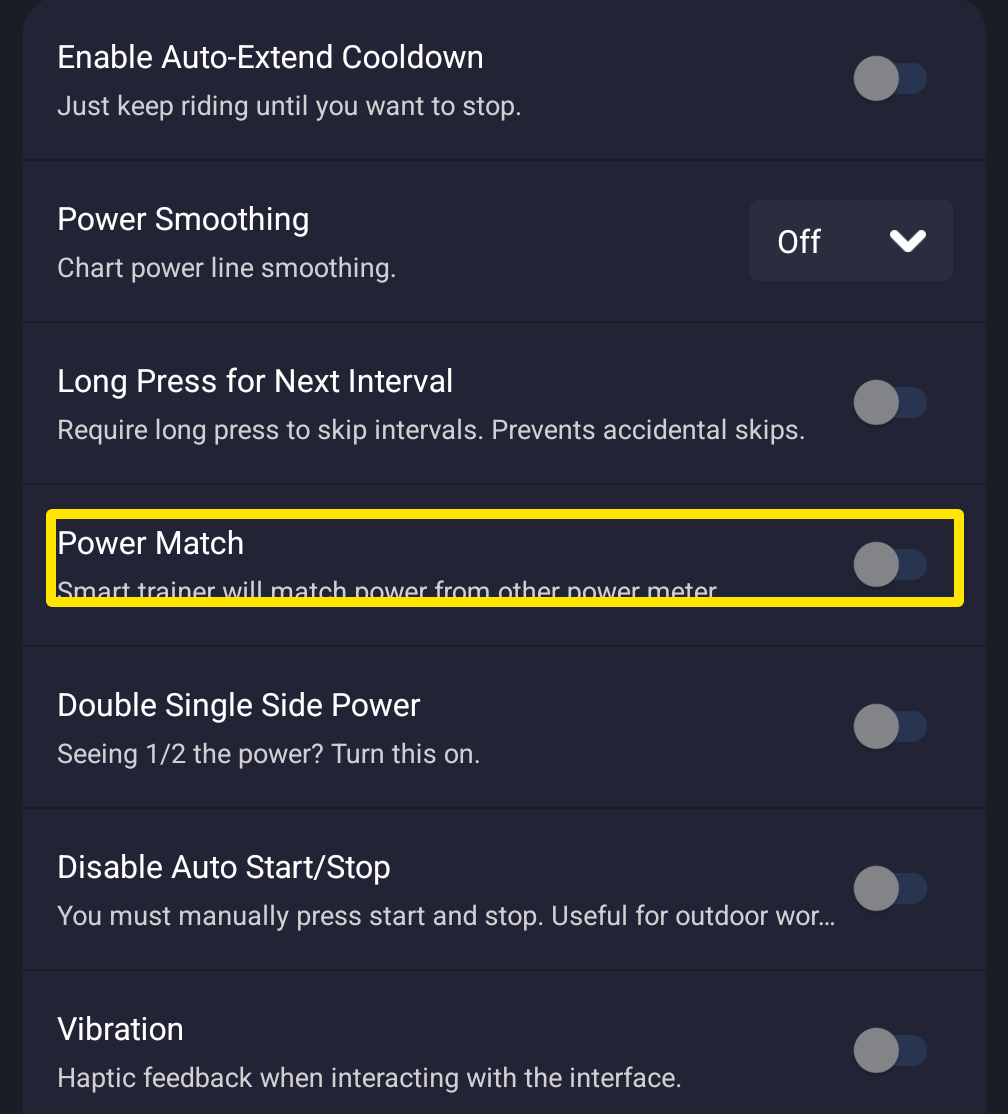 Where: Mobile app · Settings tab → Other Options
- Back on the Settings tab, tap Add Devices. Check that your separate power meter has Power and your smart trainer has Control.
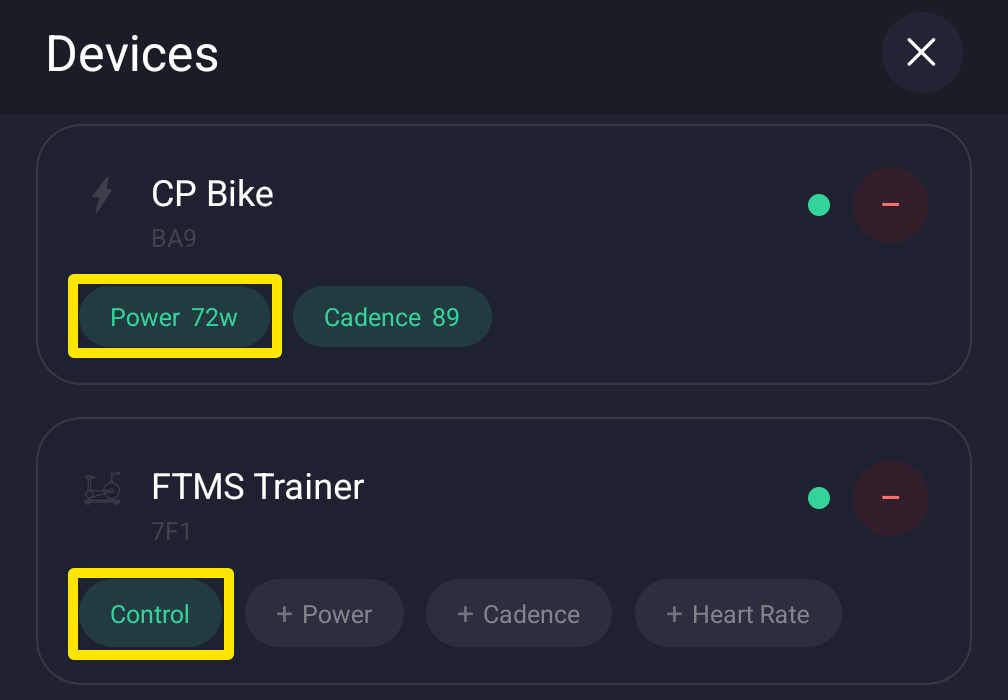 Where: Mobile app · Settings tab → Add Devices
- Ride a workout in ERG mode. The target bar at the bottom of the ride screen shows the Power Match offset next to the target percent, for example 85% +12w. No offset there means Power Match is not working on this ride.
Good to know: In the desktop app the switch is in Settings → Workout Controls → Power Match, and during the ride the bottom bar shows "power match calibrating..." and then "power match +12w". It shows nothing when the offset is 0 or in slope or resistance mode.
Works on: mobile app (iPhone, Android) and desktop app; not the website.