

How do I compare power across two parts of a ride?
Save two parts of a completed ride as ranges on the TrainerDay website, then compare their power side by side from the Ranges tab.
- On the website (app.trainerday.com), open My Activities and click the ride.
- Drag across the chart over the first part and click the green check to save it as a range. You can also press Ctrl/⌘+A to add a 30-second range at the cursor. Do the same for the second part.
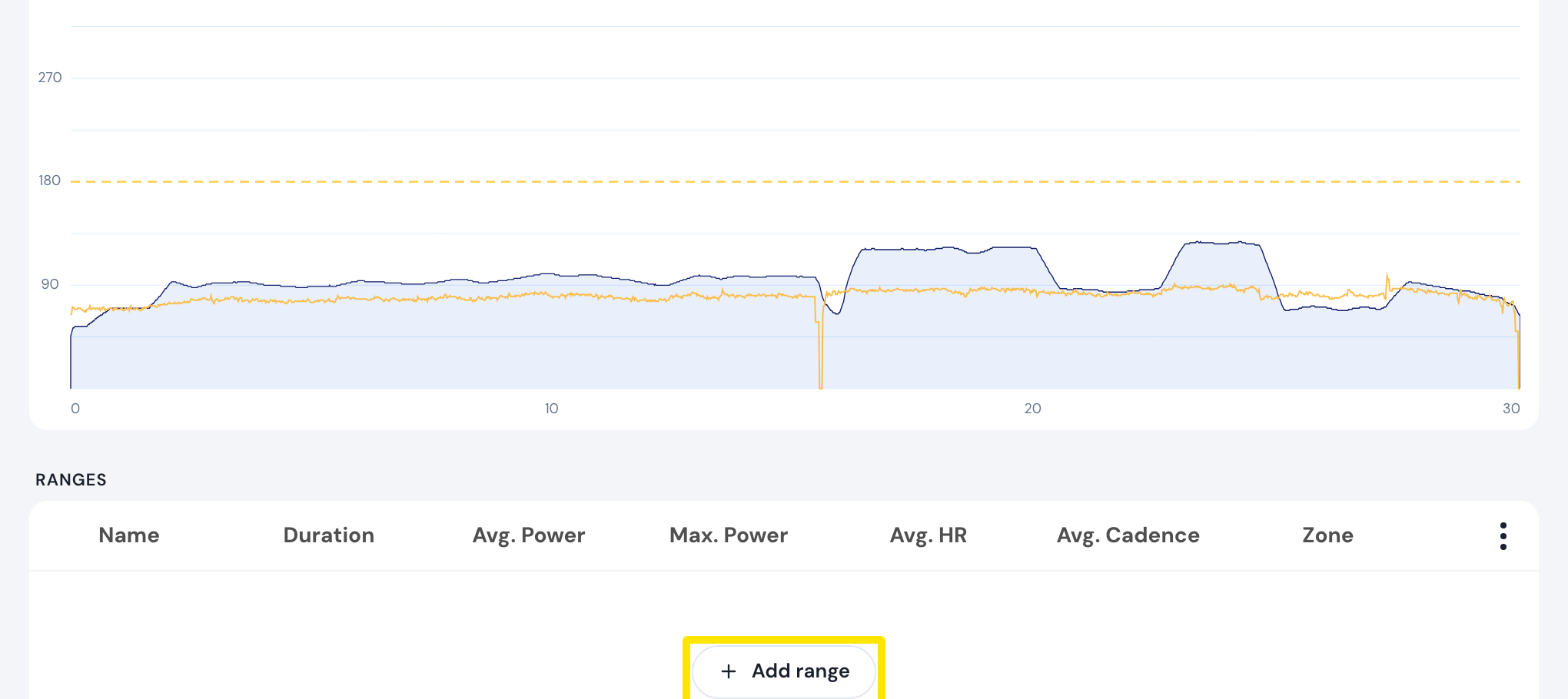 Where: Website · My Activities → click the activity's name · open it
- Below the chart, open the Ranges tab and click the Compare (scales) icon on both ranges.
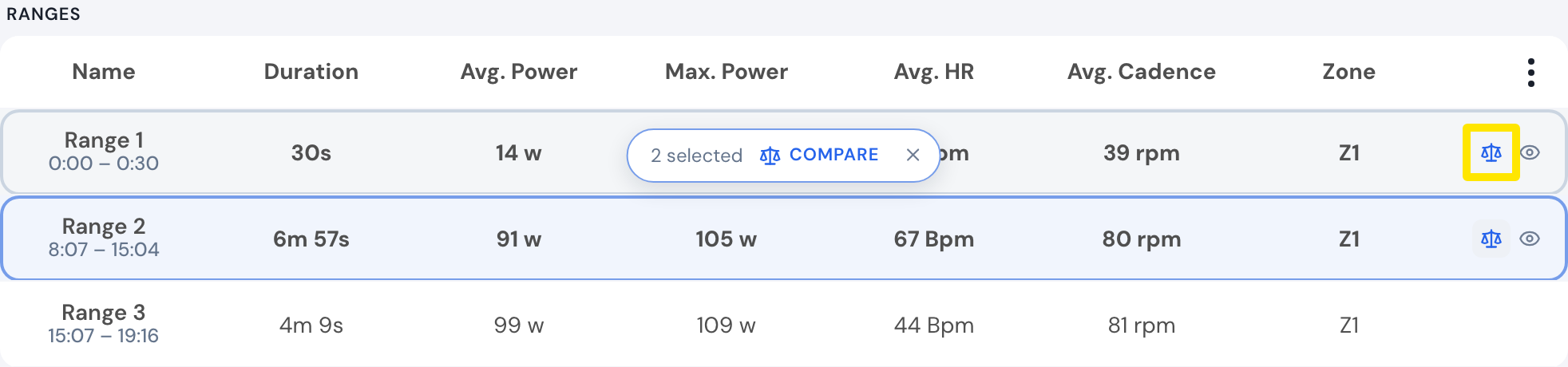 Where: Website · My Activities → click the activity's name
- Click Compare in the bar that appears. The two ranges' power, heart rate and cadence show side by side.
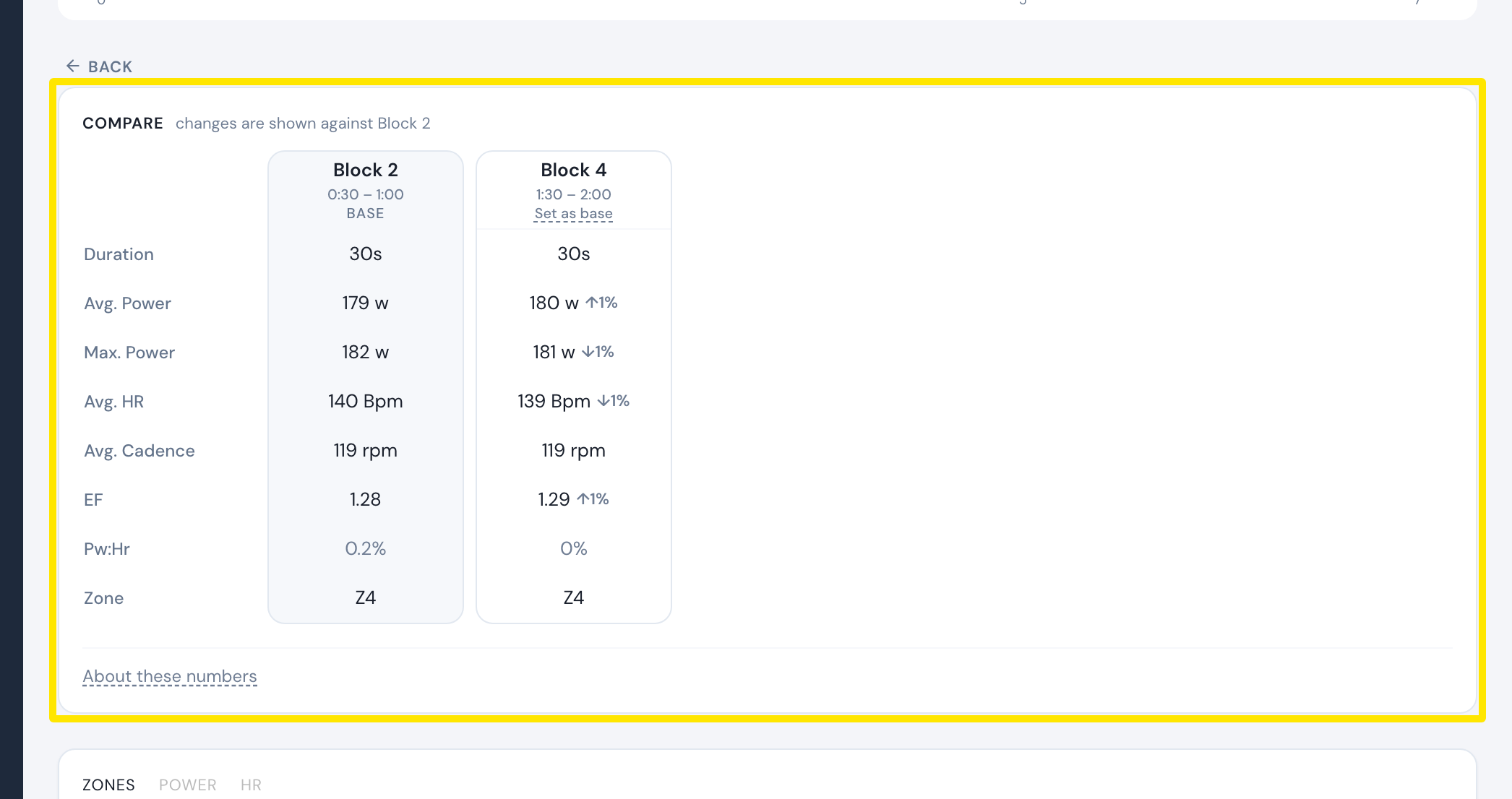 Where: Website · My Activities → click the activity's name · open it
Good to know: Set as base picks the range the other one is compared against. In the mobile app, tap + Range above the chart to mark each part, then tap Compare.
Works on: website and mobile app. The desktop app has no ranges.