

How do I reconnect Garmin when it keeps disconnecting?
Reconnect Garmin on the TrainerDay website's Connections page by disconnecting it, connecting again with every permission on, and turning your settings back on.
- On the website, click the gear icon at the top of the left menu and choose Connections (app.trainerday.com/apps-and-devices).
- On the Garmin tile, click Settings.
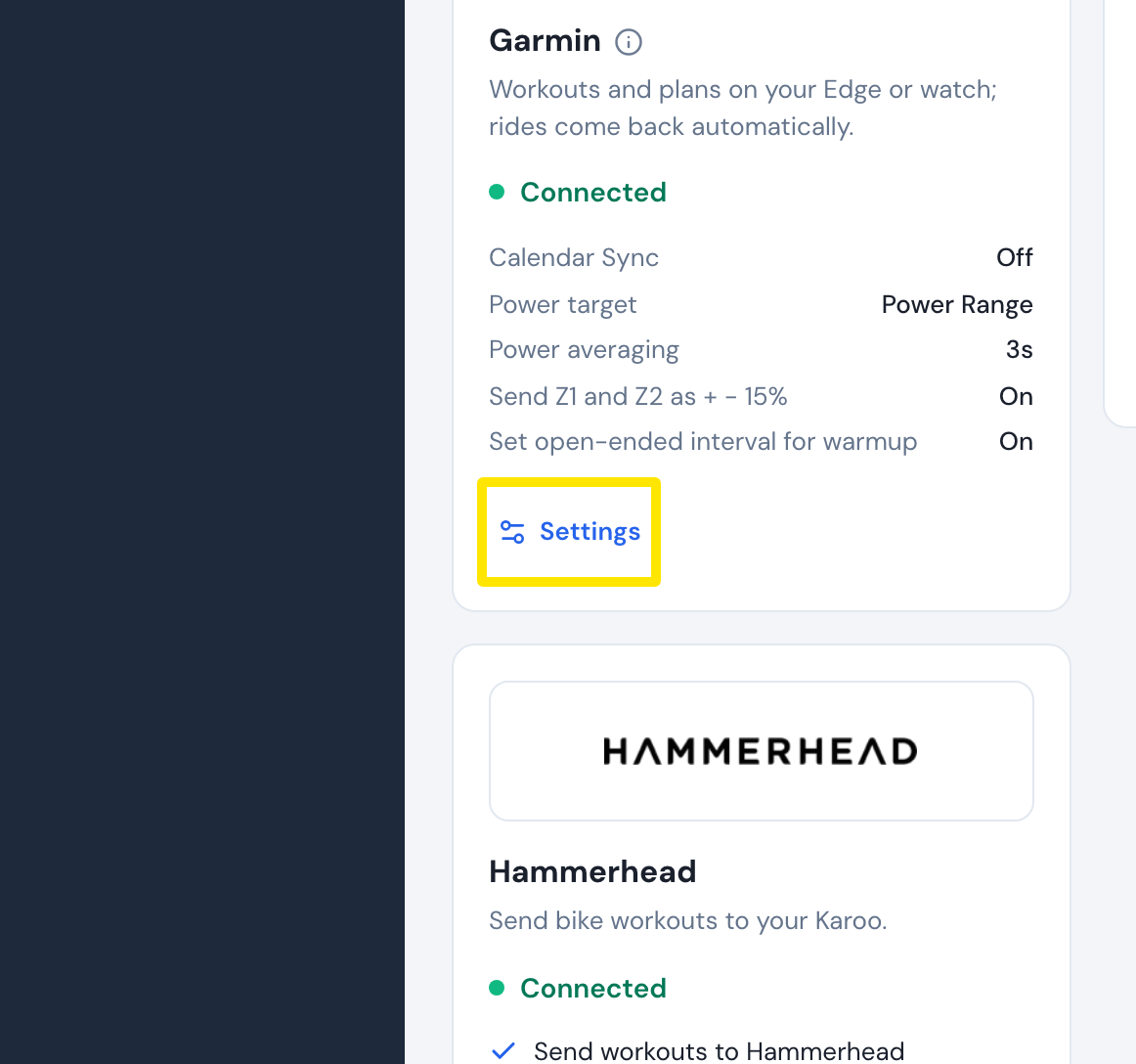 Where: Website · Connections · open it
- Click Disconnect. This turns Calendar Sync off and resets Power target, Power averaging and Send Z1 and Z2 as + - 15% to their defaults.
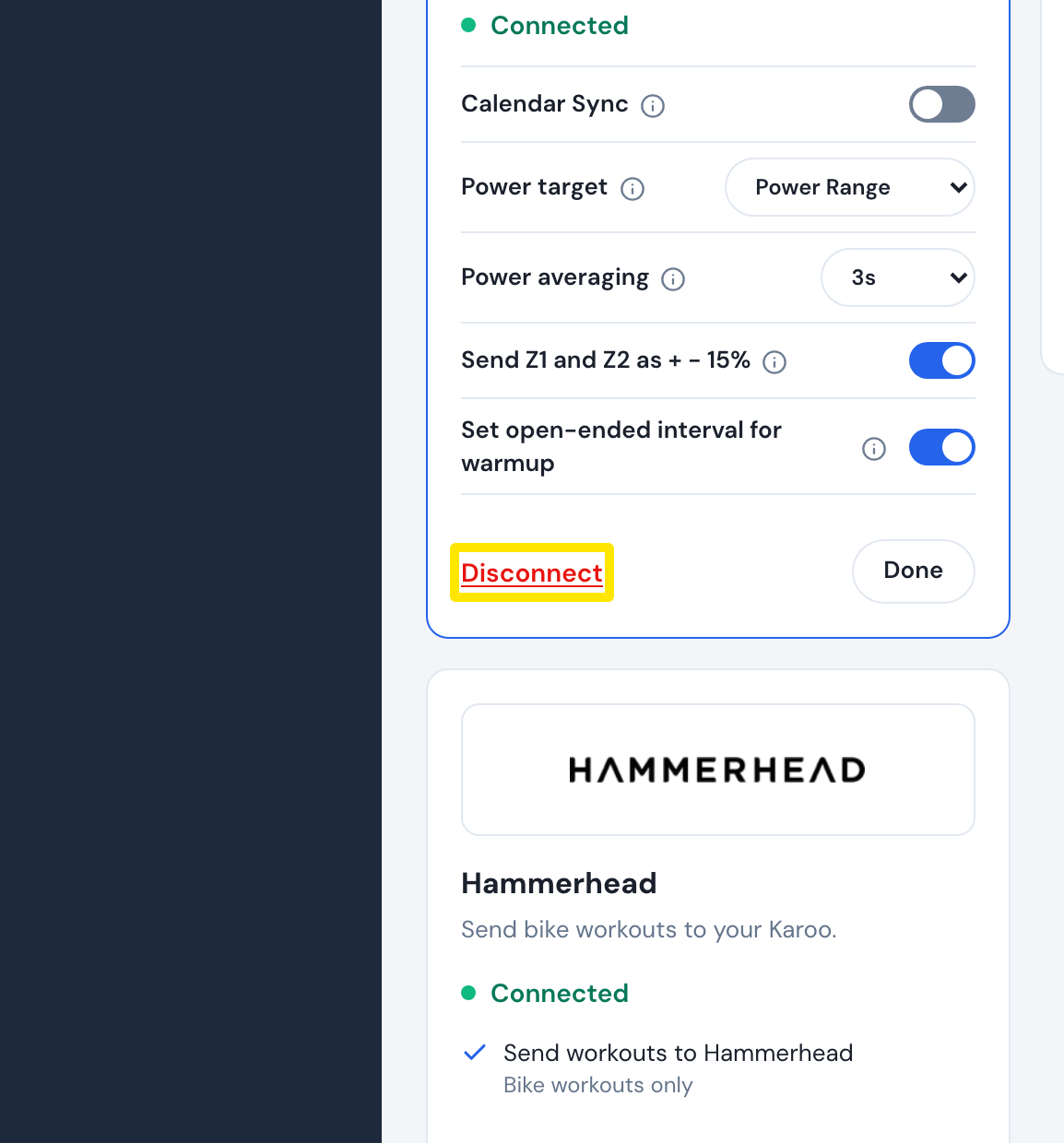 Where: Website · Connections · open it
- Click Connect on the Garmin tile, sign in to Garmin and leave every permission switched on. TrainerDay needs the workout import permission.
- If you used Calendar Sync, open Garmin's Settings again and turn it back on. Set your power options again too.
Good to know: TrainerDay disconnects Garmin by itself if Garmin refuses its sign-in or the workout import permission was not given. Activity sync also does not work with 2FA/MFA turned on in your Garmin account. Sending planned workouts still works with MFA.
Works on: Website (steps above). The mobile and desktop apps also have Garmin connections, but their steps are not covered here.