

Why do the times in the workout editor look wrong?
Old workouts' times look wrong in the website editor because the Time column shows the elapsed workout time at the end of each row, not the row's length; check the Minutes column, then fix any wrong row length there and save.
- On the website, open the workout from My Workouts or Search Workouts. Click its three-dots menu and choose Edit workout.
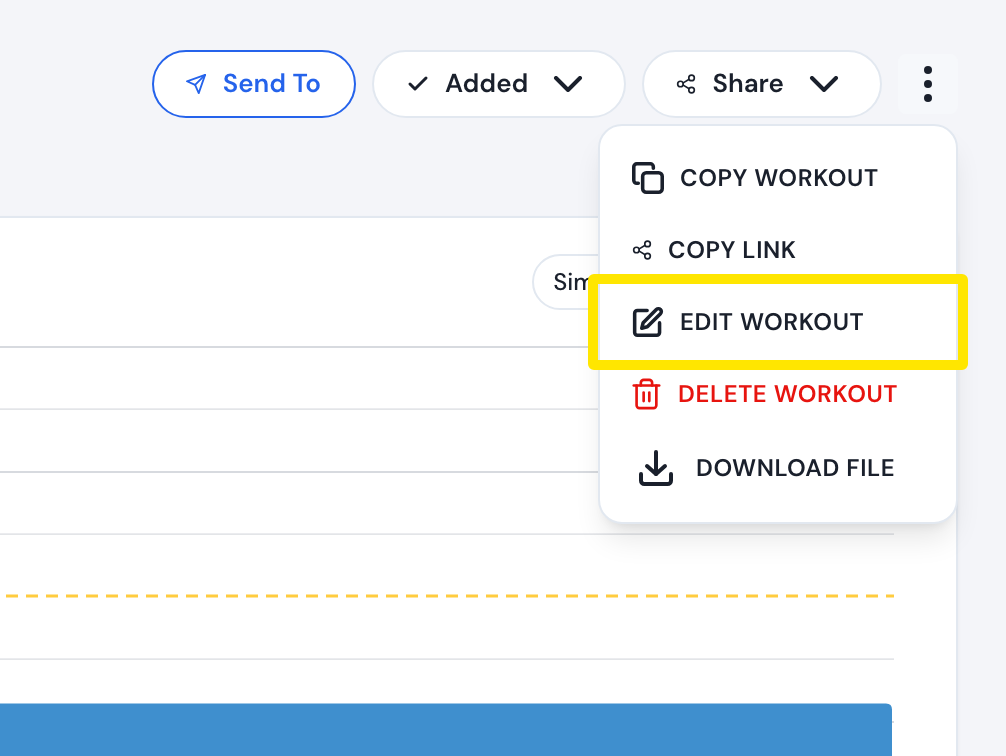 Where: Website · a workout's page → three-dots menu
If someone else made it, choose Copy Workout instead. The editor opens a copy, and saving it creates your own workout.
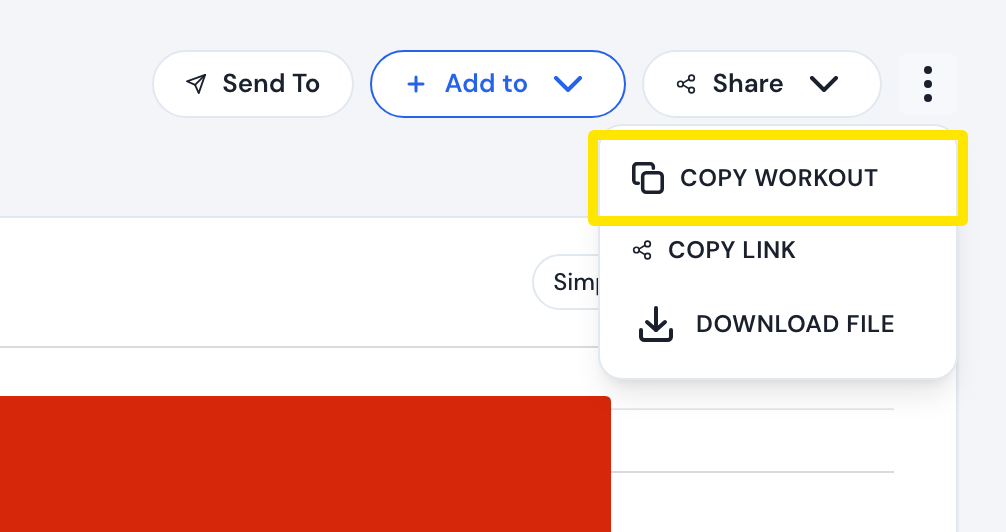 Where: Website · a workout's page → three-dots menu
- The workout opens in the row editor. Read the Minutes column: it is each row's length. Time is read-only and shows the elapsed workout time at the end of the row.
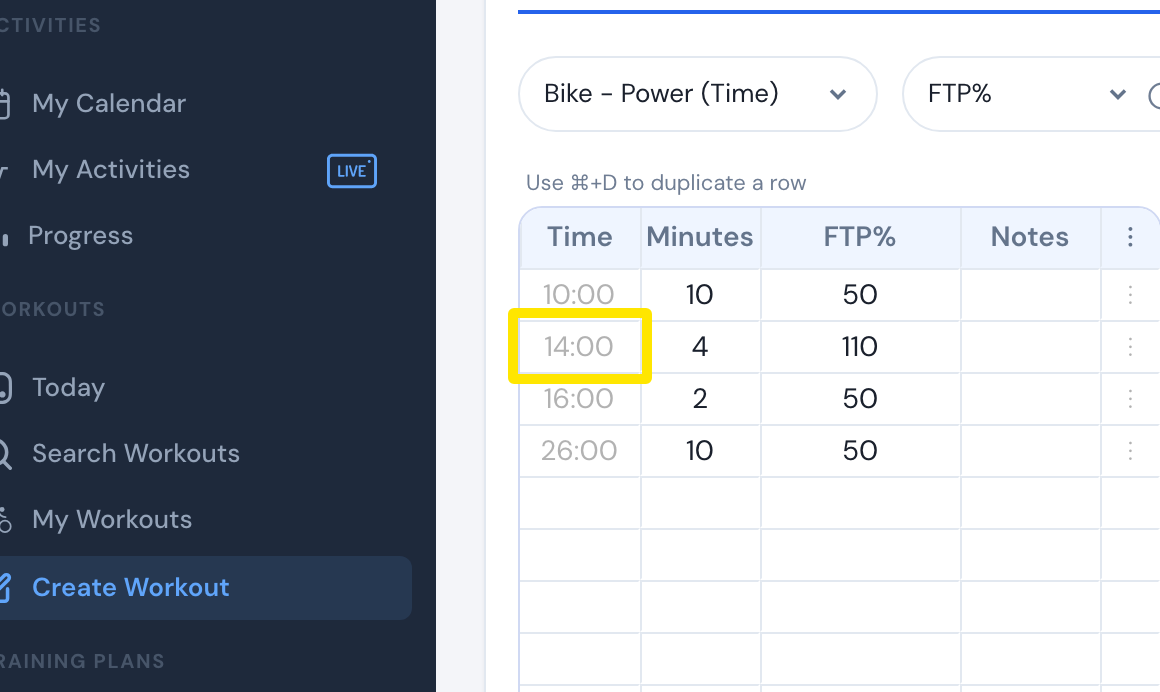 Where: Website · the row editor
- If a row's length is wrong, click its Minutes cell, type the length (5, 5:30, :35 or 1:30:00) and press Enter.
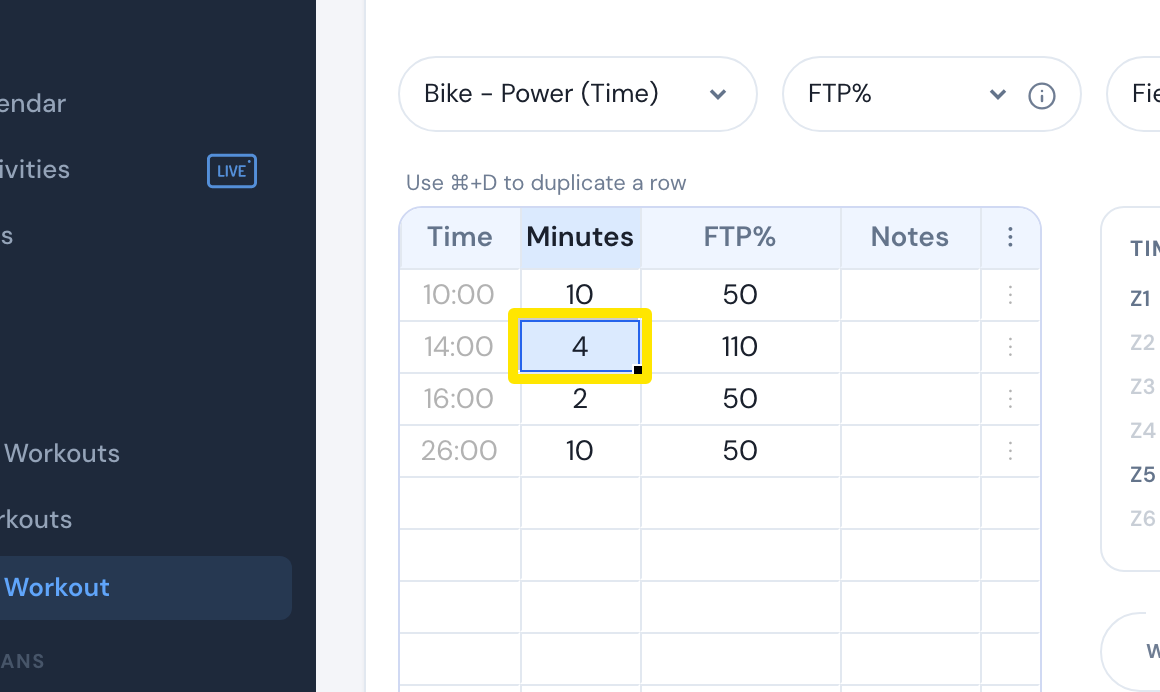 Where: Website · the row editor
- In a repeat block, Minutes are one round. Click the block's Time cell to check Repeats, then click Apply or the × to close the box.
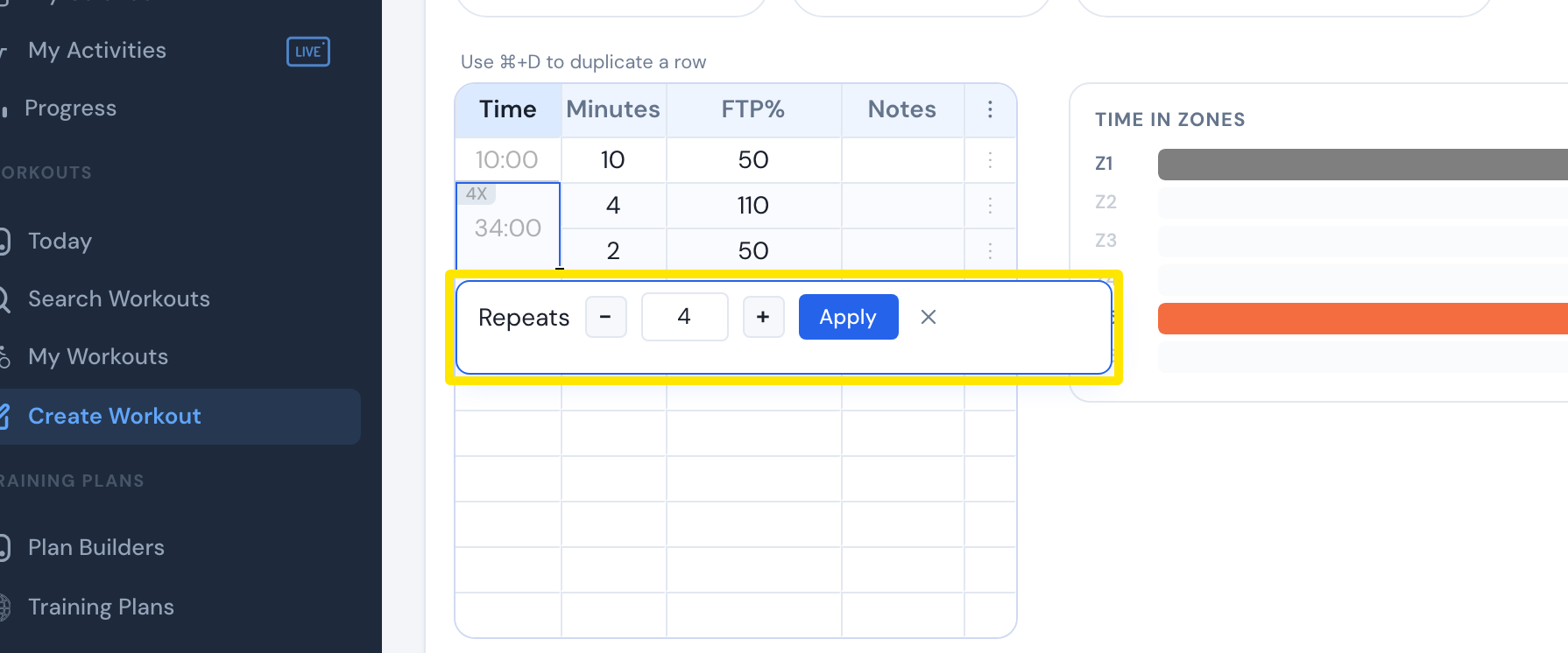 Where: Website · the row editor → a repeat block's Time cell
- Click Save workout, then Save in the window that opens.
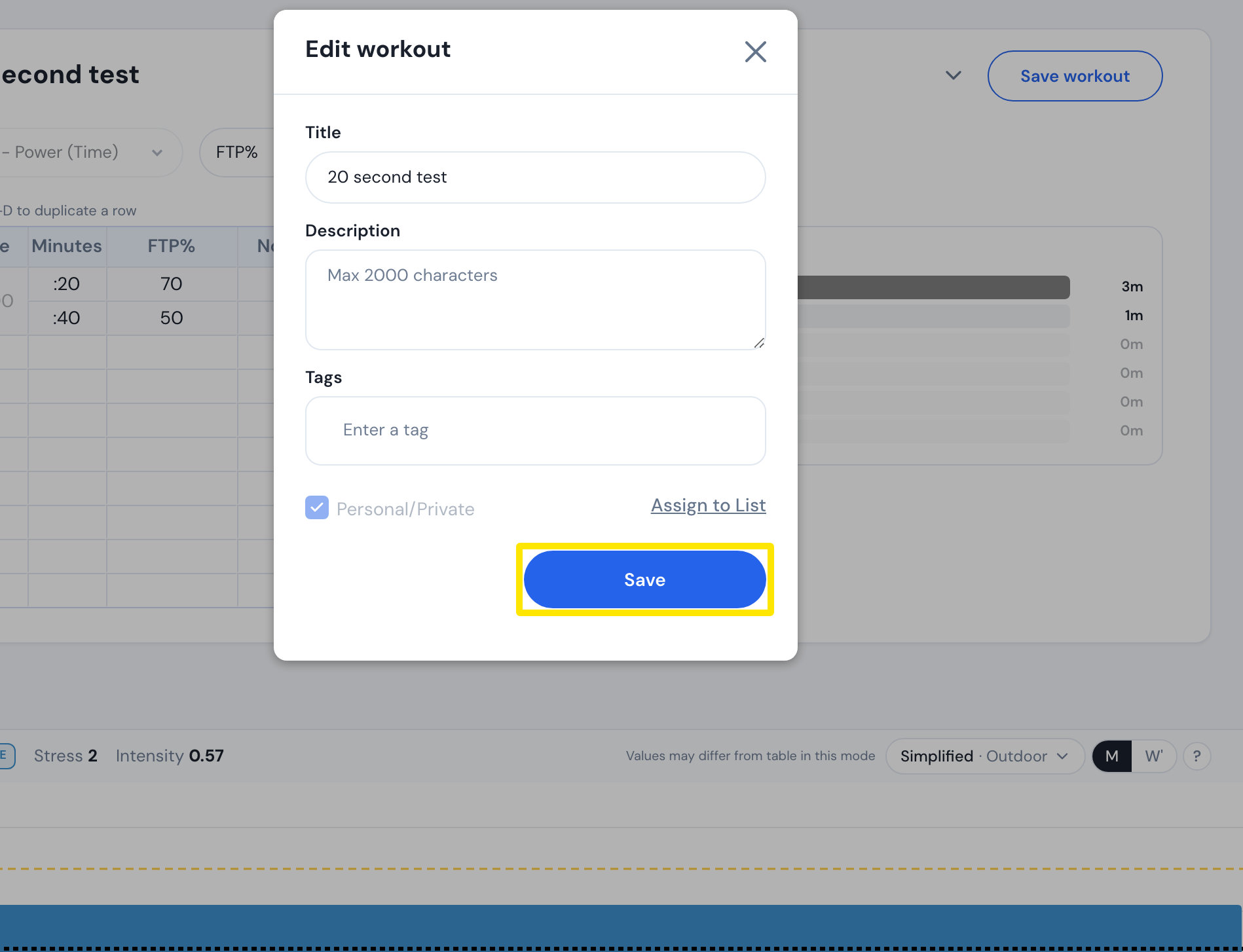 Where: Website · a workout's page → three-dots menu → Edit workout → Save workout
Works on: website only. The mobile and desktop apps have no workout editor.