

How do I insert a new row in the workout creator?
On the TrainerDay website, open the workout editor, click the ⋮ at the end of a row, and choose Add segment above or Add segment below to insert a new row.
To add a row to a workout you already made, first open it for editing (see How do I edit or copy a workout?), then use the steps below.
- On the website, open the editor at Create Workout.
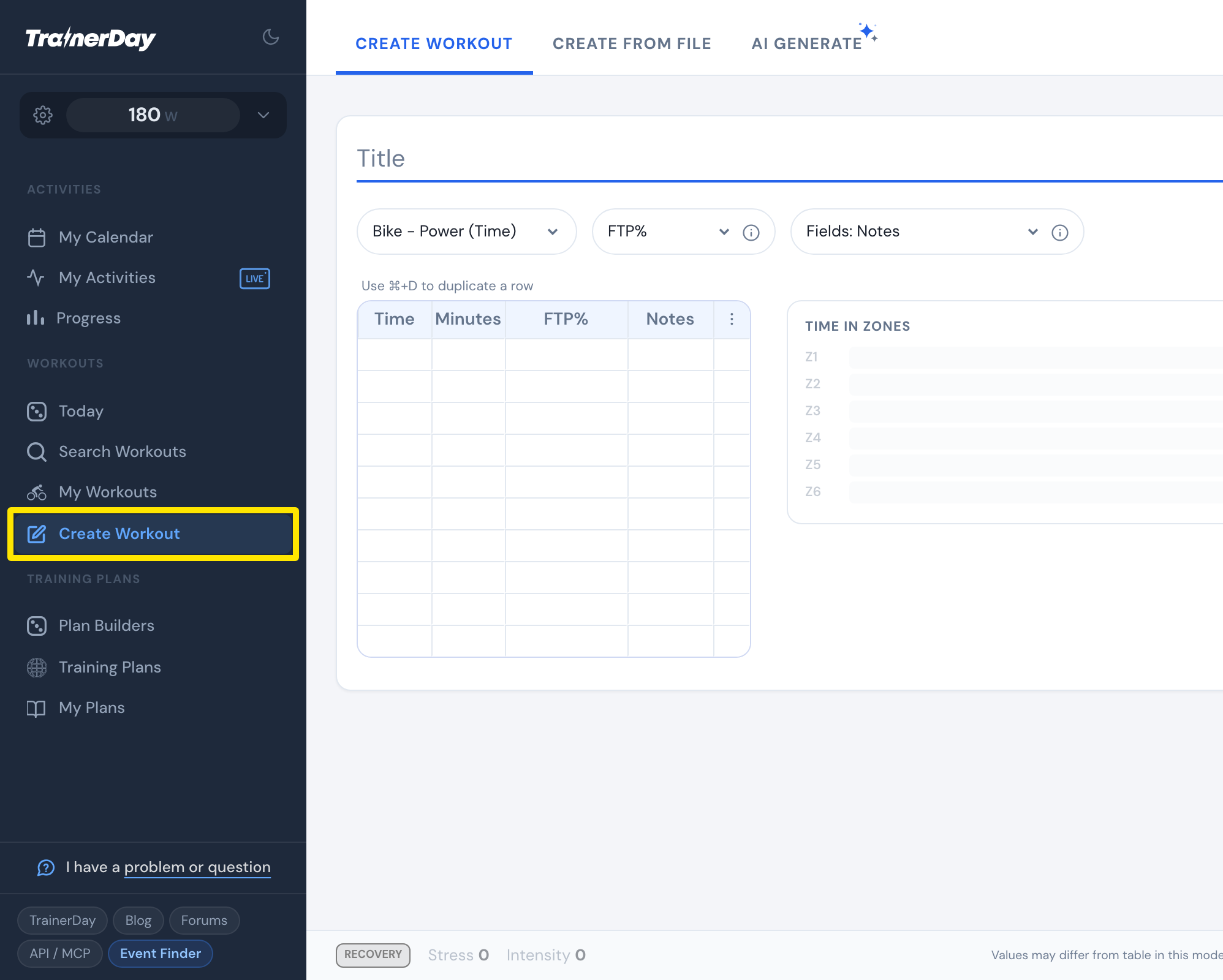 Where: Website · Create Workout · open it
- Click the ⋮ at the end of the row (the Actions column) next to where the new row goes.
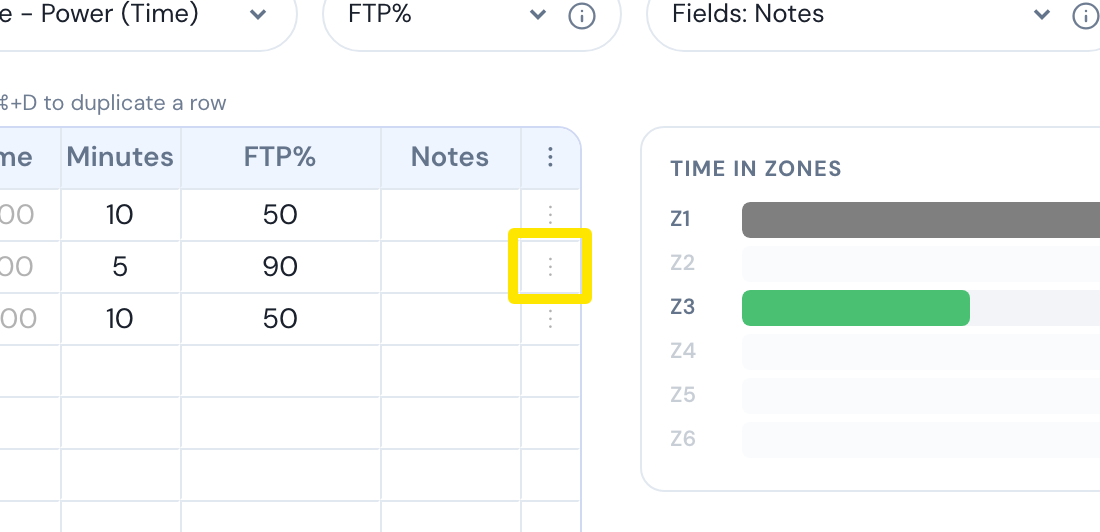 Where: Website · Create Workout · open it
- Click Add segment above or Add segment below. Inside a repeat block, the labels end in "in block".
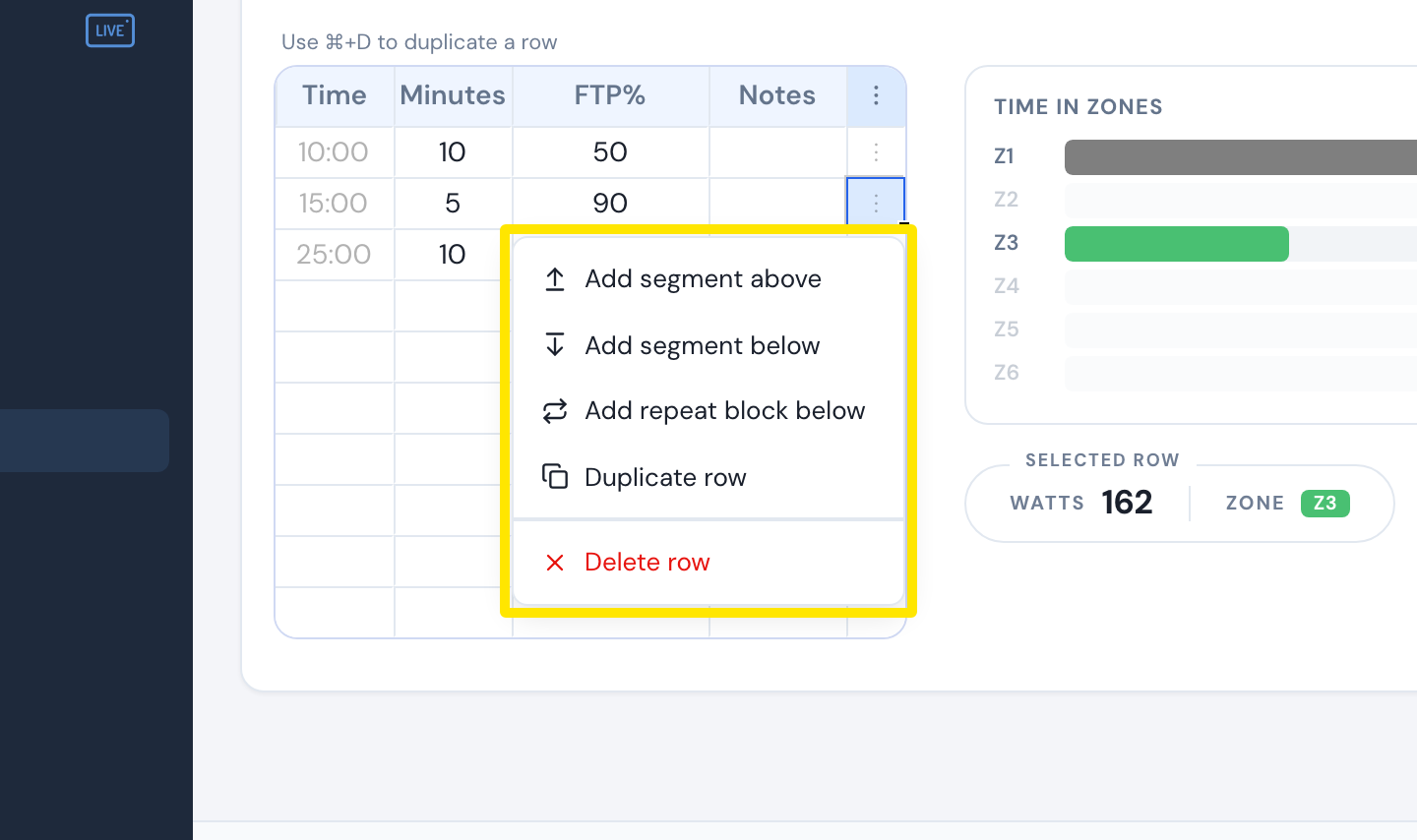 Where: Website · Create Workout · open it
Good to know: No keyboard shortcut inserts a row, but Cmd+D (Ctrl+D on Windows) copies the selected row directly below it, and typing into the empty row under the last block adds a new block.
Works on: website only. The mobile and desktop apps have no row editor.