

How do I create a workout with a power range instead of a ramp?
In the website workout editor a typed power range such as 50-100 always makes a ramp, and a flat power range does not exist, so type a single number in the FTP% column for a flat target.
If you want a power range target (for example 200–220 W) on your Garmin, set that in the Garmin export: see How do I choose power ranges or exact power for Garmin workouts?
- On the website, open Create Workout (https://app.trainerday.com/workouts/create).
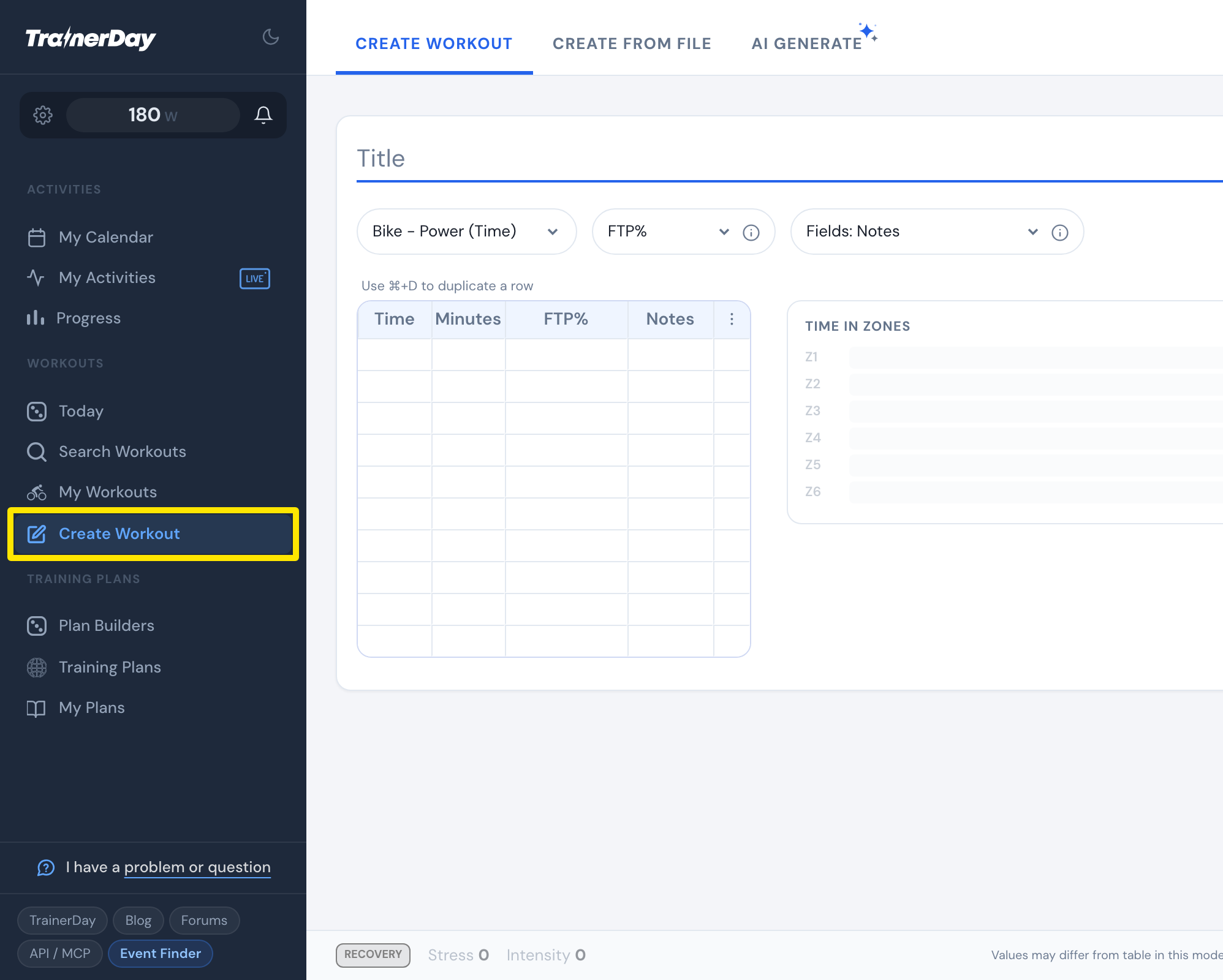 Where: Website · Create Workout · open it
- In a row, click the FTP% cell and type a range such as 50-100. That row becomes a ramp from 50% to 100% over its minutes.
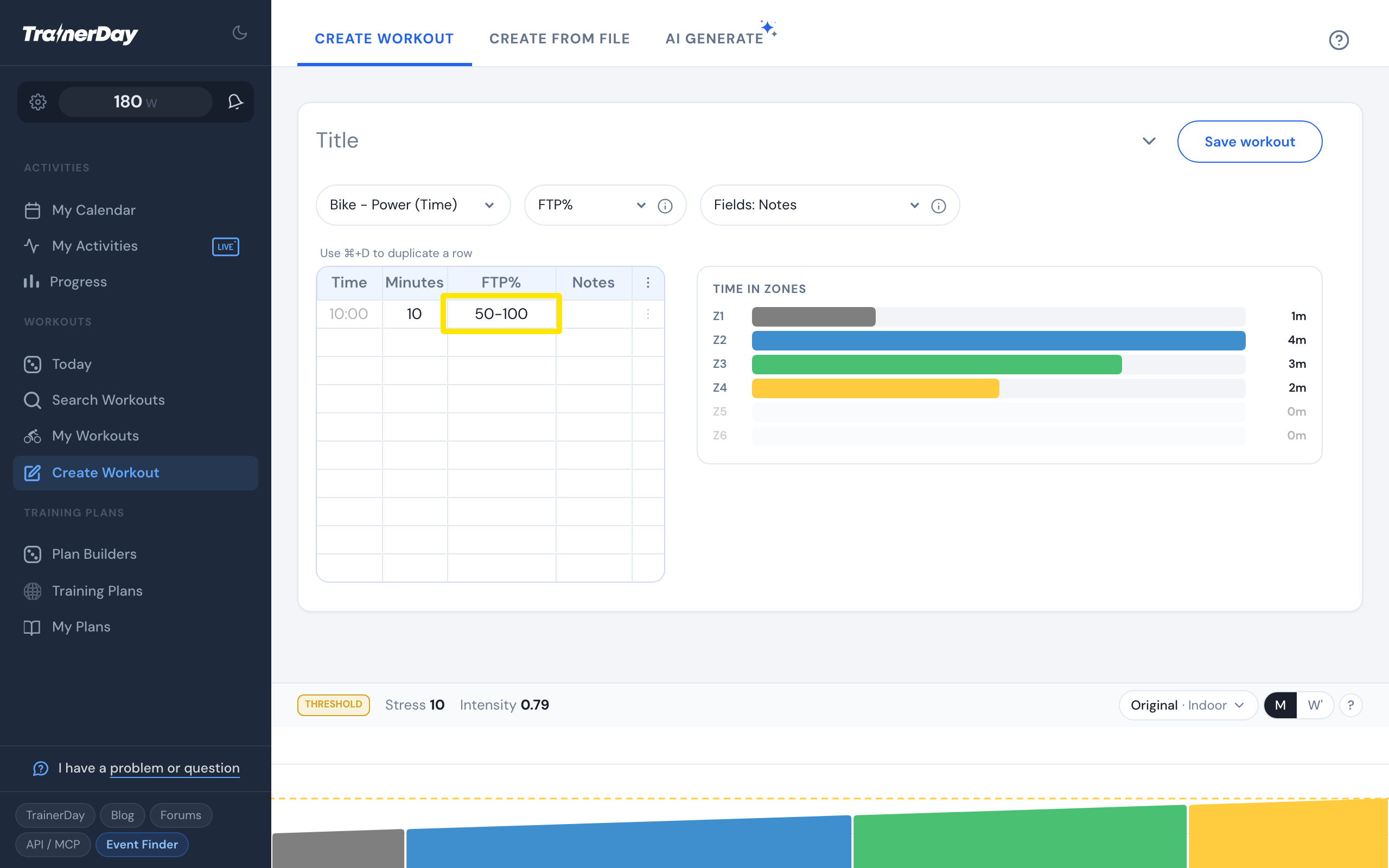 Where: Website · Create Workout · open it
- For a flat target, type a single number instead (for example 90).
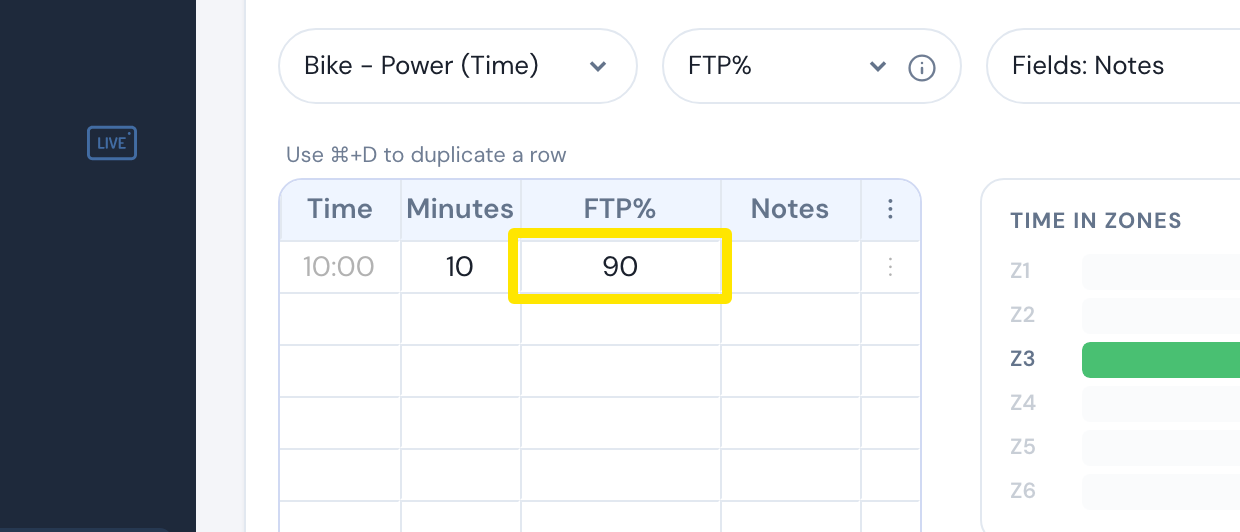 Where: Website · Create Workout · open it
- To work in Watts or Zones, pick it in the FTP% dropdown above the table. A range typed there is also a ramp.
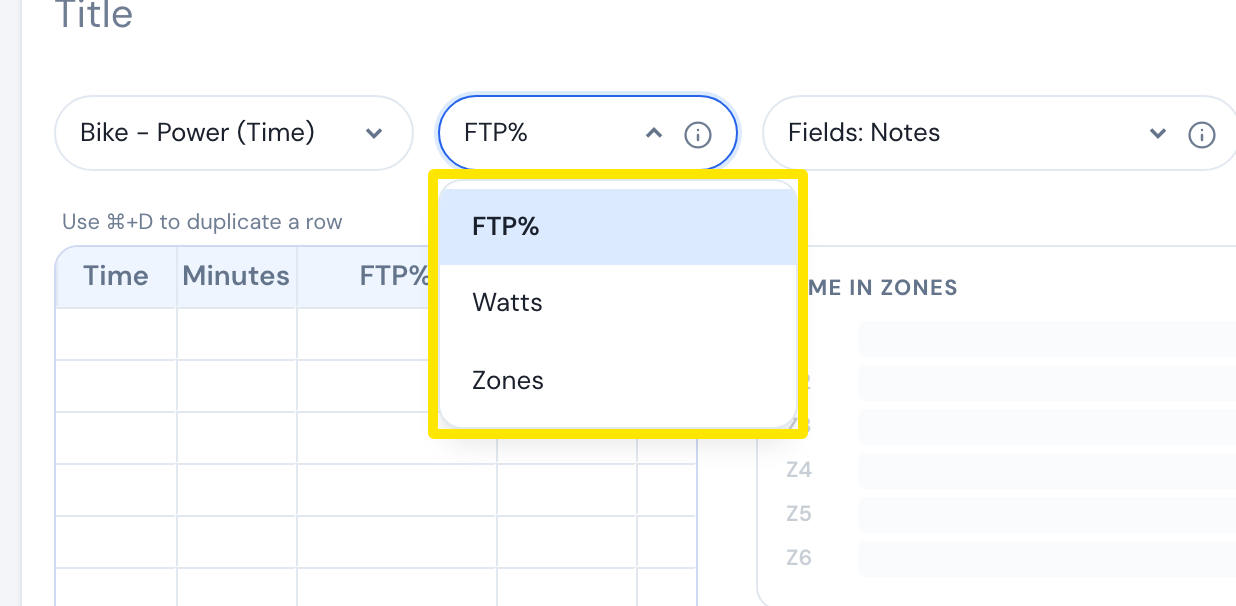 Where: Website · Create Workout · open it
Good to know: There is no flat-range option: a typed range is always a ramp, in FTP%, Watts or Zones.
Works on: Website only. The mobile and desktop apps have no workout editor.