

How do I refresh my workouts in the app?
Refresh your workouts in the TrainerDay mobile app by tapping the round-arrows refresh button at the top of the Workouts tab. It reloads your workouts and lists and keeps you on the list you had selected.
- In the mobile app, tap the Workouts tab at the bottom of the screen.
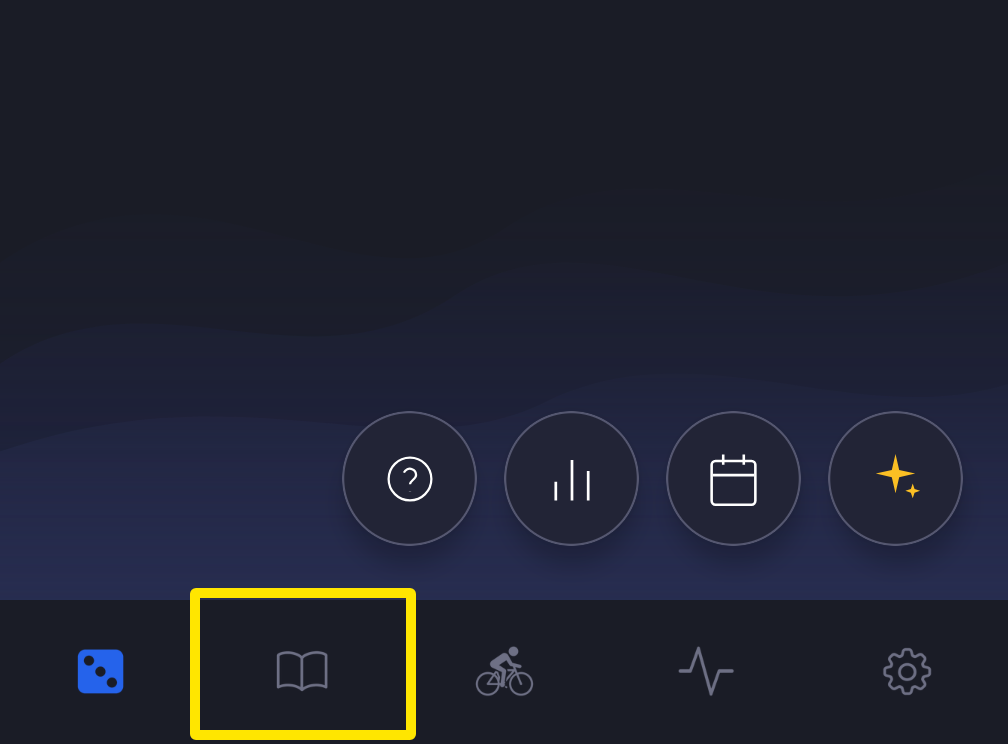 Where: Mobile app · the tabs at the bottom of the screen
- Tap the round-arrows refresh button at the start of the row of list names (Plan, Favs and your other lists) at the top. It spins while your workouts and lists reload from your account. You stay on the list you had selected.
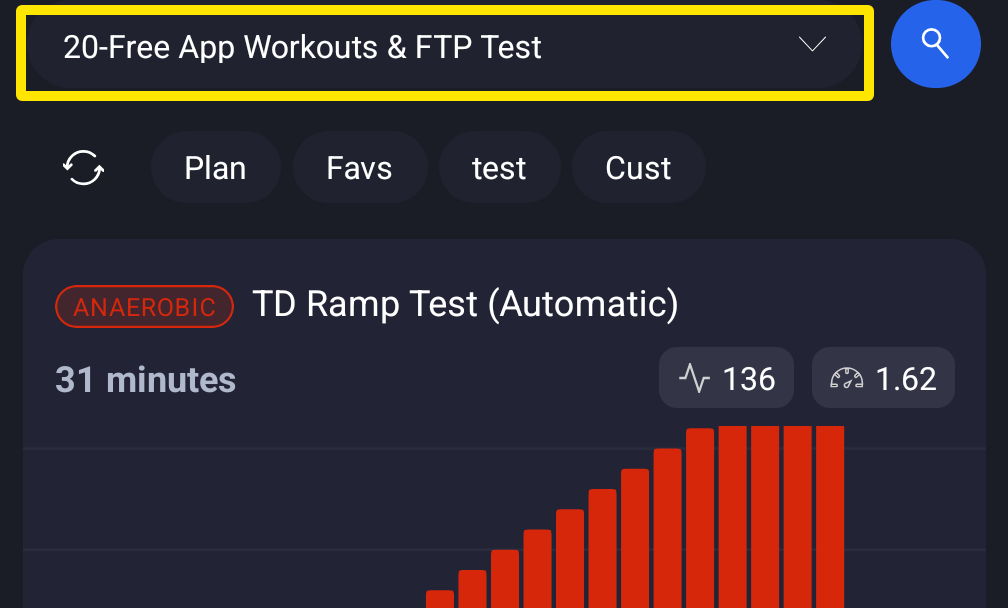 Where: Mobile app · Workouts tab
Good to know: The workout list has no pull-down refresh; only the Today screen does. Refreshing does nothing while offline, while searching or in guest mode. Free accounts see the zone filter in that row instead of the refresh button.
Works on: Mobile app (refresh button on the Workouts tab), desktop app (refresh button right of the filter box on the Workouts tab), website (reload the My Workouts page).