

How do I create a custom list and add workouts to it?
On the TrainerDay website, create a list in My Workouts with List Manager, then open any workout and use its Add to button to put it in that list.
- Log in on the website and click My Workouts in the sidebar (app.trainerday.com/library).
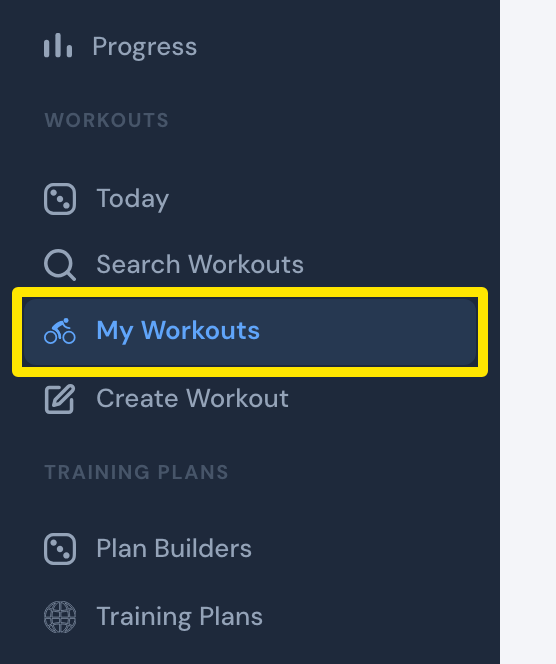 Where: Website · My Workouts · open it
- Click List Manager.
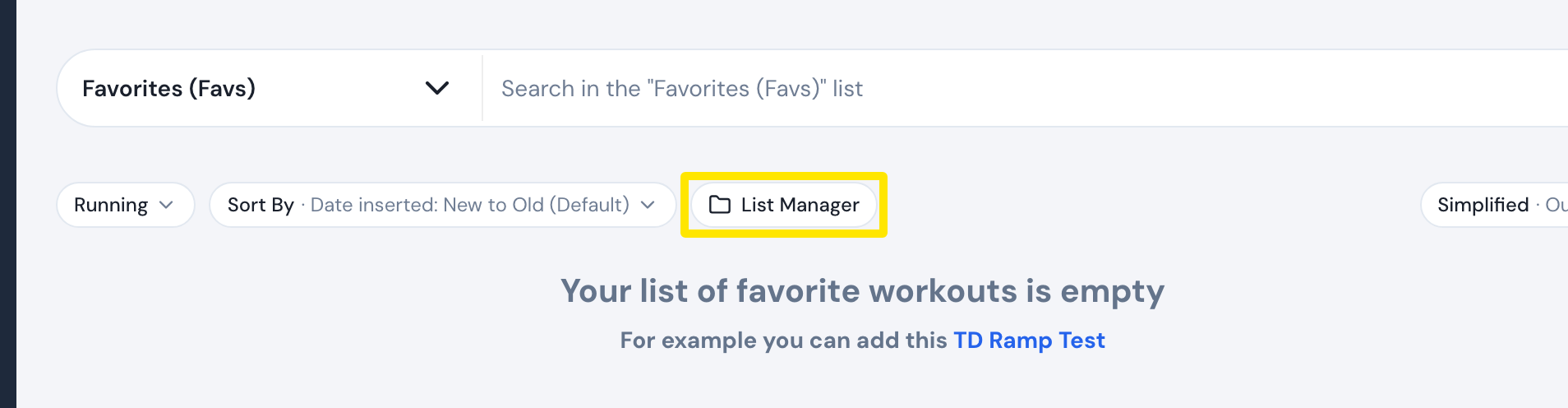 Where: Website · My Workouts · open it
- Click + Create new list, then type a List Name and Short Name.
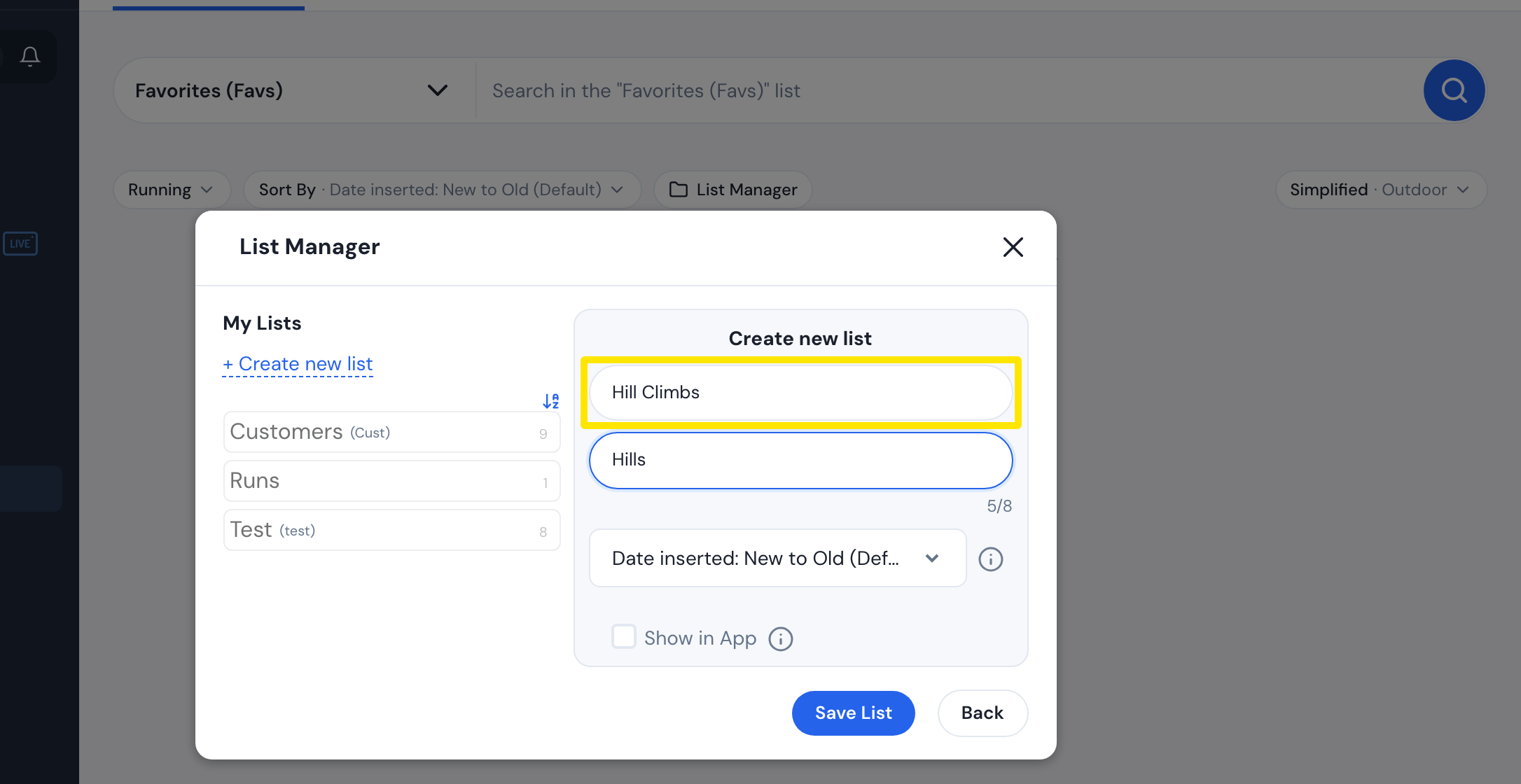 Where: Website · My Workouts → List Manager · open it
- Tick Show in App if you want the list in the mobile app, then click Save List.
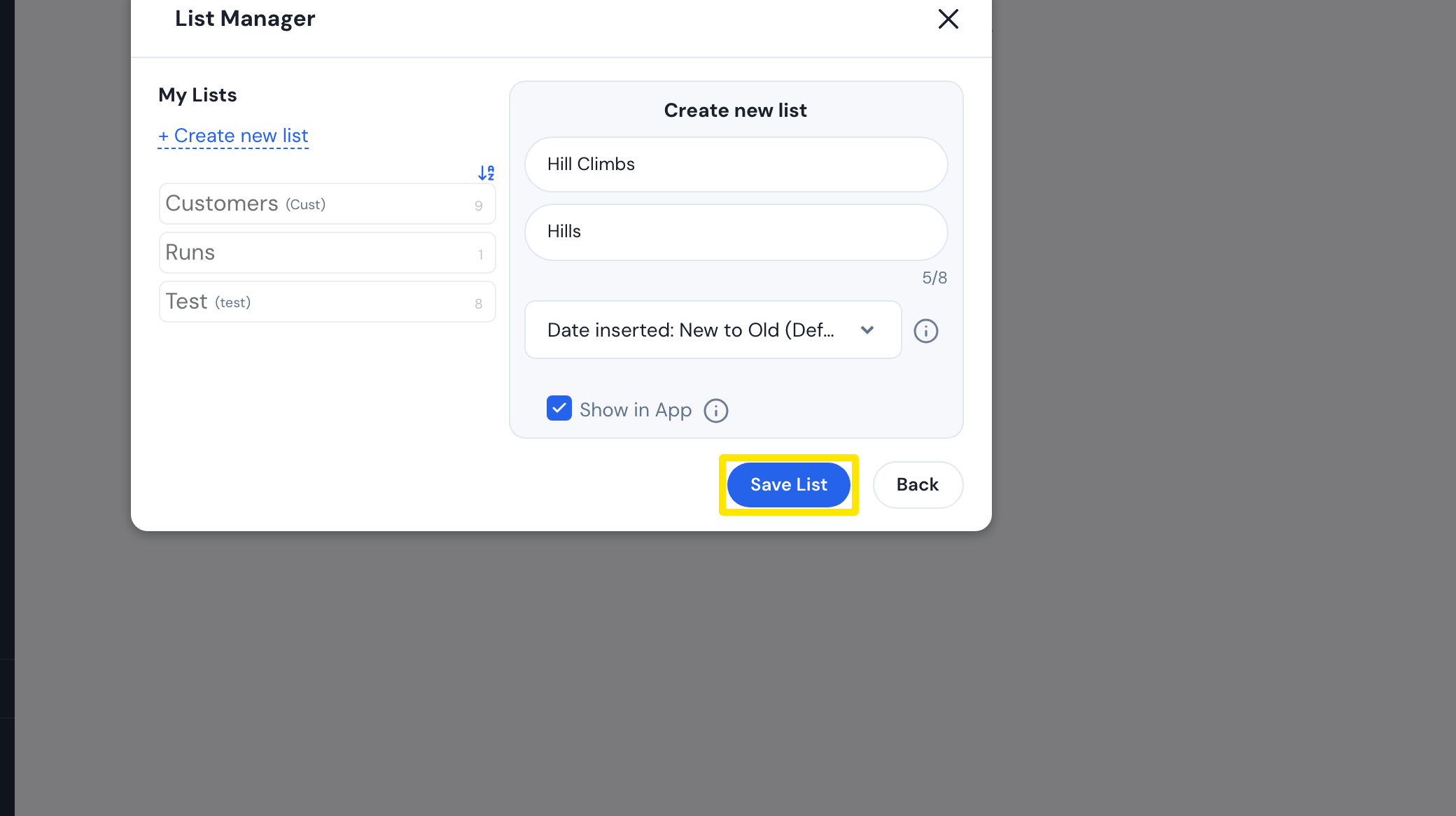 Where: Website · My Workouts → List Manager · open it
- Close List Manager with the X. Back on My Workouts, click a workout's name to open it. You can also open one from Search Workouts.
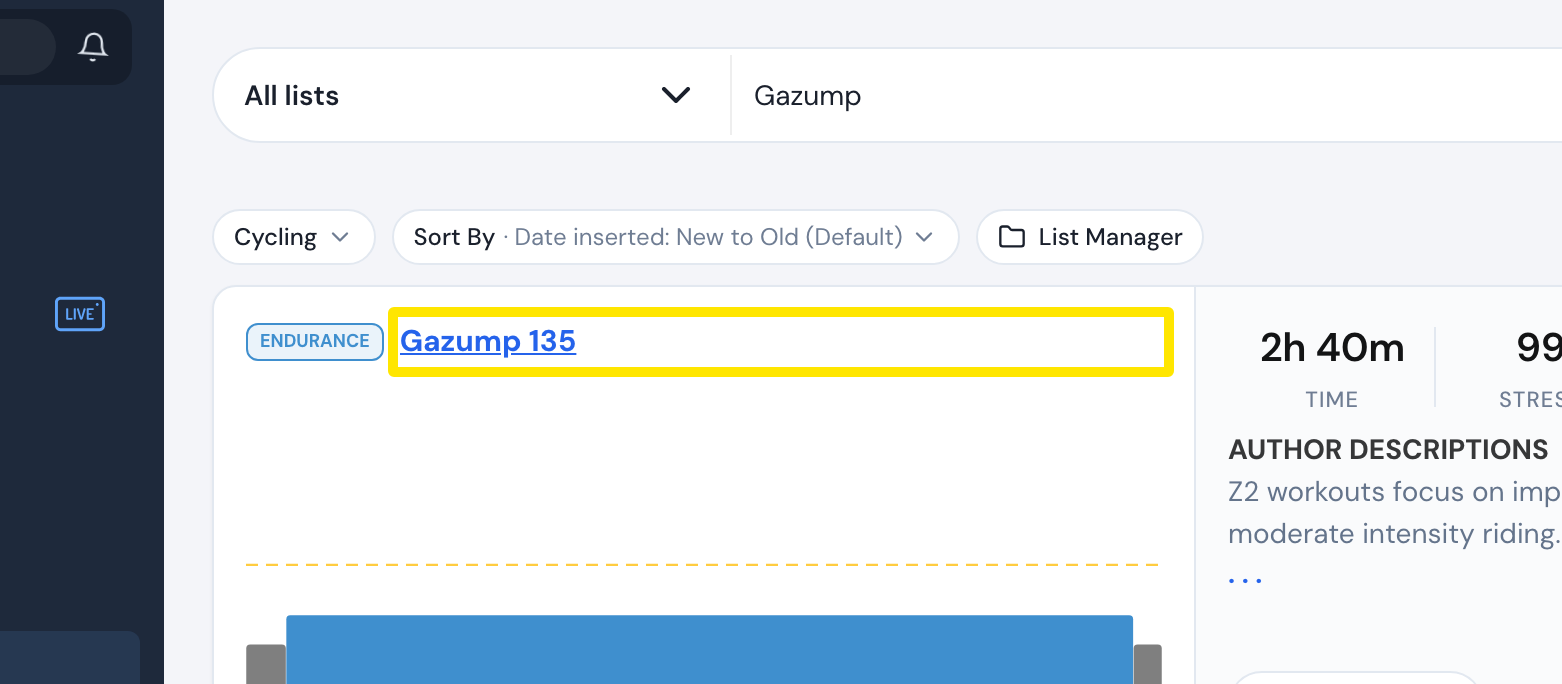 Where: Website · My Workouts · open it
- On the workout's page, click Add to and pick your list. You can also choose Add to new List.
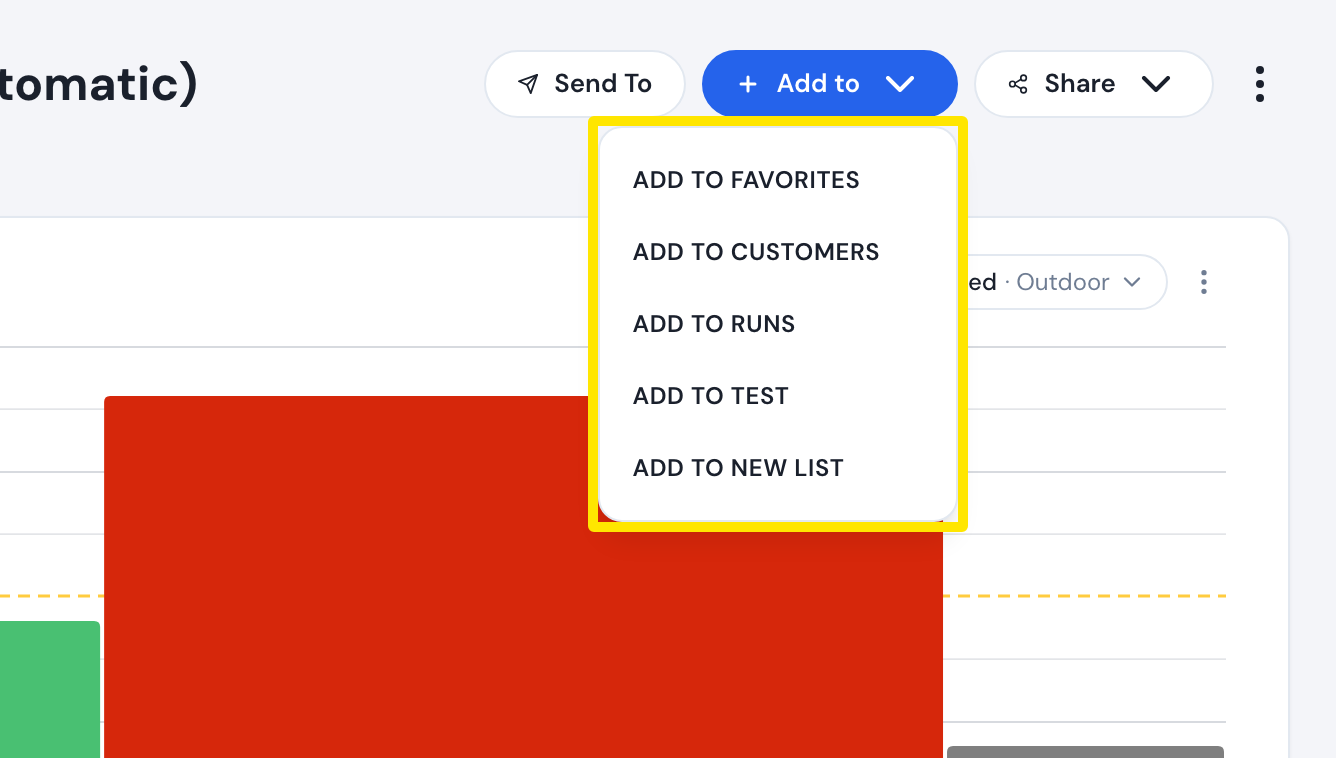 Where: Website · a workout's page (click a workout in Search Workouts or My Workouts)
Good to know: List names can be up to 30 characters and short names up to 8. On the website, Show in App is for paid users only.
Works on: Website (create lists and add workouts). In the mobile app, lists marked Show in App appear in the list dropdown on the Workouts tab.