

How do I add or remove workouts from my favorites?
On the TrainerDay website, open a workout from My Workouts, then use its Add to button to add it to Favorites or remove it.
- On the website, click My Workouts in the left sidebar (app.trainerday.com/library).
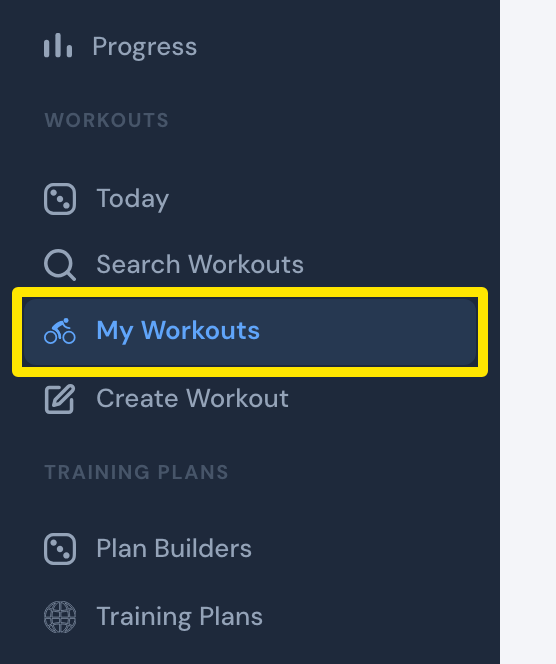 Where: Website · My Workouts · open it
- Click the workout's name to open its page.
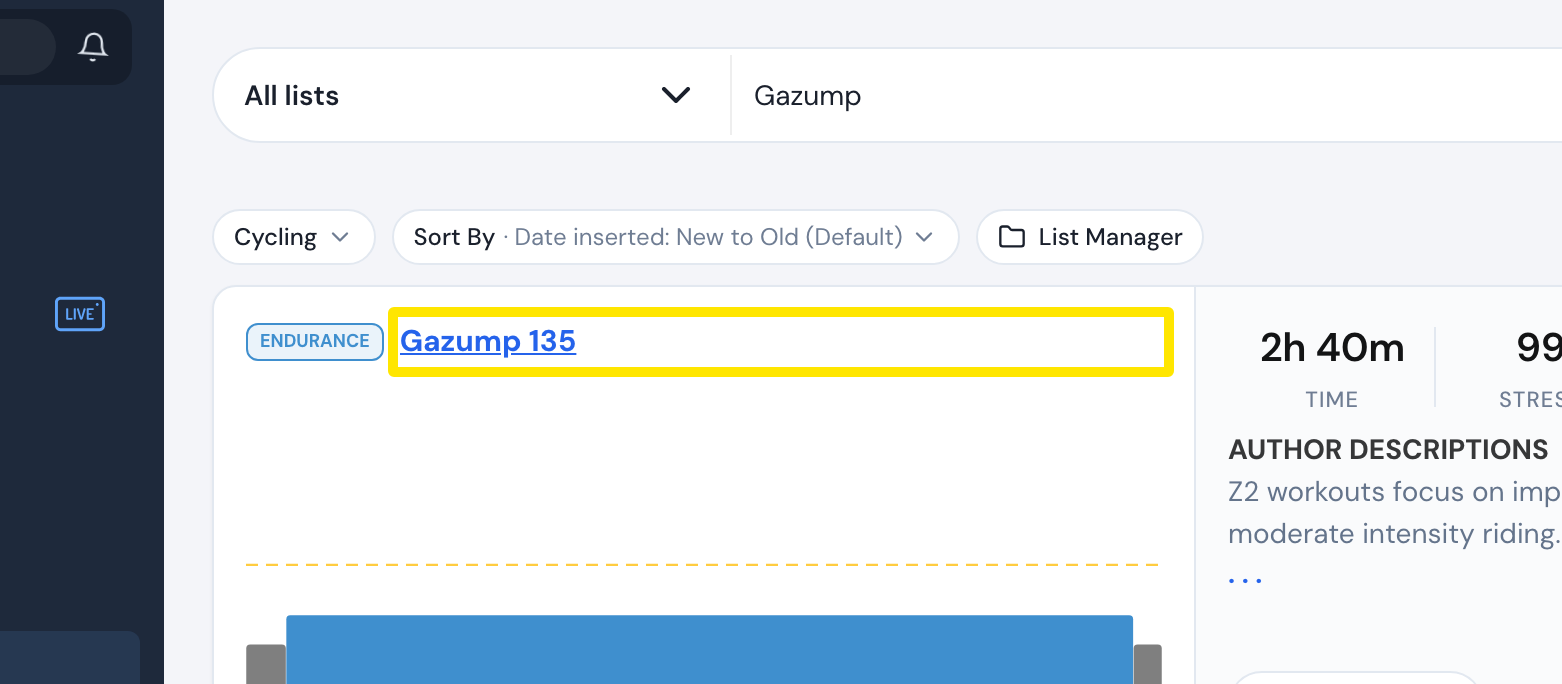 Where: Website · My Workouts · open it
- On the workout's page, click Add to. It reads Added once the workout is in a list.
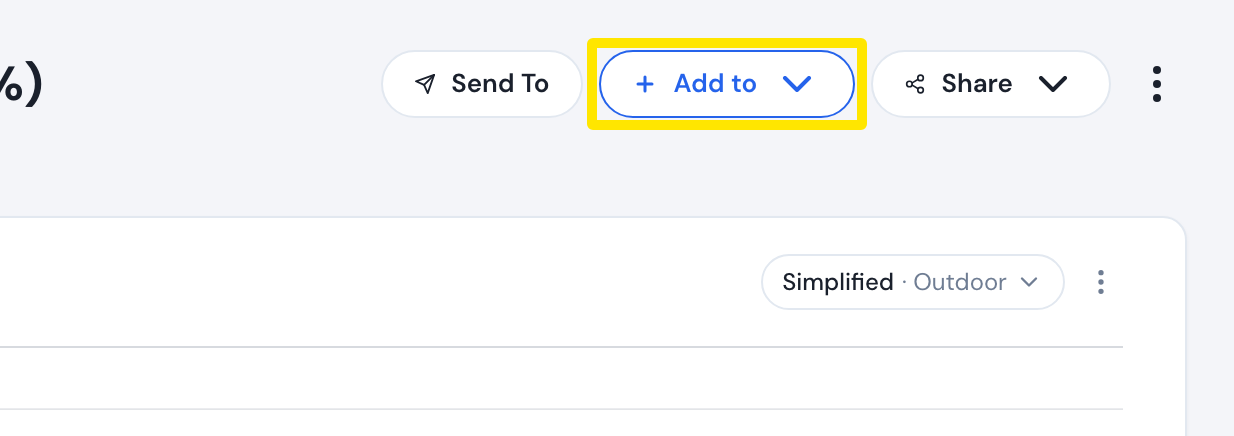 Where: Website · a workout's page
- Click Add to Favorites, or Remove from Favorites if it is already there.
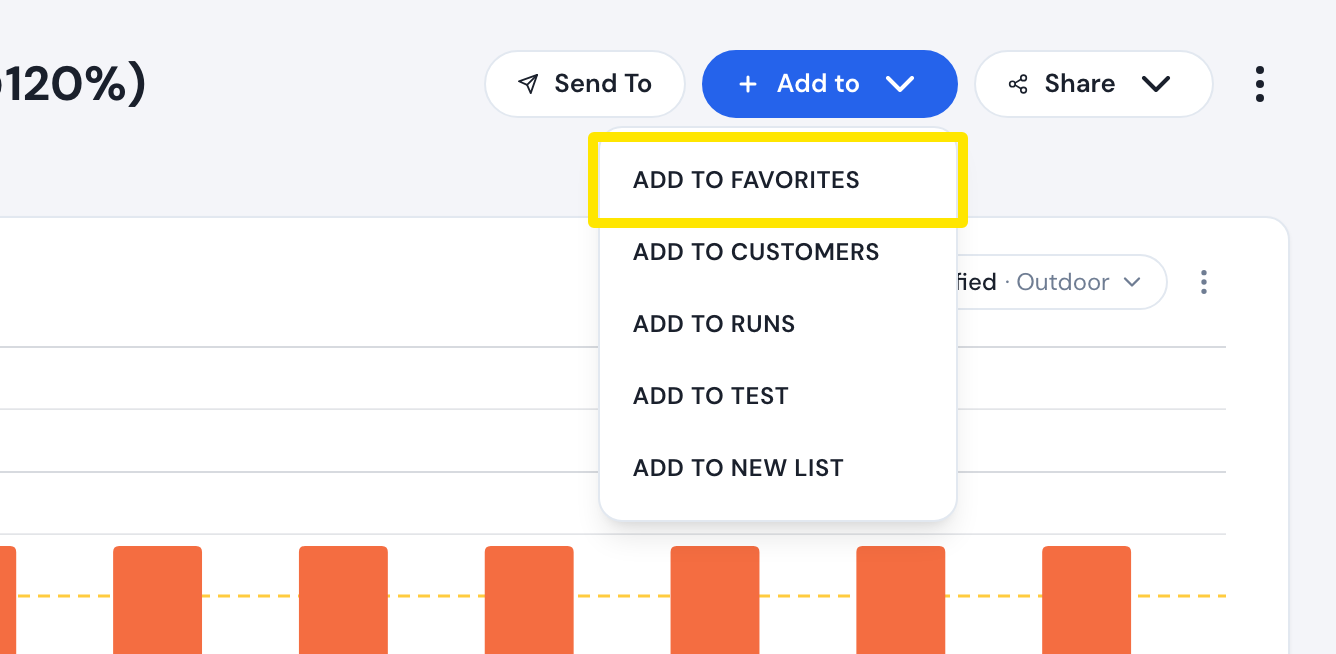 Where: Website · a workout's page
- To check your favorites, click My Workouts in the sidebar again. Favorites is the first option in the list dropdown.
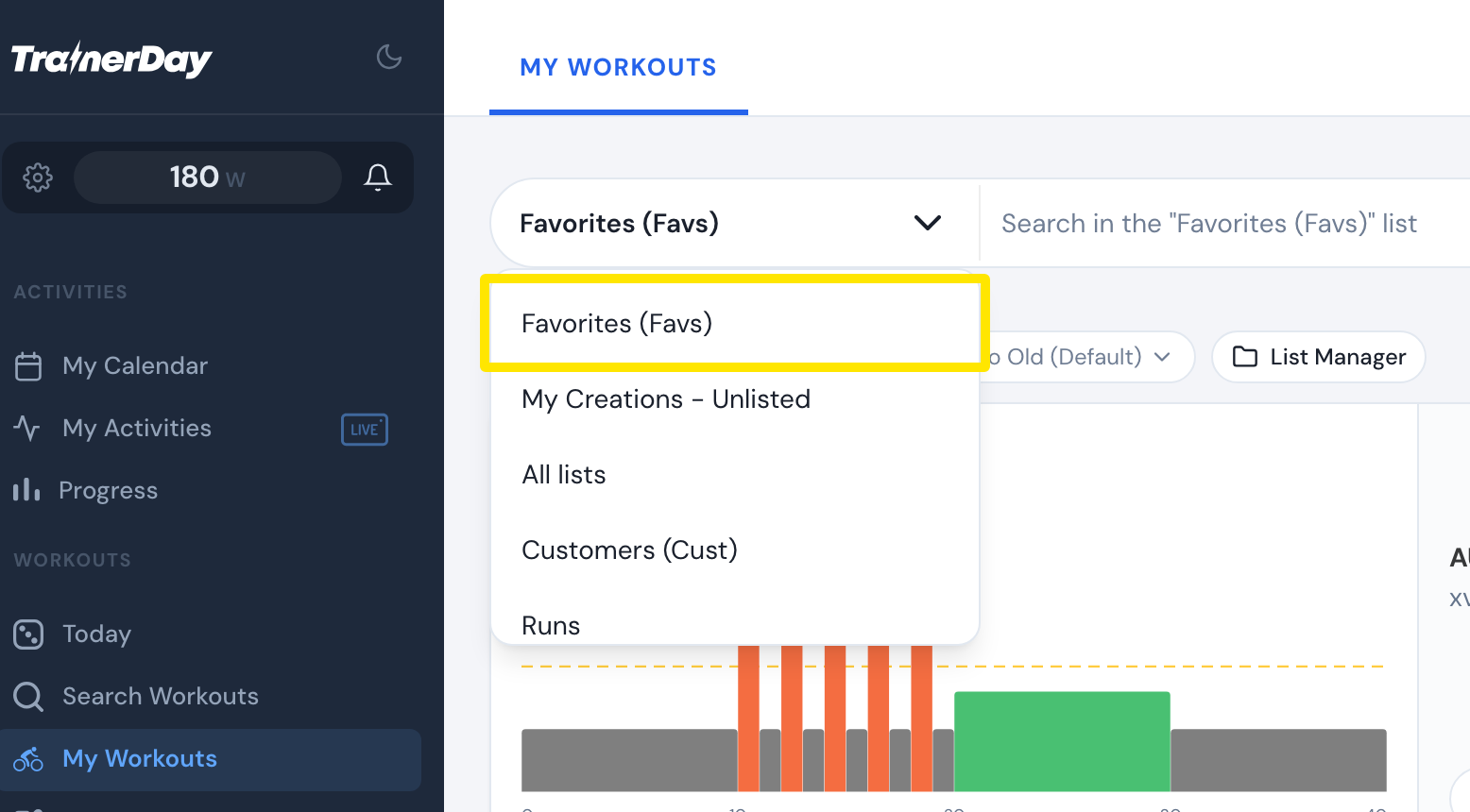 Where: Website · My Workouts · open it
Good to know: Free users can add favorites on the website. Your favorites are kept if you switch between free and paid.
Works on: Website for all signed-in users. Mobile app for paid users only: open the workout info popup, tap + Add to List, then Add Favorites or Remove Favorites. Desktop app for paid users only: on the Search tab, select the workout, click Add to Library, then pick Favorites. The desktop app cannot remove a workout from a list.