

How do I remove a workout from one of my lists?
Remove a workout from one of your lists on the TrainerDay website by opening the workout, clicking Added, and choosing Remove from <list name>; the workout itself is not deleted.
Removing a workout from a list doesn't delete the workout. To delete a workout you made, see How do I delete a workout I created?
- On the website, open the workout: its page, or My Workouts.
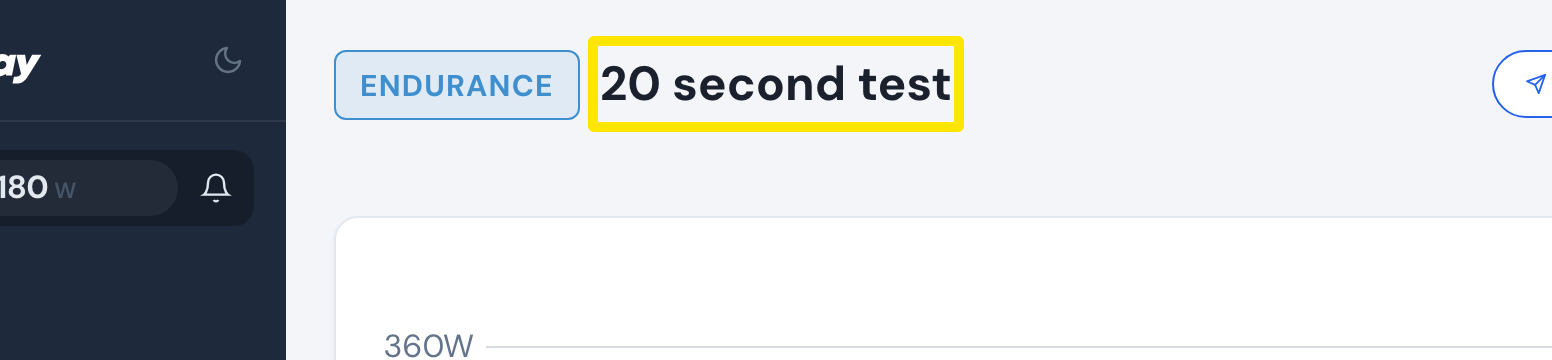 Where: Website · a workout's page (click a workout in Search Workouts or My Workouts)
- Click the Added button.
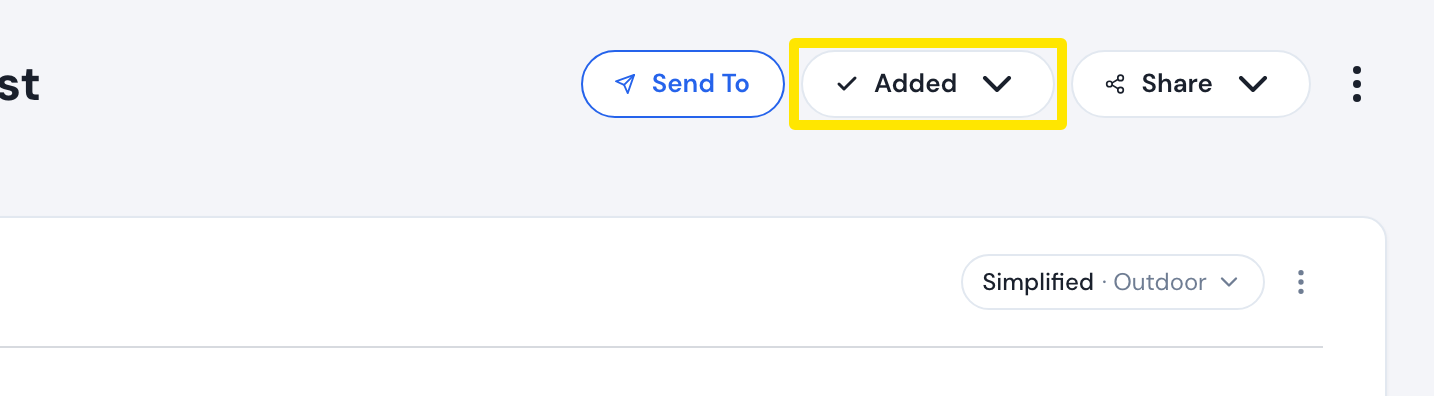 Where: Website · a workout's page (click a workout in Search Workouts or My Workouts)
- Click Remove from <list name> for the list you want. The workout stays in your other lists, Favorites included.
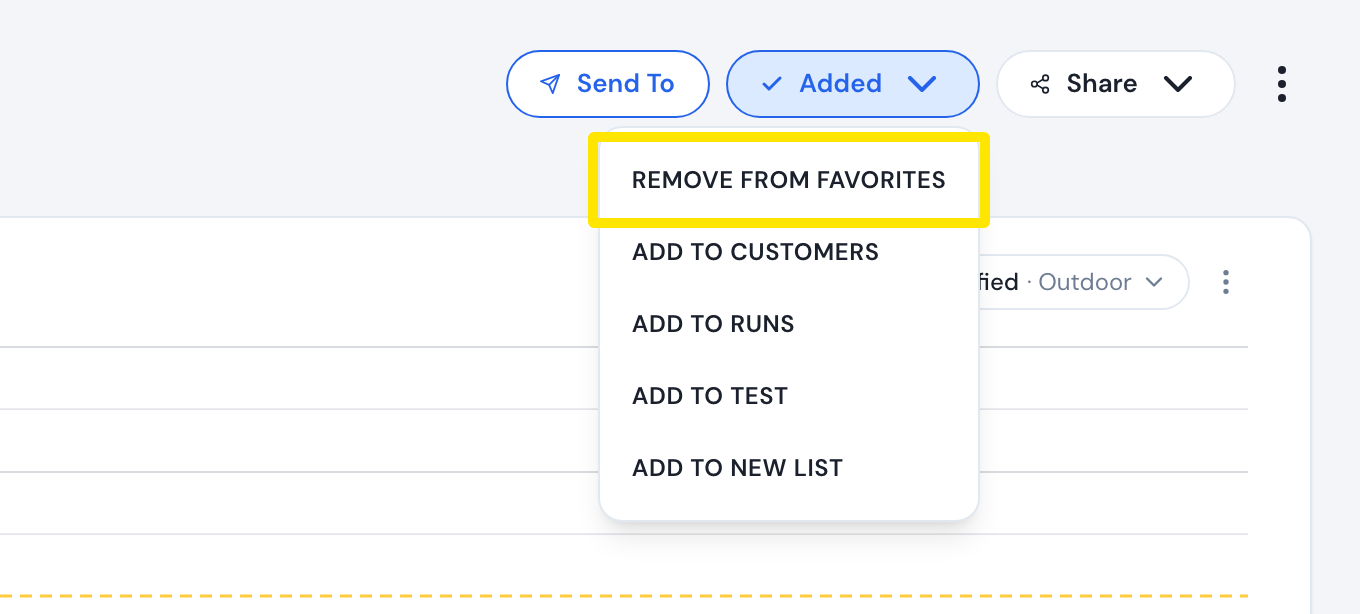 Where: Website · a workout's page (click a workout in Search Workouts or My Workouts)
- To take it out of every list, including Favorites, click Remove from All Lists (it shows only when the workout is in more than one list).
Good to know: Removing a workout from a list doesn't delete it or move it to Favorites, and these steps work the same for workouts someone else created.
Works on: website; mobile app (paid): in the workout info popup, tap Added to List, then Remove <list name>; not the desktop app.