

How do I make a workout public or private?
Make a workout public or private on the TrainerDay website by opening it in the workout editor and ticking or unticking Personal/Private next to Save.
- On the website, open the workout in the editor: click Create Workout in the sidebar for a new one (app.trainerday.com/workouts/create), or, for one of yours, open the workout's three-dots menu and click Edit Workout.
- Next to Save, tick Personal/Private to keep the workout private. Leave it unticked to make it public.
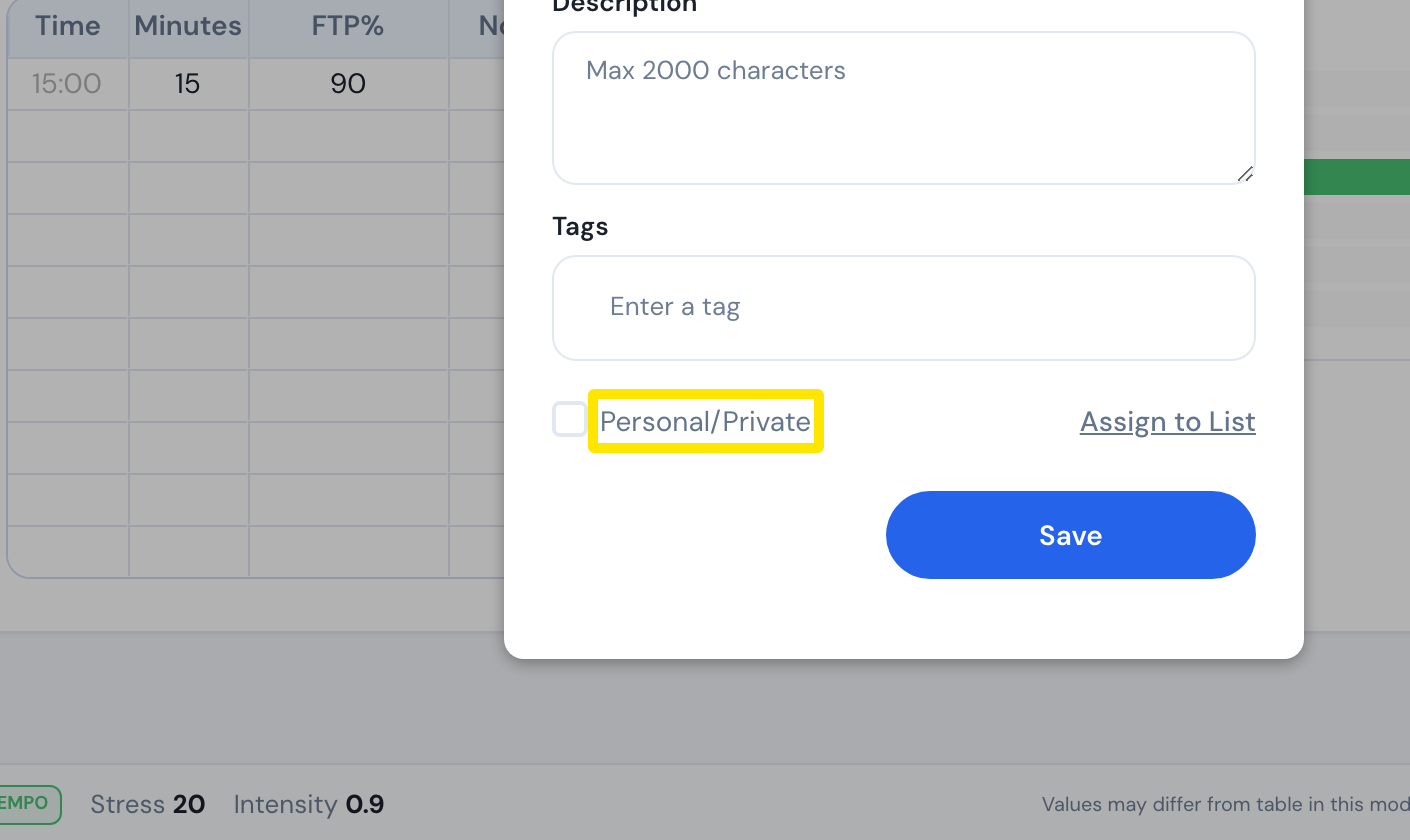 Where: Website · workout editor (Create Workout shown; Edit Workout opens the same box) · open it
- Click Save.
Good to know: Workouts shorter than 10 minutes or with HR or Slope segments are always saved private. The box is ticked and greyed out, so slope workouts cannot be made public. A workout named test is also saved private.
Works on: Website only. The mobile app and desktop app have no public/private setting.