

怎麼在 Linux 桌面版 App 檢查藍牙連線?
在 Linux 桌面版 App 點藍牙按鈕開啟裝置,看藍牙狀態列,再連接你的裝置,確認它有沒有移到「已連線」。
- 在 Linux 上請從 trainerday.com/download 下載 Linux (.deb) 版本安裝 TrainerDay。AppImage 版本無法使用藍牙。
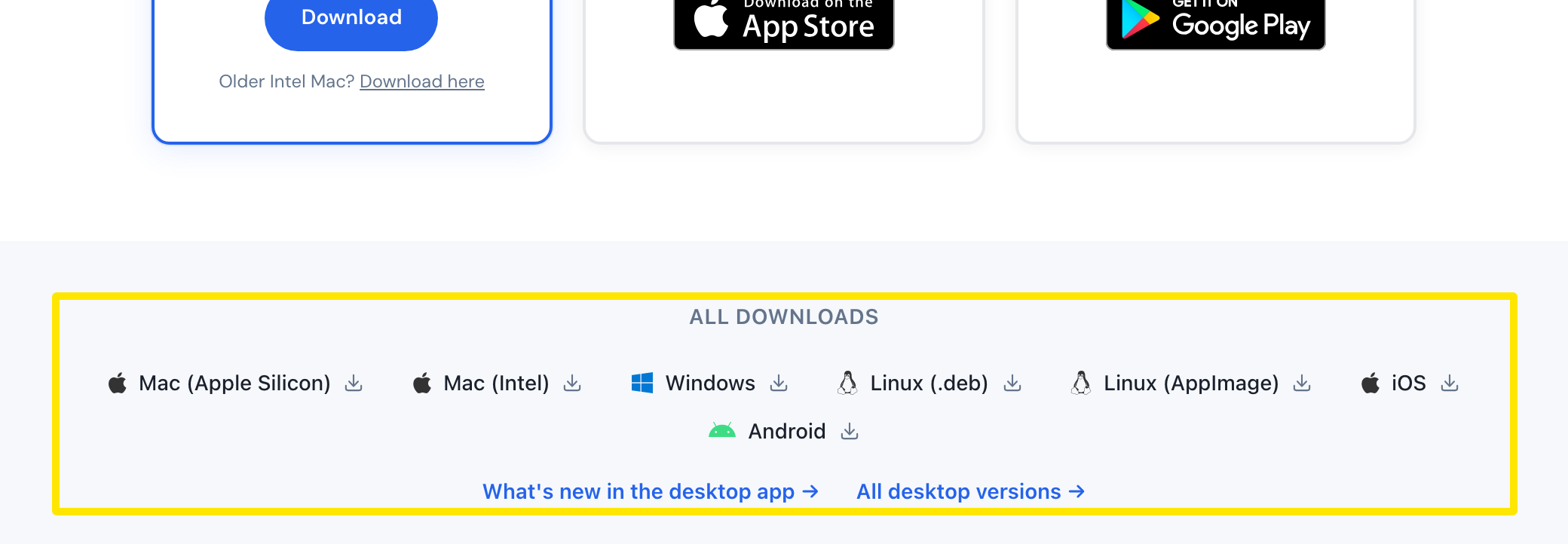 位置:網站 · trainerday.com/download · 打開
- 在桌面版 App 點右上角的藍牙按鈕,開啟裝置。
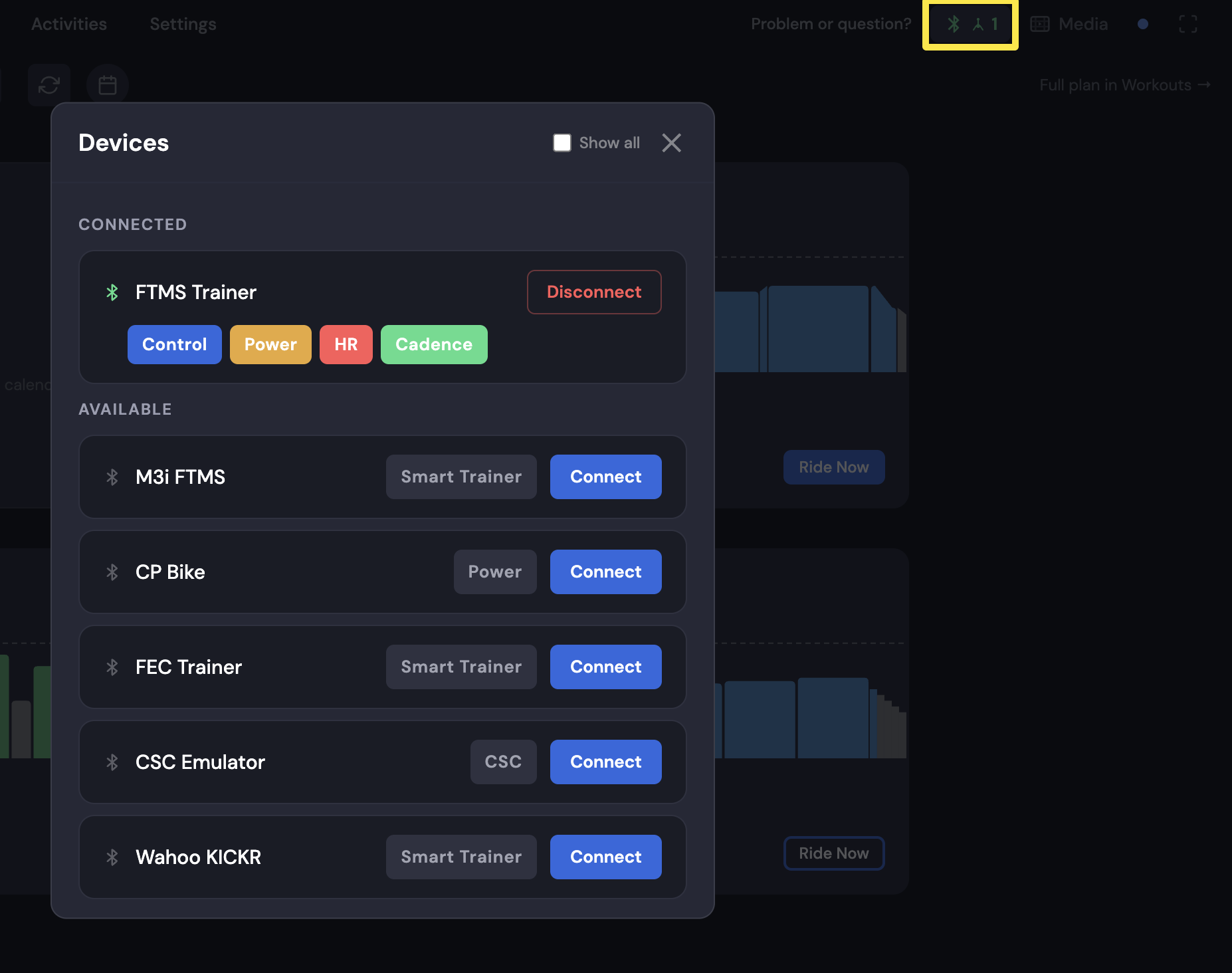 位置:桌面版 App · 今天分頁
- 看裝置最上方的狀態列。綠色的藍牙已就緒表示藍牙可以用。藍牙已關閉、未授權使用藍牙、沒有藍牙或 Bluetooth starting… 表示藍牙還不能用。
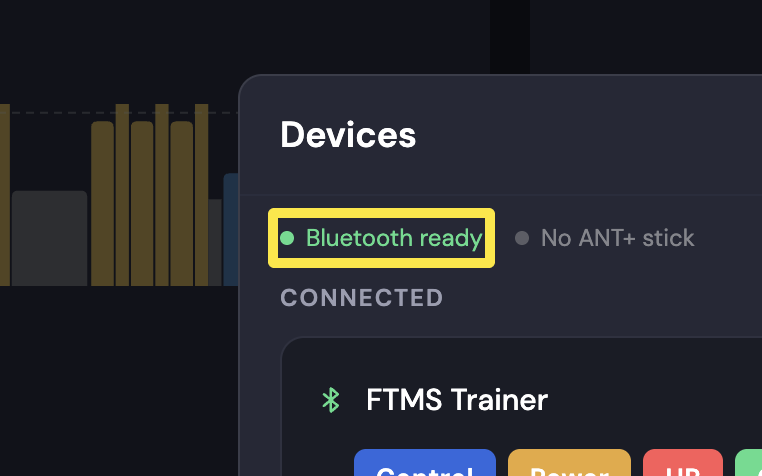 位置:桌面版 App · 今天分頁
- 在可用下方,點裝置旁邊的連接。成功的話,裝置會移到已連線,並顯示控制、功率、心率或踏頻。如果顯示 Paired · Found, can't connect,代表連線失敗。
 位置:桌面版 App · 今天分頁
- 如果找不到裝置或連不上,在裝置裡點 Can't find your device? 或 Not connecting? 查看檢查清單。
小提醒: 訓練台和感測器只要在 TrainerDay 裡配對,不要在電腦的藍牙設定裡配對。在那裡配對可能會擋住 TrainerDay 的連線。
適用於: Linux、Mac 和 Windows 桌面版 App 都用同一個裝置視窗。手機 App 有自己的裝置畫面(設定 → 添加設備)。