

怎麼用藍牙測試頁面測試我的訓練台?
在 Android、Mac 或 Windows 上用 Chrome 或 Edge 開啟 trainerday.com/ble.htm,連接訓練台並查看即時數據,再設定 ERG 功率或坡度,確認阻力會跟著改變。
- 在 Android、Mac 或 Windows 上用 Chrome 或 Edge 開啟 trainerday.com/ble.htm。開始前,先關掉 Zwift、TrainerDay 和其他正在使用訓練台的 App。
- 點 Connect Device,在瀏覽器的清單中選擇你的訓練台,然後點 配對。
- 踩動踏板,觀察 Device Capabilities 和 Live Data Matrix(各服務的功率、踏頻、速度和心率)。
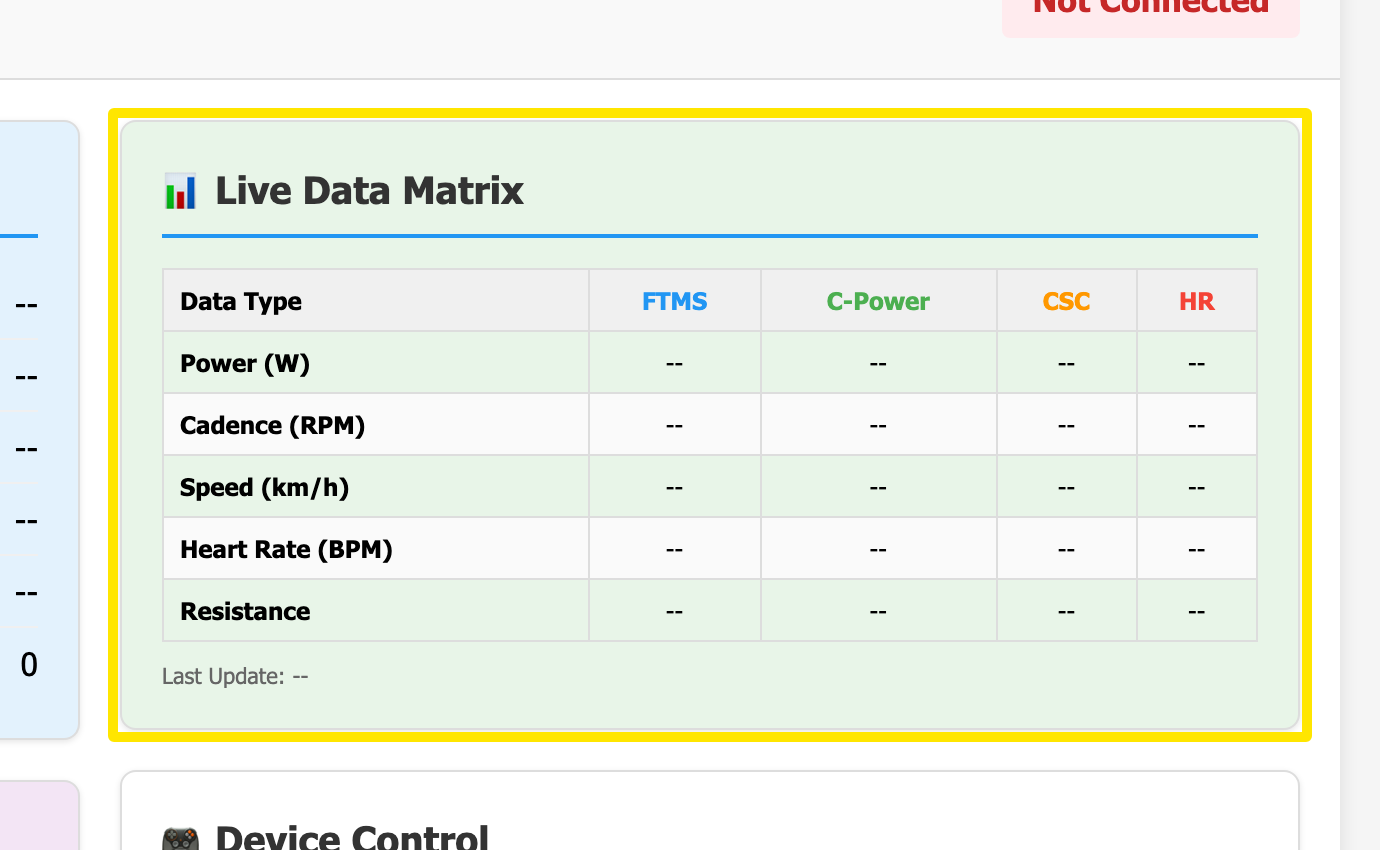 位置:網站 · BLE 測試頁面(trainerday.com/ble.htm)
- 在 Device Control 中,點 Request Control。
- 在 ERG Target 輸入瓦數並點 Set Power,或在 Slope 輸入坡度並點 Set Slope。感覺一下阻力有沒有變化。
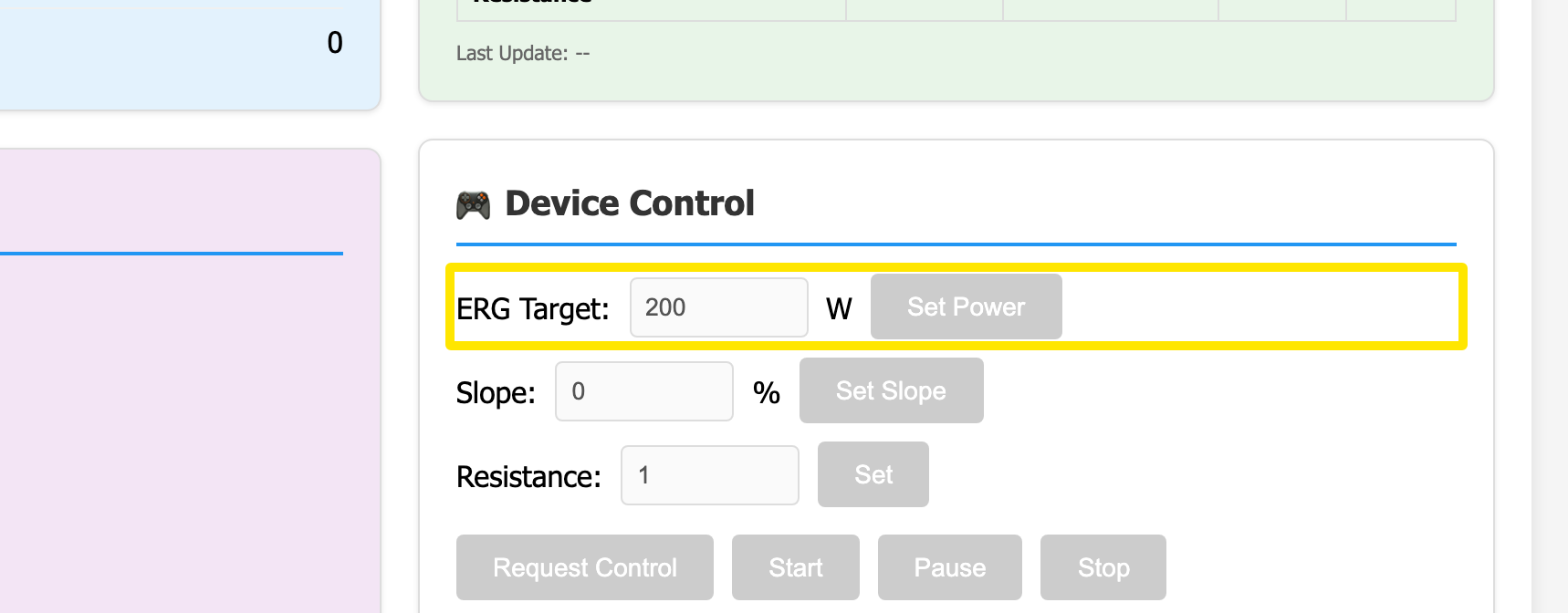 位置:網站 · BLE 測試頁面(trainerday.com/ble.htm)
- 點右上角的 Download Report 儲存測試結果。
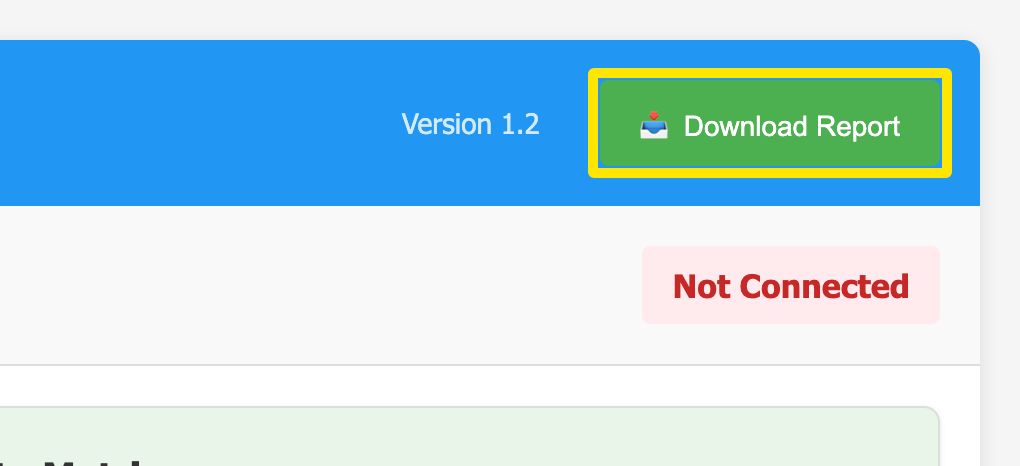 位置:網站 · BLE 測試頁面(trainerday.com/ble.htm)
**小提醒:**出現「No response from device - control NOT granted」通常代表還有其他 App 占用著訓練台。控制項呈灰色則代表訓練台不支援 FTMS 或 Wahoo 控制。
**適用於:**Android、Mac 和 Windows 上的 Chrome 或 Edge。iPhone、iPad 和 Safari 無法使用。