

How do I delete duplicate workouts from my calendar?
Remove duplicate workouts on the TrainerDay website's My Calendar: delete the doubled plan under Plans to clear its copies at once, or delete single extra workouts from their menu.
- On the website, open My Calendar and click Plans at the top.
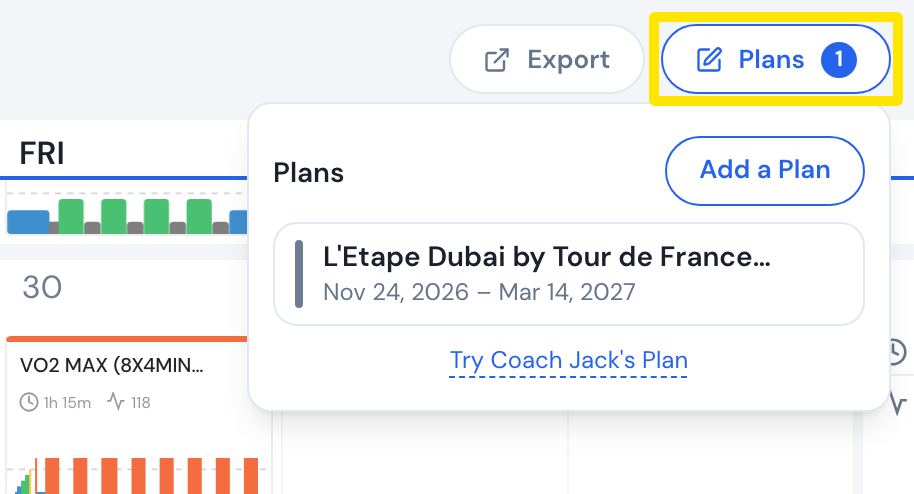 Where: Website · My Calendar · open it
- If a plan is listed twice, click the trash icon next to the extra copy.
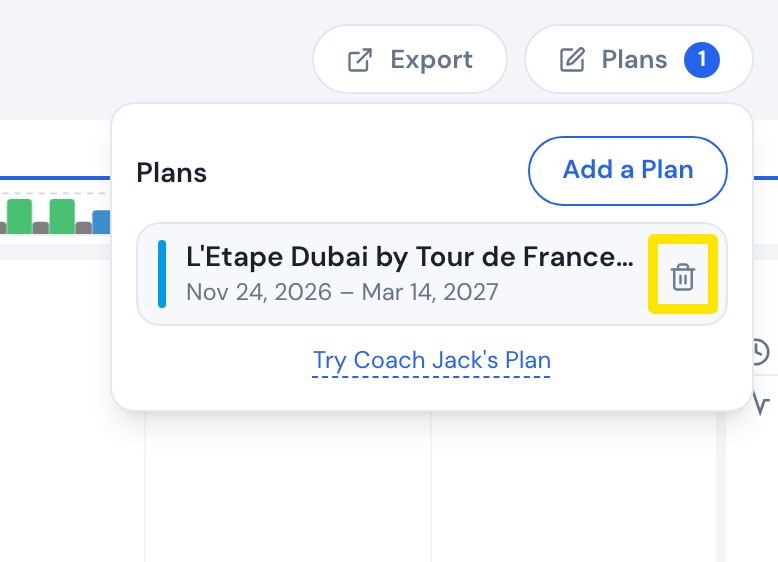 Where: Website · My Calendar · open it
- In Deleting Plan, click Delete. Its workouts you haven't done leave the calendar; completed ones stay.
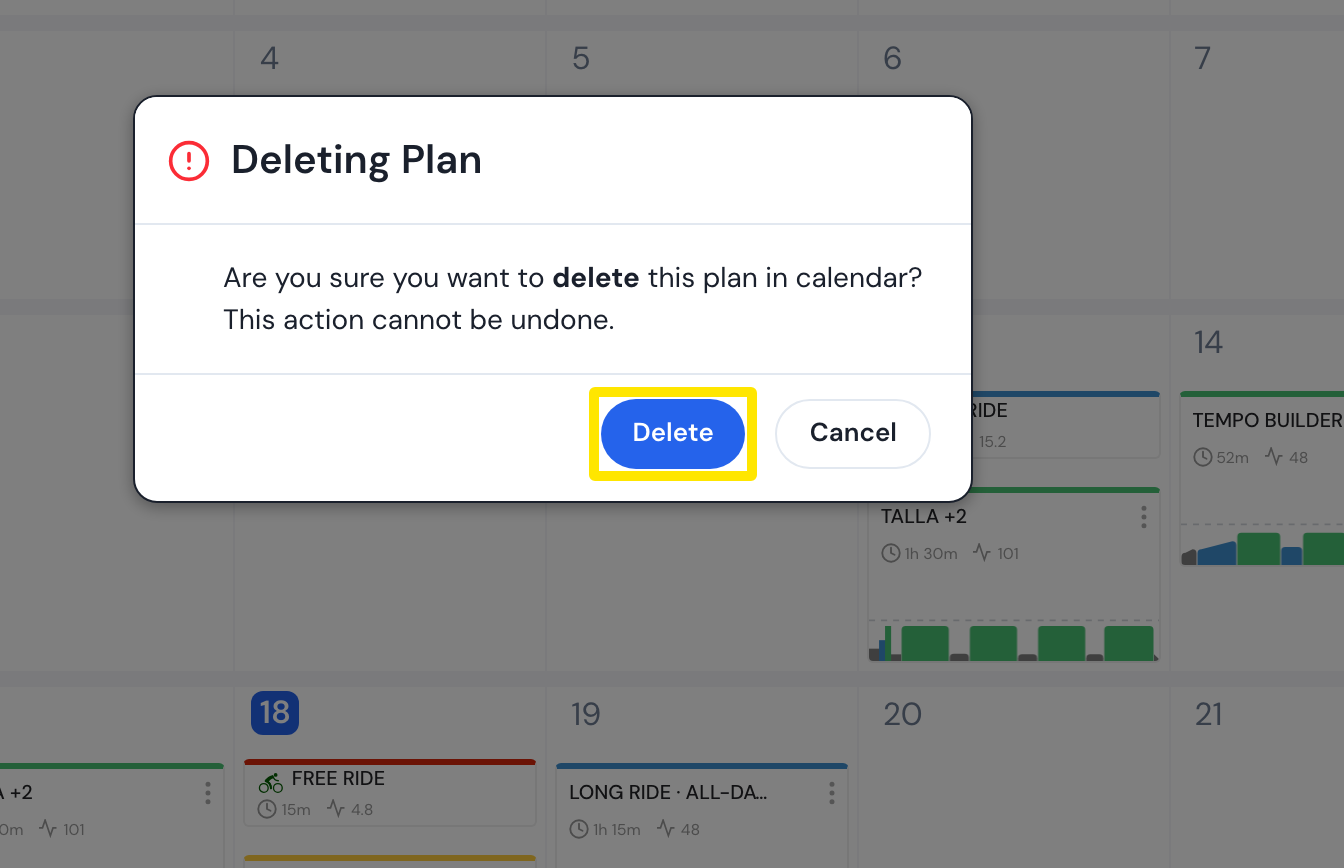 Where: Website · My Calendar · open it
- For a single extra workout, close the Plans list, open that workout's three-dot menu on the calendar and click Delete.
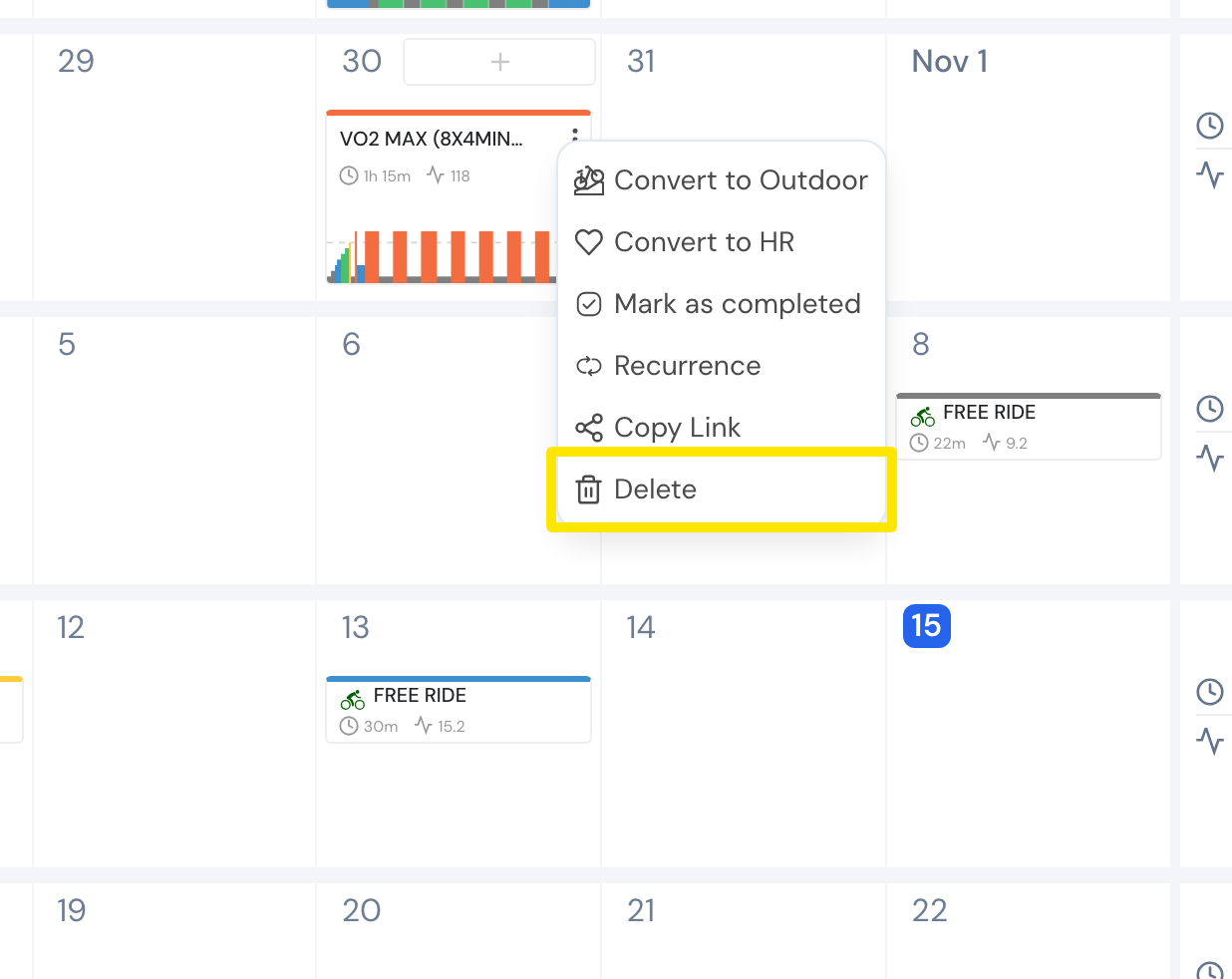 Where: Website · My Calendar · open it
Good to know: There is no way to select several workouts at once; deleting the plan is the quickest bulk removal.
Works on: Website; mobile app (Calendar tab → Plans → Remove, or a workout's menu → Delete); not the desktop app.