

How do I shift a whole training plan to other days?
On the website's My Calendar, use a week's 3-dots menu to shift a whole plan: Insert week above moves it one week later, and Delete week on an empty week before it moves it one week earlier.
If the plan hasn't started yet or you just want it to begin on a new date, change the plan's start date instead: see How do I change the start date of a training plan?
- On the website, open My Calendar and find the first week of the plan.
- Click the 3-dots menu at the right edge of that week.
- To move the plan one week later, click Insert week above. Everything from that week on moves one week later.
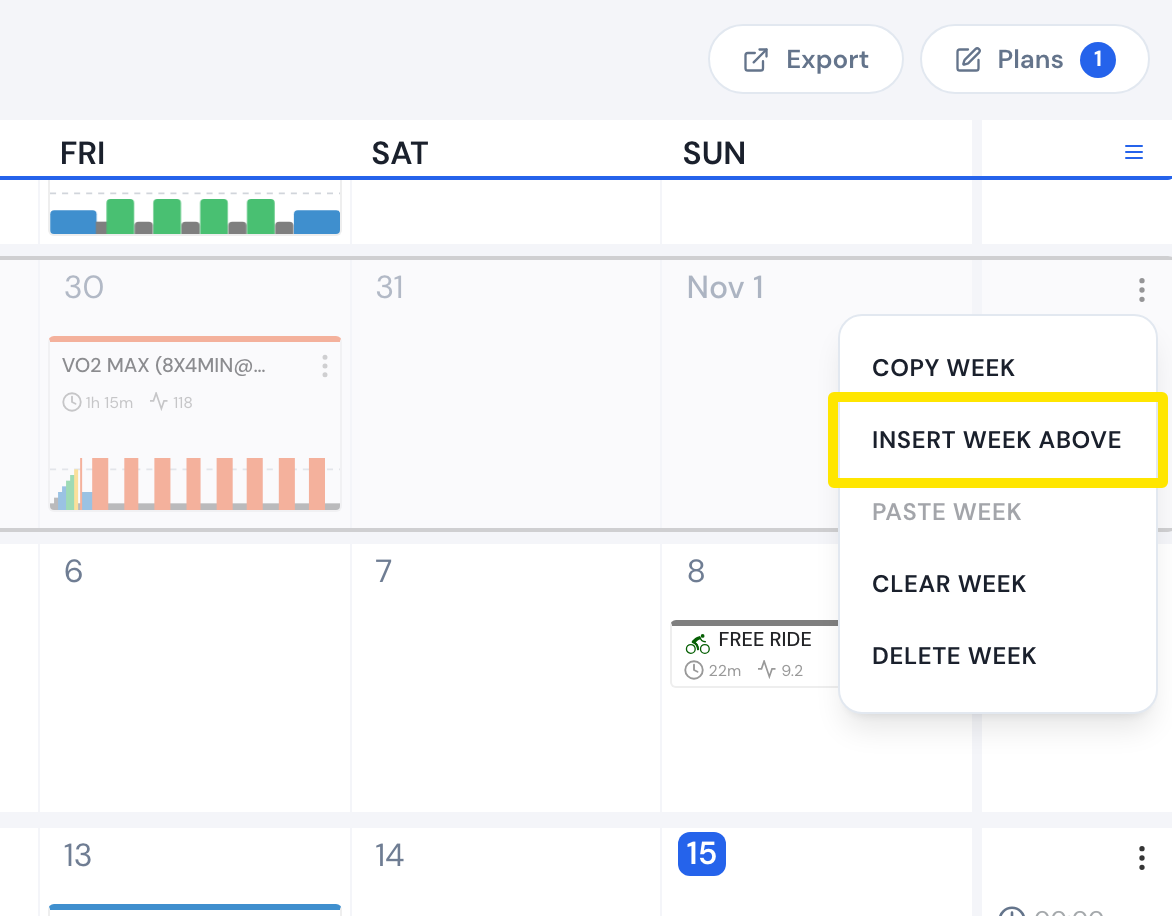 Where: Website · My Calendar · open it
- To move it one week earlier, open the 3-dots menu of an empty week just before the plan and click Delete week. Everything after it moves one week earlier.
- Repeat for each extra week. To move by days instead, drag each workout to its new day.
Good to know: These moves shift every later calendar entry (all plans, workouts and notes), need premium, and also update synced Garmin Connect, TrainingPeaks, Intervals.icu, Zwift and COROS calendars.
Works on: Website only. The mobile app can move one workout at a time (its menu → Move to…); the desktop app can't edit the calendar.