

How do I change the start date of a training plan?
Set a training plan's start date on the website in My Plans: open the plan, click Send or Download, and pick a Monday as the Start Week Date. A plan can only start this week if today is Monday; otherwise the earliest start is next Monday.
If your plan is already on your calendar, see How do I shift a whole training plan to other days?; the steps below set the start date before you send the plan.
- On the website, in the left sidebar under Training Plans, click My Plans and open the plan.
- On the plan's page, click Send or Download.
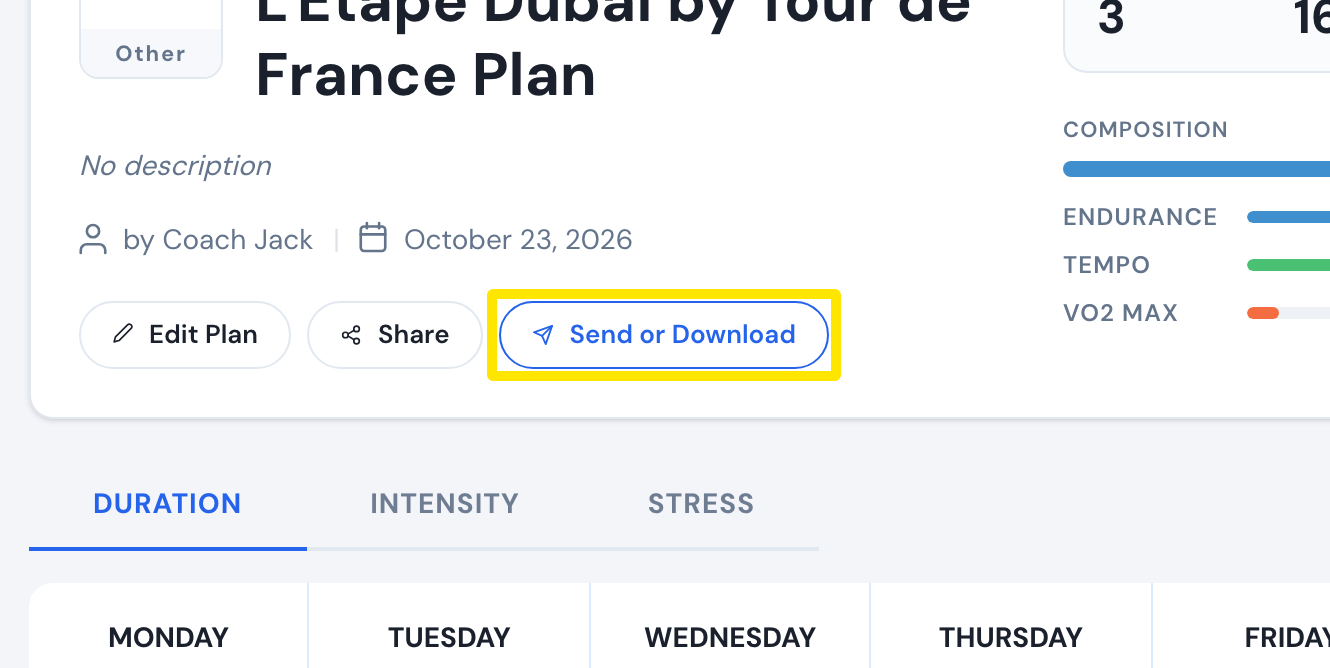 Where: Website · a plan's page (My Plans → View plan)
- In the window that opens, keep Send and the Destination TO MY CALENDAR.
- Click Start Week Date and pick a Monday. Other days are greyed out.
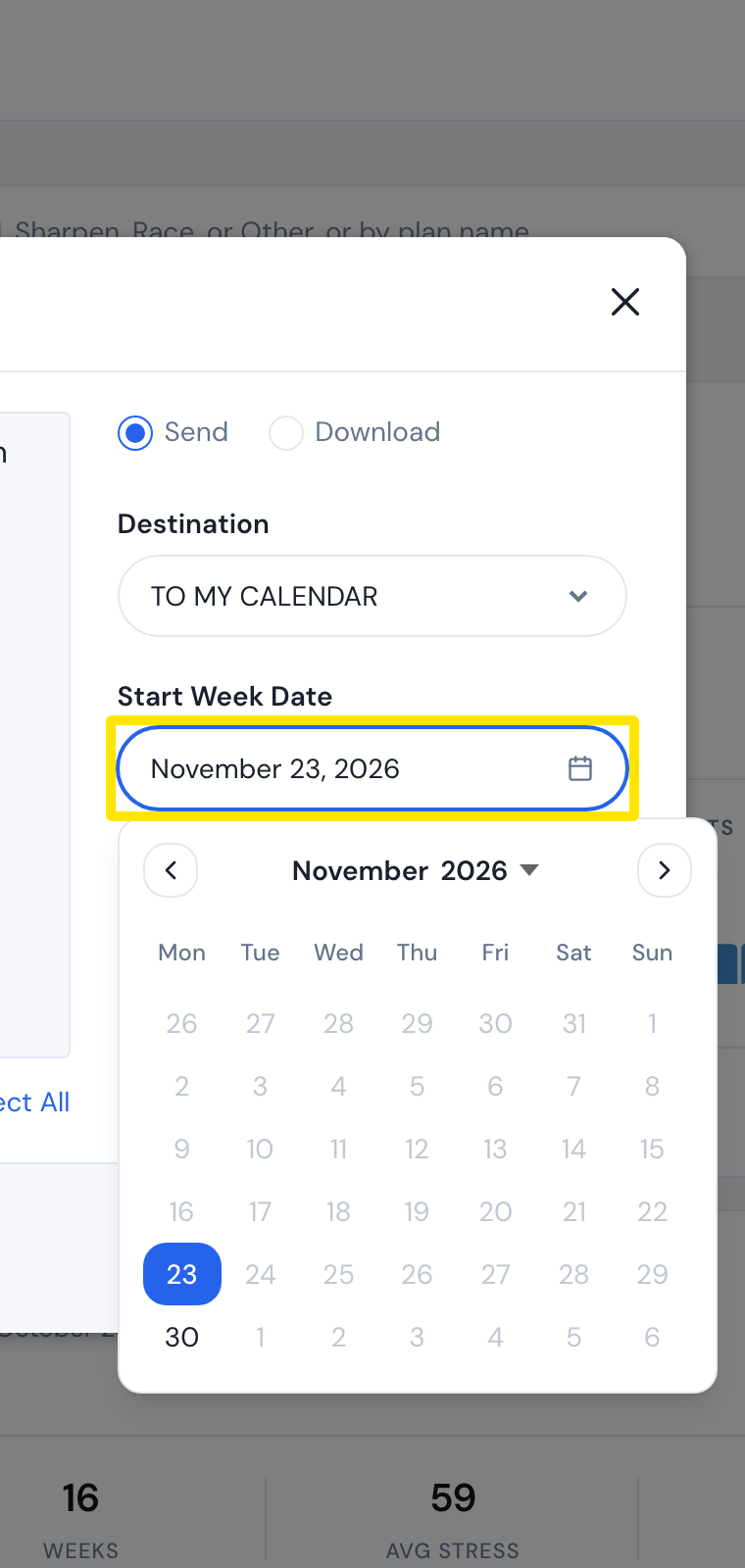 Where: Website · Send or Download window (My Plans → a plan → Send or Download)
- Tick the weeks you want and click Send Plan.
Good to know: Only Mondays from today on can be picked, so once Monday has passed you cannot choose the current week. The plan starts next Monday at the earliest.
Works on: Website only. The mobile and desktop apps have no start date setting; they ride what is on My Calendar.