

How do I get TrainerDay workouts into MyWhoosh?
Connect TrainerDay from MyWhoosh's profile page, then send a workout to "My calendar + MyWhoosh" on the TrainerDay website so MyWhoosh can read it from your calendar.
- On the website, open Connections. On the MyWhoosh card, click Connect in MyWhoosh. This opens MyWhoosh's profile page. Sign in to MyWhoosh, open Edit Profile → Connections and connect TrainerDay there.
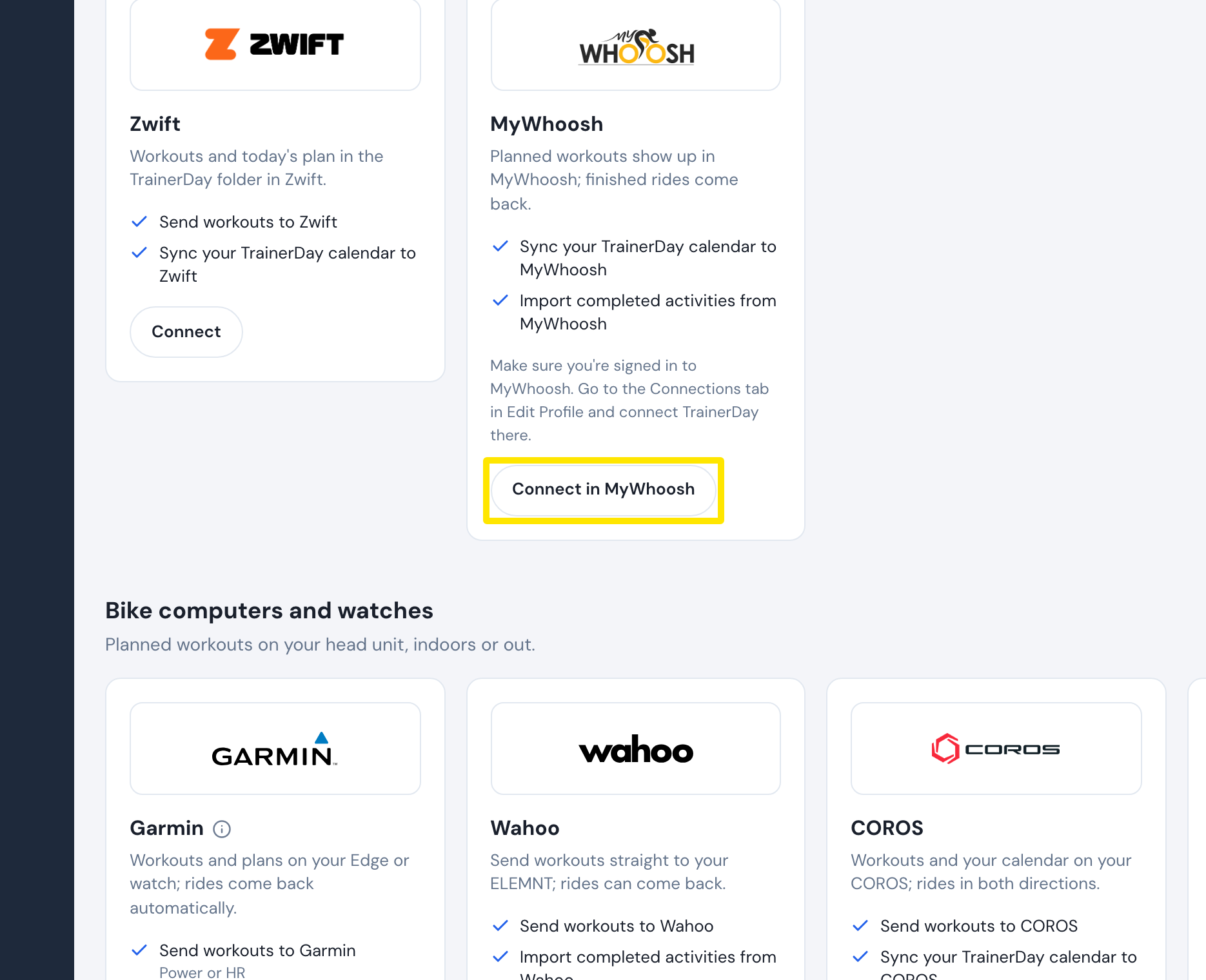 Where: Website · Connections · open it
- Back on the TrainerDay website, open the workout's page and click Send To.
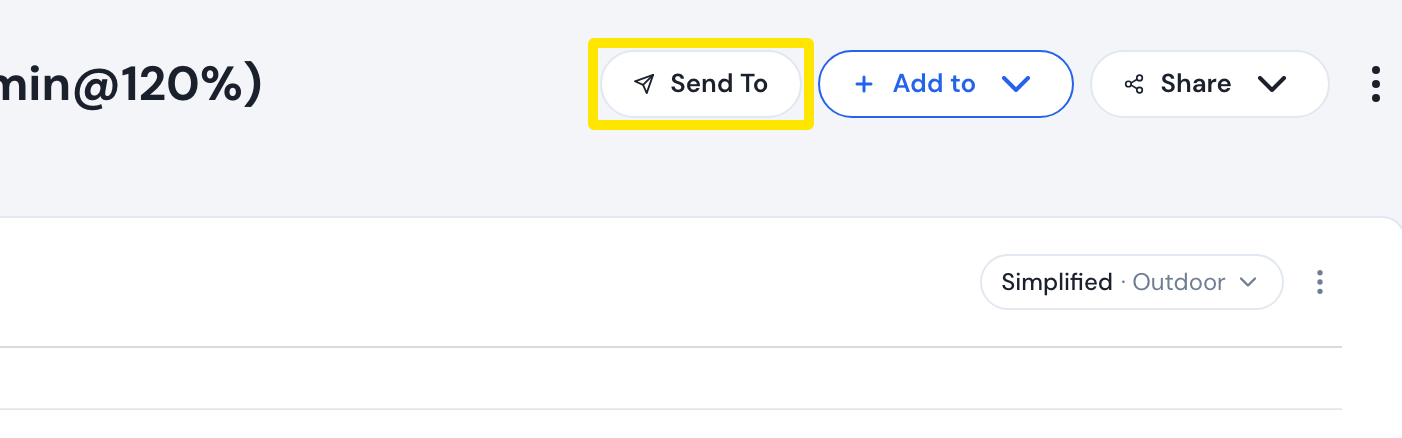 Where: Website · a workout's page
- In the Send a workout window, choose My calendar + MyWhoosh. Keep Power and the indoor version, then click Send. The workout goes onto today on your TrainerDay calendar.
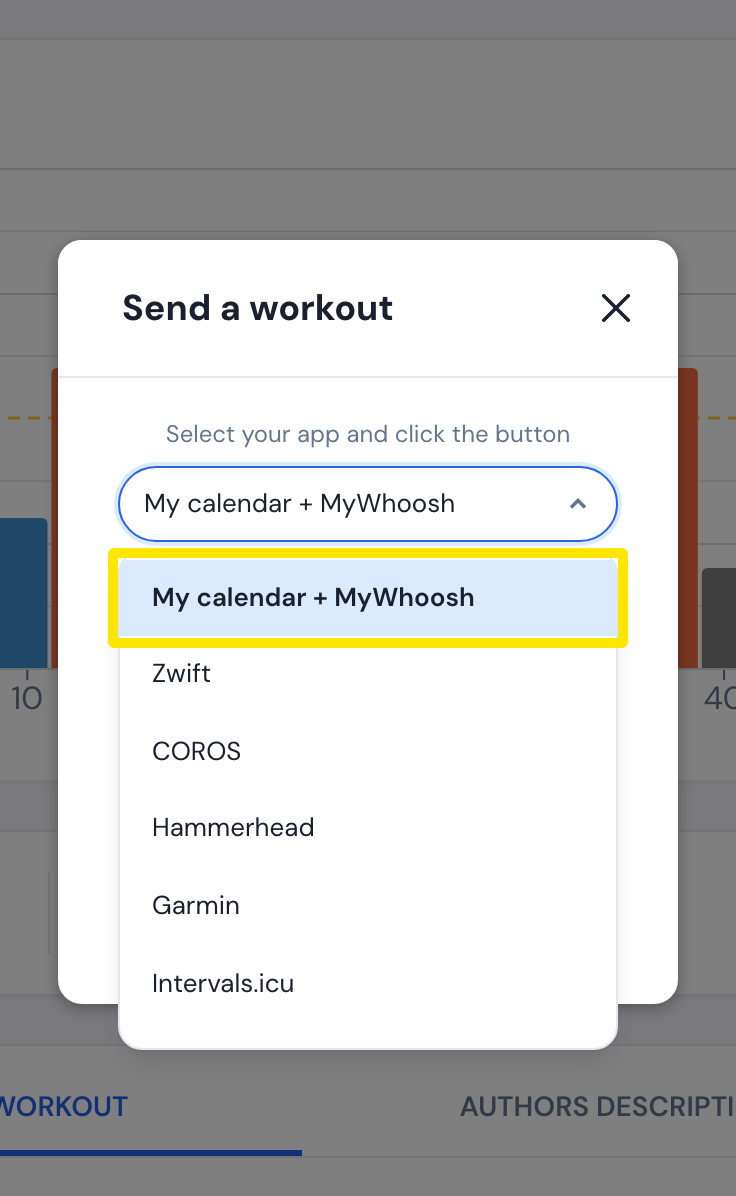 Where: Website · a workout's page → Send To → Send a workout window
- MyWhoosh reads your TrainerDay calendar and shows the workout. Workouts from a plan or Coach Jack on your calendar get there the same way.
Good to know: You need a paid TrainerDay account. Only indoor Power workouts go to MyWhoosh, not Heart rate or outdoor versions.
Works on: Website and desktop app (My calendar + MyWhoosh). The mobile app's Send To has no MyWhoosh option, so send to My Calendar there.