

How do I stop TrainerDay from sending workouts to Zwift automatically?
Turn off Calendar Sync on the Zwift card in the TrainerDay website's Connections page so new calendar workouts stop going to Zwift.
- On the website, go to My Calendar, open the settings menu (gear icon) in the left sidebar and click Connections.
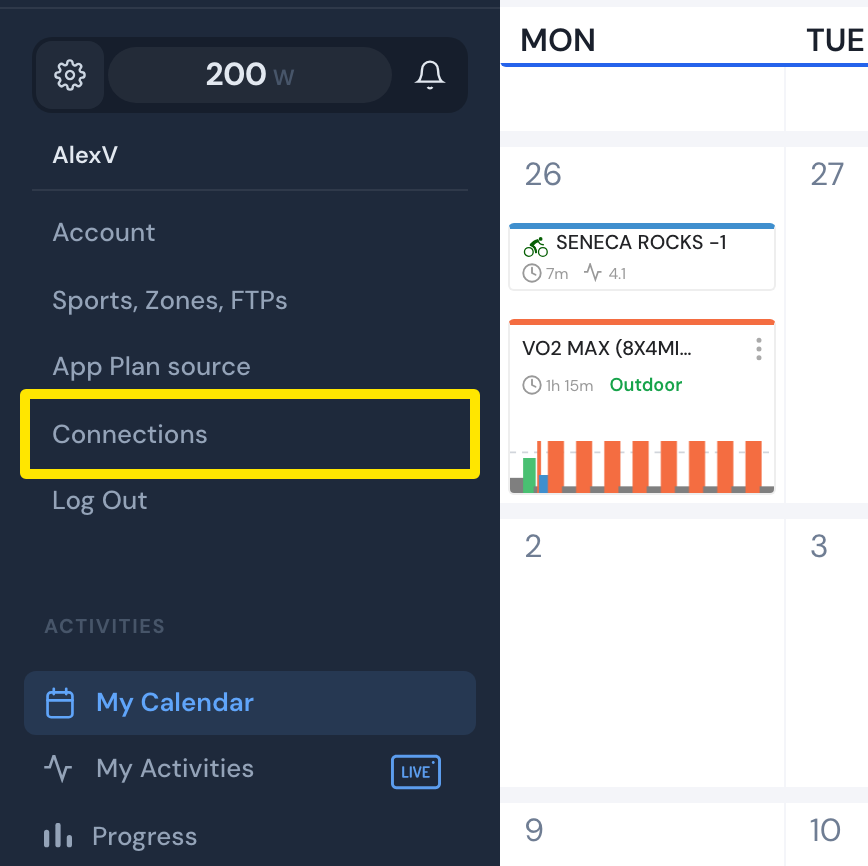 Where: Website · My Calendar · open it
- On the Connections page, click Settings on the Zwift card.
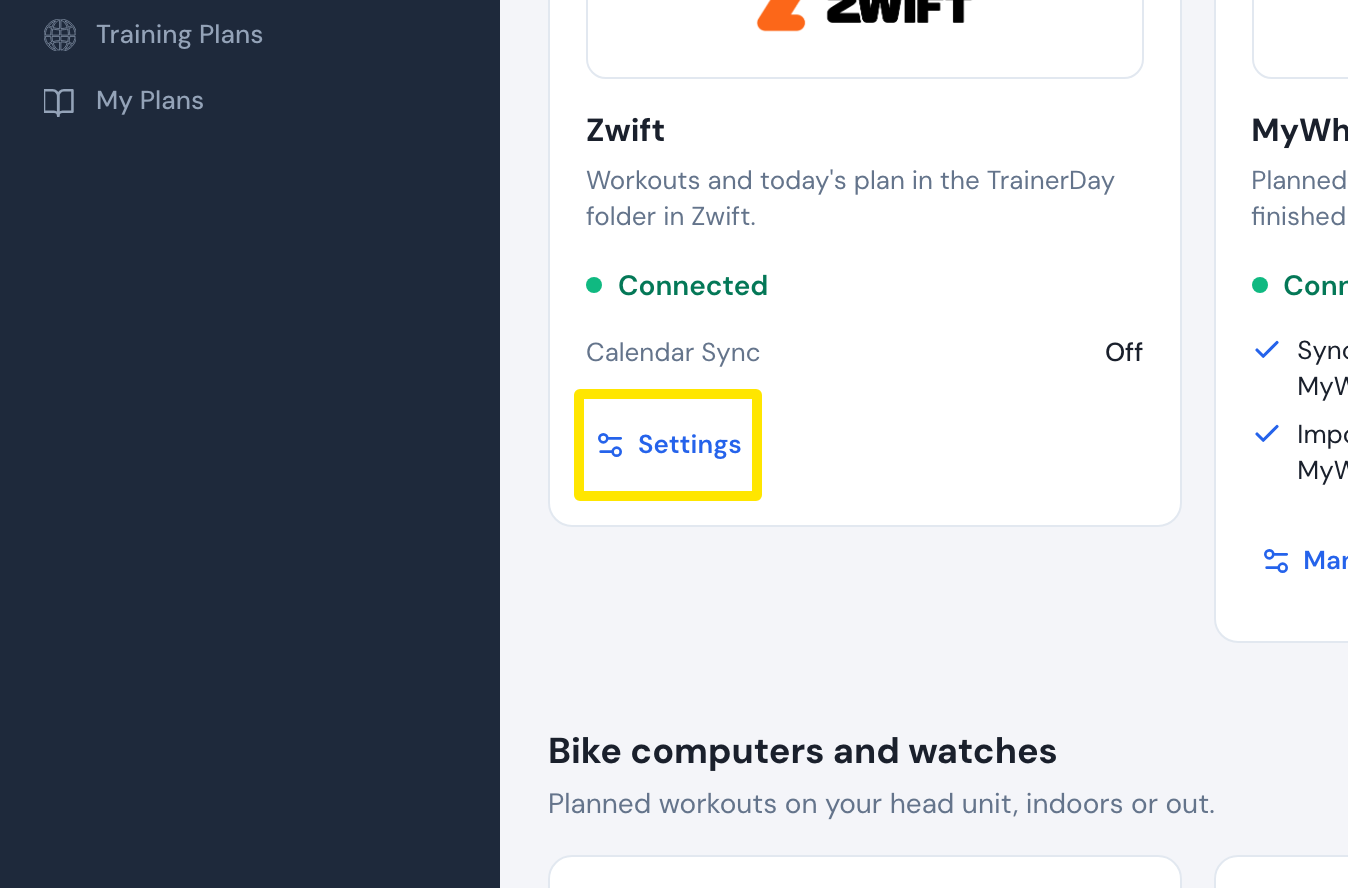 Where: Website · Connections · open it
- Turn Calendar Sync off. New calendar workouts no longer go to Zwift. Send To → Zwift still works.
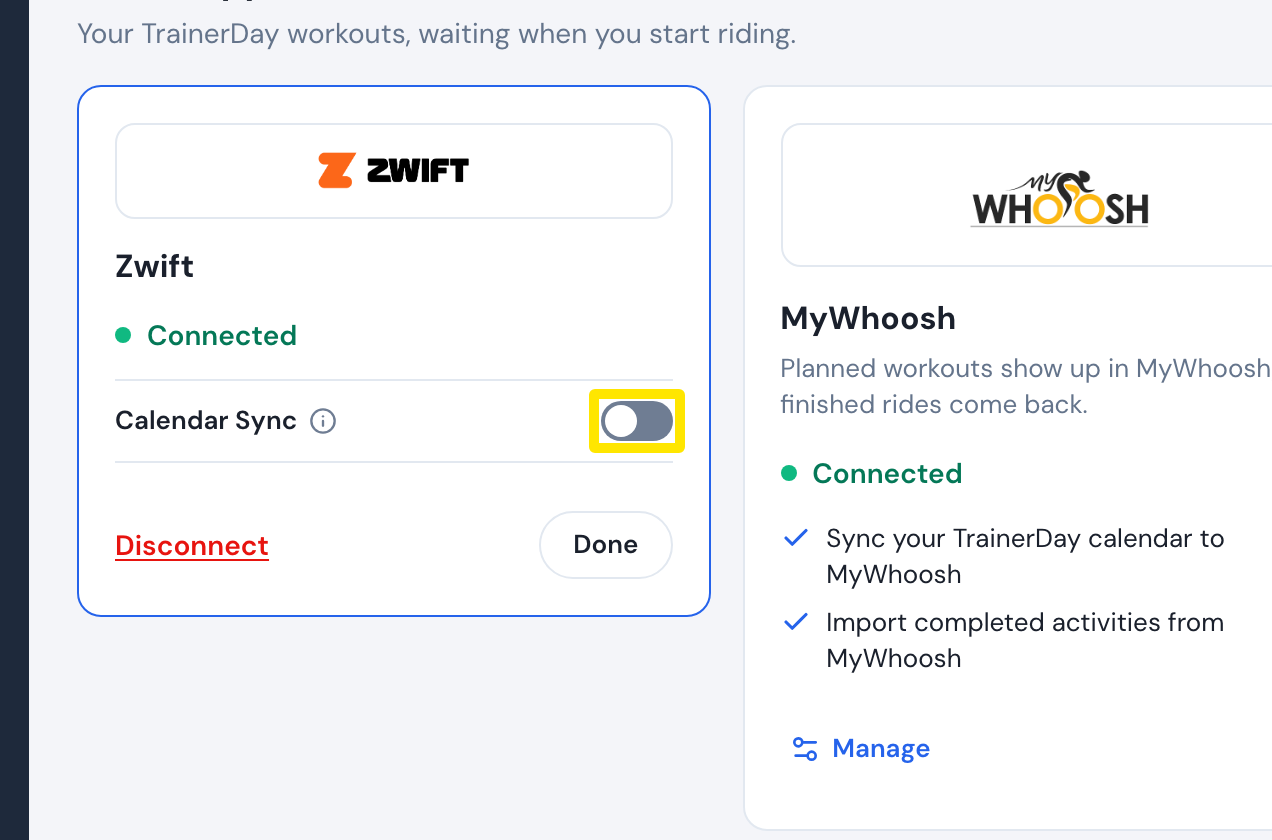 Where: Website · Connections · open it
- To stop all sending to Zwift, including Send To, click Disconnect on the Zwift card instead.
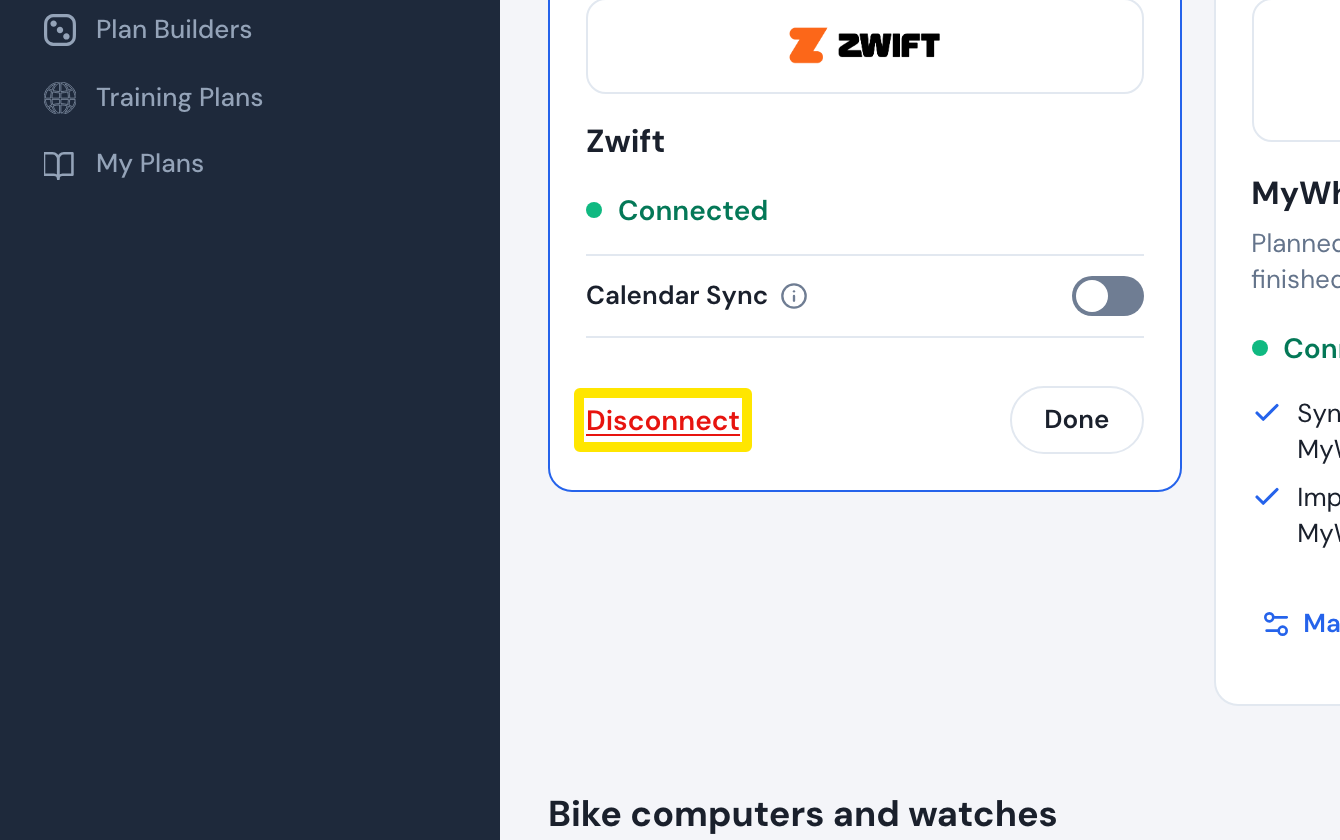 Where: Website · Connections · open it
Good to know: Turning Calendar Sync off does not remove workouts already sent. They stay in Zwift until their day is over.
Works on: website and desktop app (same Calendar Sync switch in Connections). The mobile app has no Zwift calendar setting.