

How do I download or export a workout file from TrainerDay?
On the TrainerDay website, open the workout's page, click the three-dots menu, choose Download file, then pick MRC, ZWO or ERG and click Download.
- On the website, log in and open the workout's page (https://app.trainerday.com/workouts/<name>), or open the workout from My Workouts.
 Where: Website · a workout's page (click a workout in Search Workouts or My Workouts)
- Click the three-dots menu at the top right of the workout.
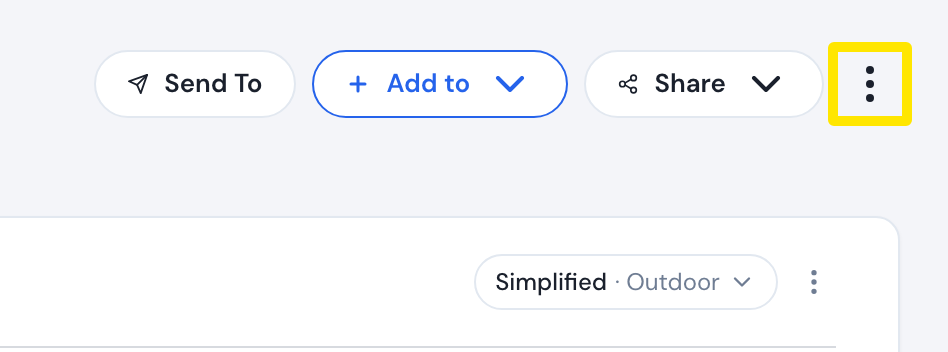 Where: Website · a workout's page (click a workout in Search Workouts or My Workouts)
- Click Download file.
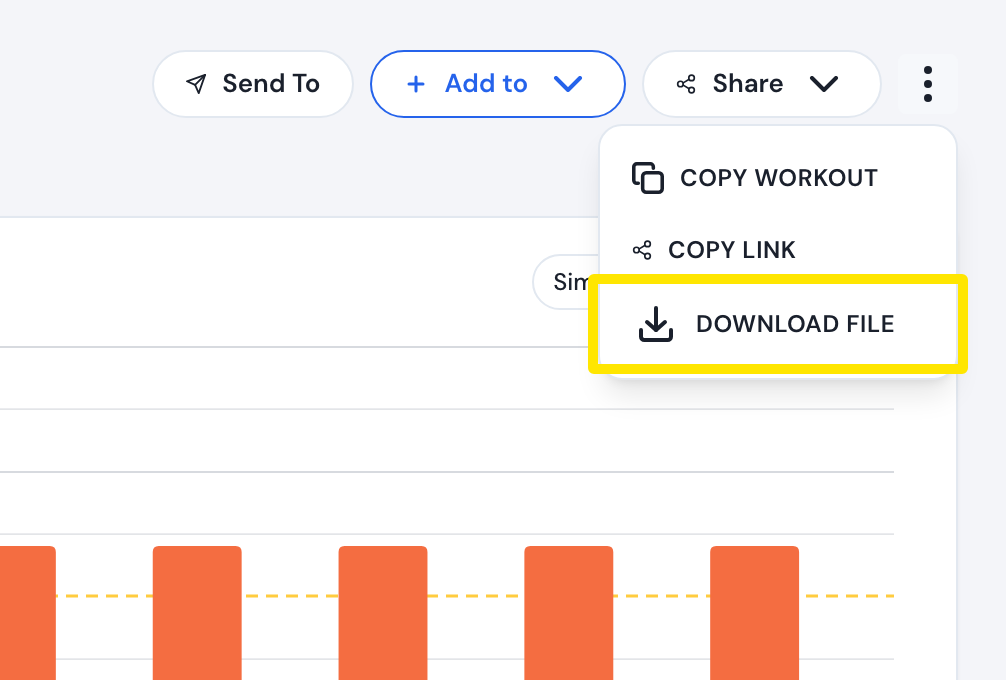 Where: Website · a workout's page (click a workout in Search Workouts or My Workouts)
- Choose MRC (the default), ZWO or ERG, then click Download.
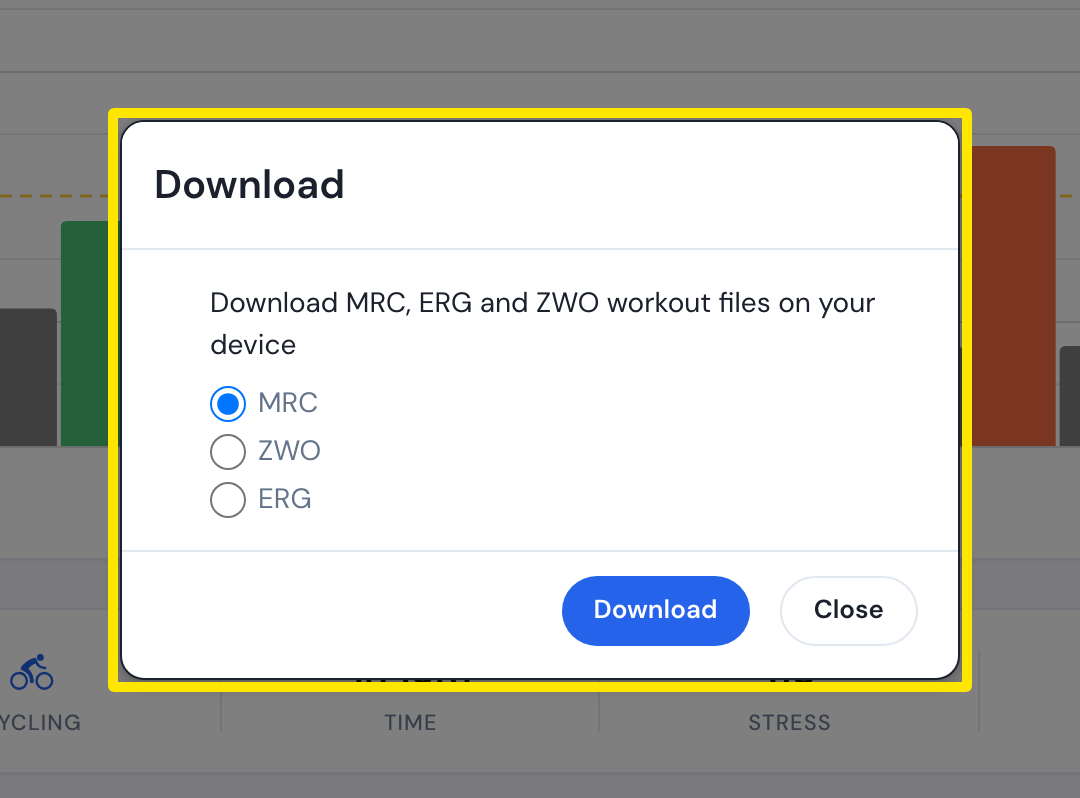 Where: Website · a workout's page (click a workout in Search Workouts or My Workouts)
Good to know: FIT is not offered. ERG needs your FTP set. Only ZWO keeps cadence targets, and no format includes heart-rate targets. Download file is not shown for run workouts.
Works on: Website for single workouts. Mobile app: Calendar tab menu, Export workouts (chosen days as a ZIP). Desktop app: no workout download.