

How do I turn a ramp into steps?
TrainerDay has no button that turns a ramp into steps: on the website, edit the workout and replace the ramp row with one row per step, or pick Simplified on the workout's page to see the ramp as flat steps.
- On the website, open your workout's page from My Workouts.
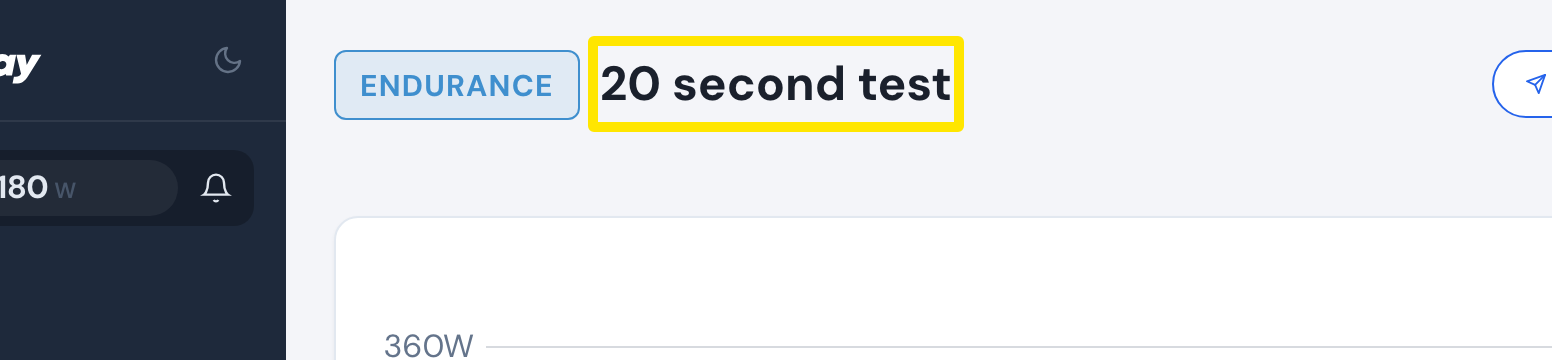 Where: Website · a workout's page
- Click the three-dots menu, then Edit workout.
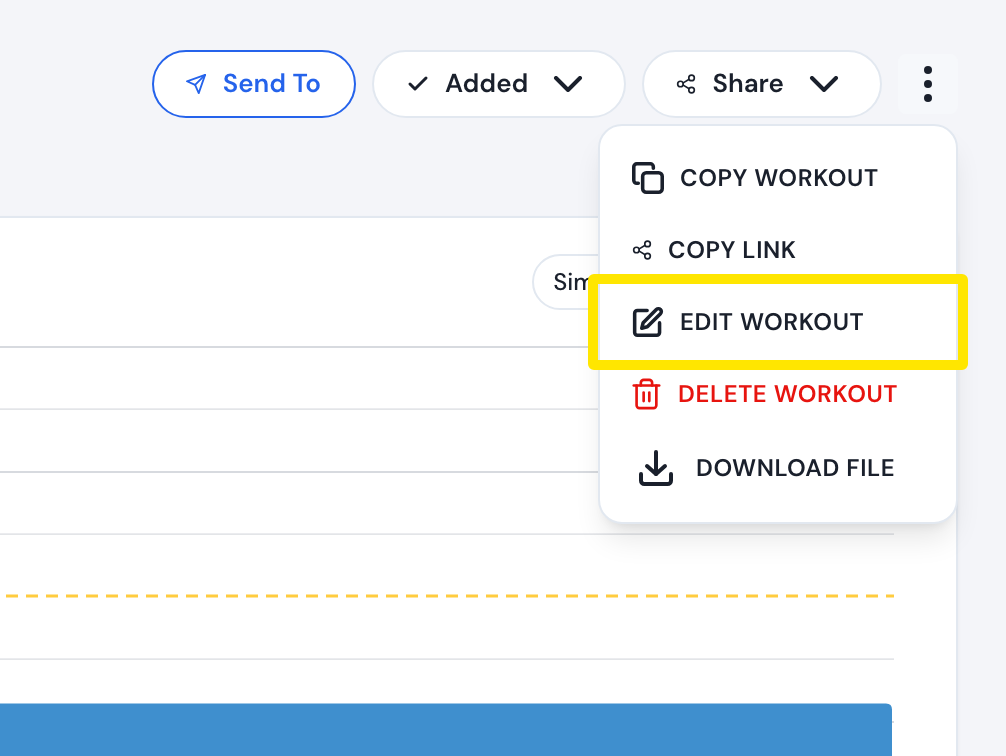 Where: Website · a workout's page → three-dots menu
- In the editor, replace the ramp row with one row per step. For example, instead of 10 minutes at 50-100, type five rows of 2 minutes at 55, 65, 75, 85 and 95. To add rows, use the row's ⋮ → Add segment below.
- Click Save workout, then Save.
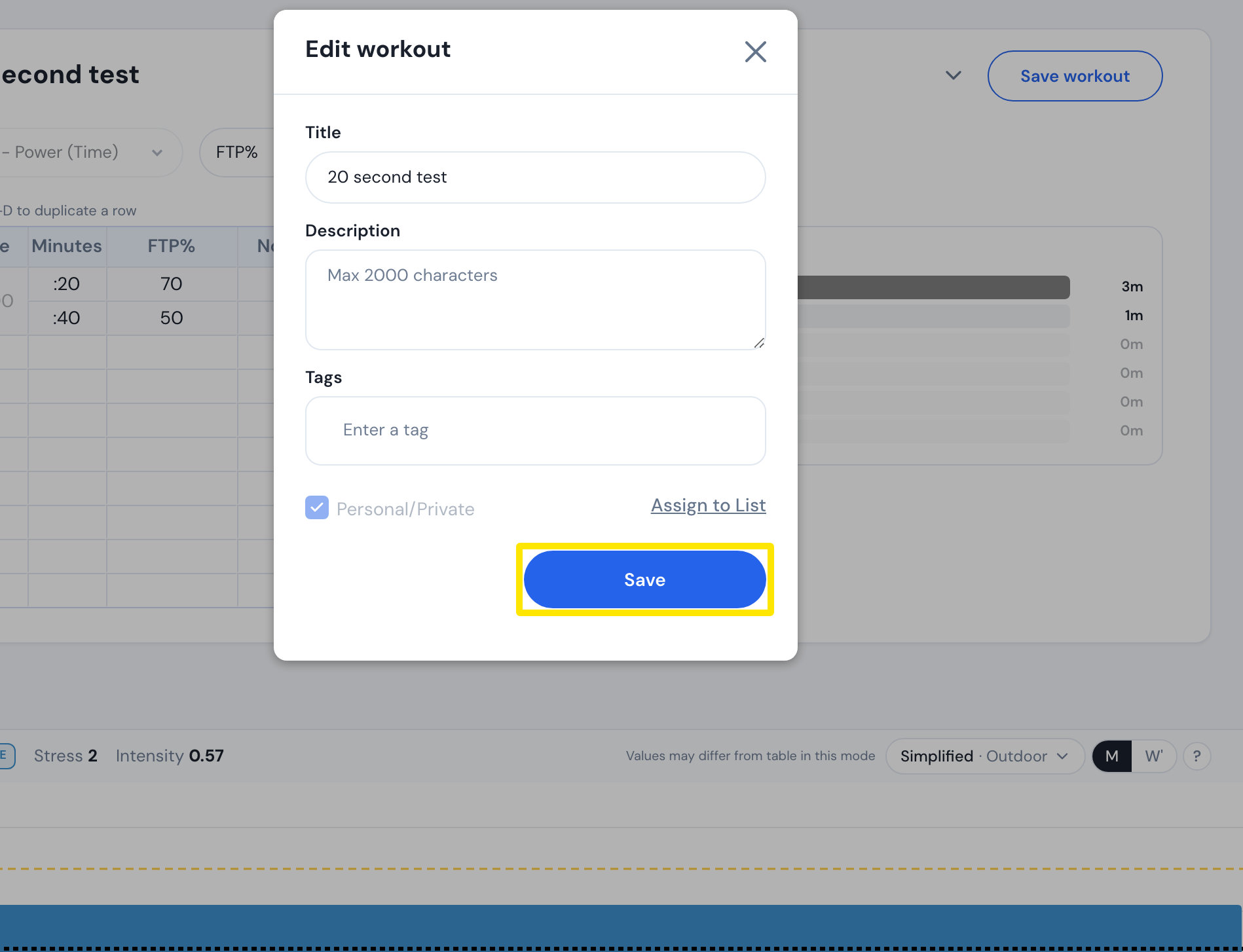 Where: Website · a workout's page → three-dots menu → Edit workout
- To only see the ramp as steps without changing the workout, go back to the workout's page and pick Simplified in the view menu above the chart.
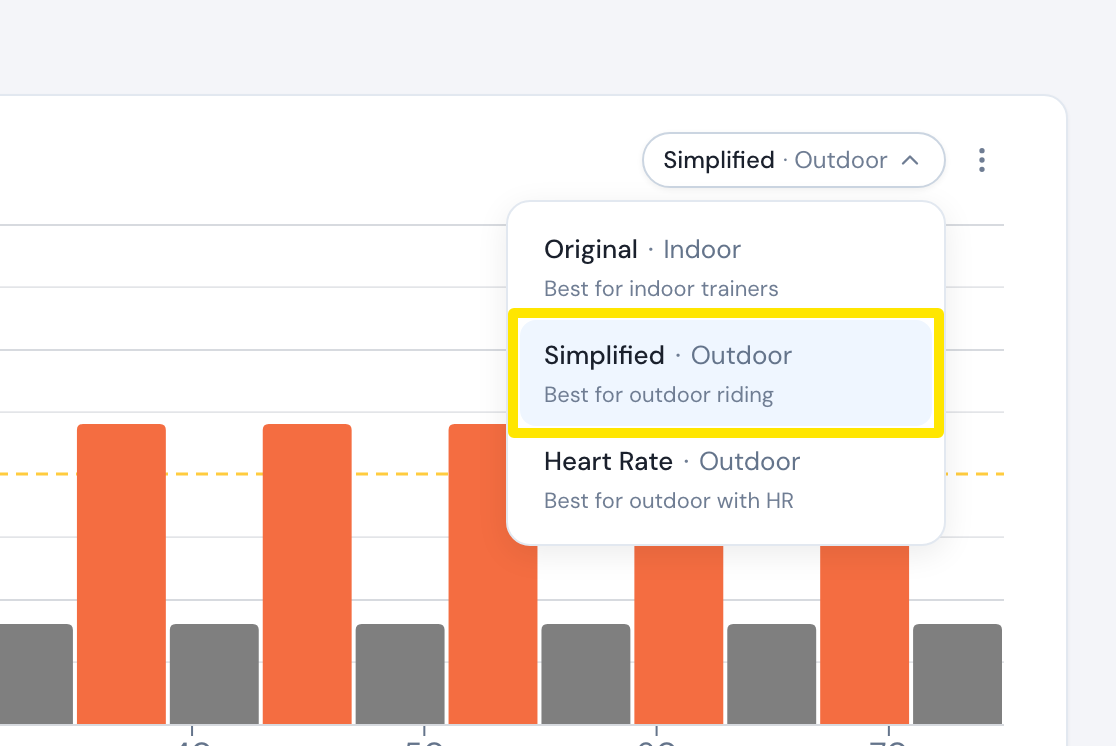 Where: Website · a workout's page
Good to know: Simplified makes one flat step for each power zone the ramp crosses. It is also offered when you send a workout to Garmin or TrainingPeaks, and you must be logged in to use it.
Works on: Website only. The mobile and desktop apps have no editor and play ramps as ramps.