

How Coached Cyclists Can Use Trainerday
Alex VanLaningham · Founder of TrainerDay ·
If you work with a coach, your workouts probably live somewhere else first: TrainingPeaks, Intervals.icu, or a plan your coach built. TrainerDay can pull those workouts into the mobile and desktop apps so you can ride them, without rebuilding anything by hand. Everything starts from the website's settings menu.
Where to find it:
- Website → gear icon in the left sidebar → Connections · open it
- Mobile app: Settings → Connections
- Desktop app: Settings → Connections → Manage Connections
Connect your coach's platform
- On the website, click the gear icon in the left sidebar and choose Connections.
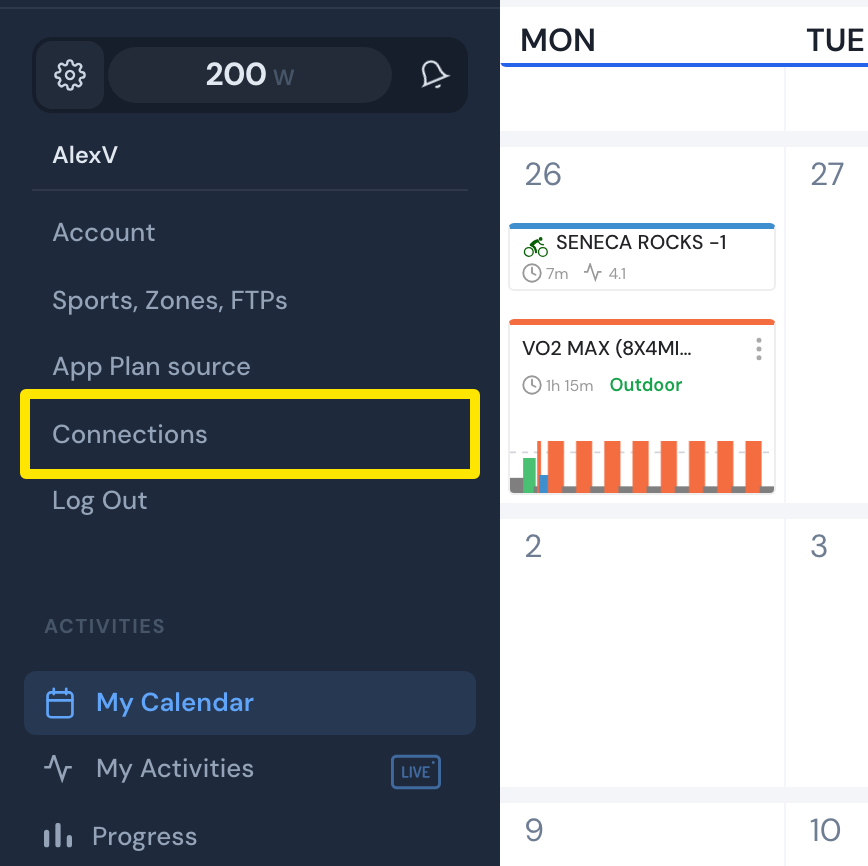 Where: Website · gear menu in the left sidebar (opened here from My Calendar) · open it
- Find the TrainingPeaks or Intervals.icu tile and click Connect.
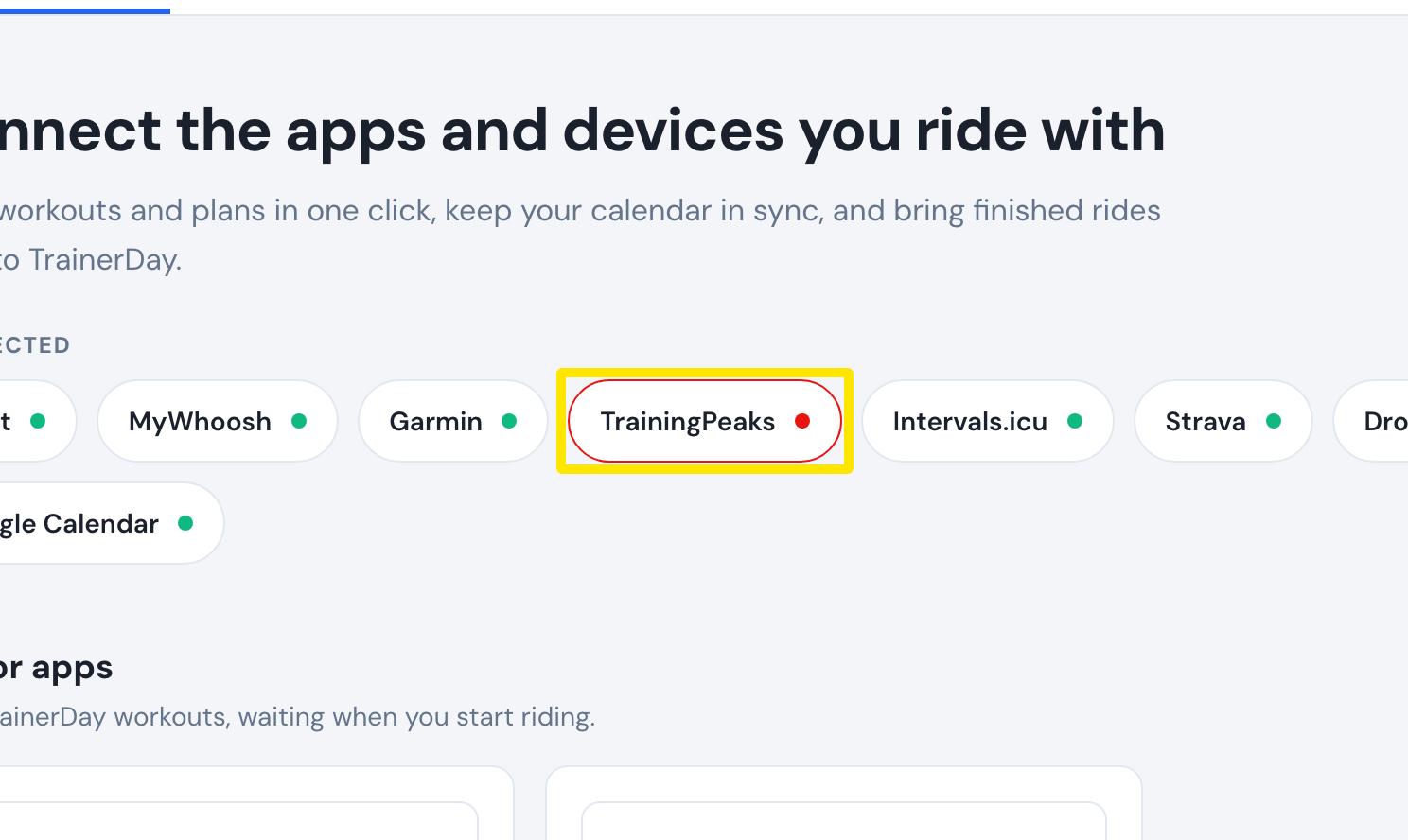 Where: Website · Connections · open it
- Sign in and allow every permission. For Intervals.icu, if you see "Connection failure," click Connect again and allow all permissions; TrainerDay needs them because it writes to your Intervals.icu calendar.
Turn on Workout of the Day
Workout of the Day shows your coach's planned workouts right in the apps.
- On the TrainingPeaks card, click Settings and turn Workout of the Day on.
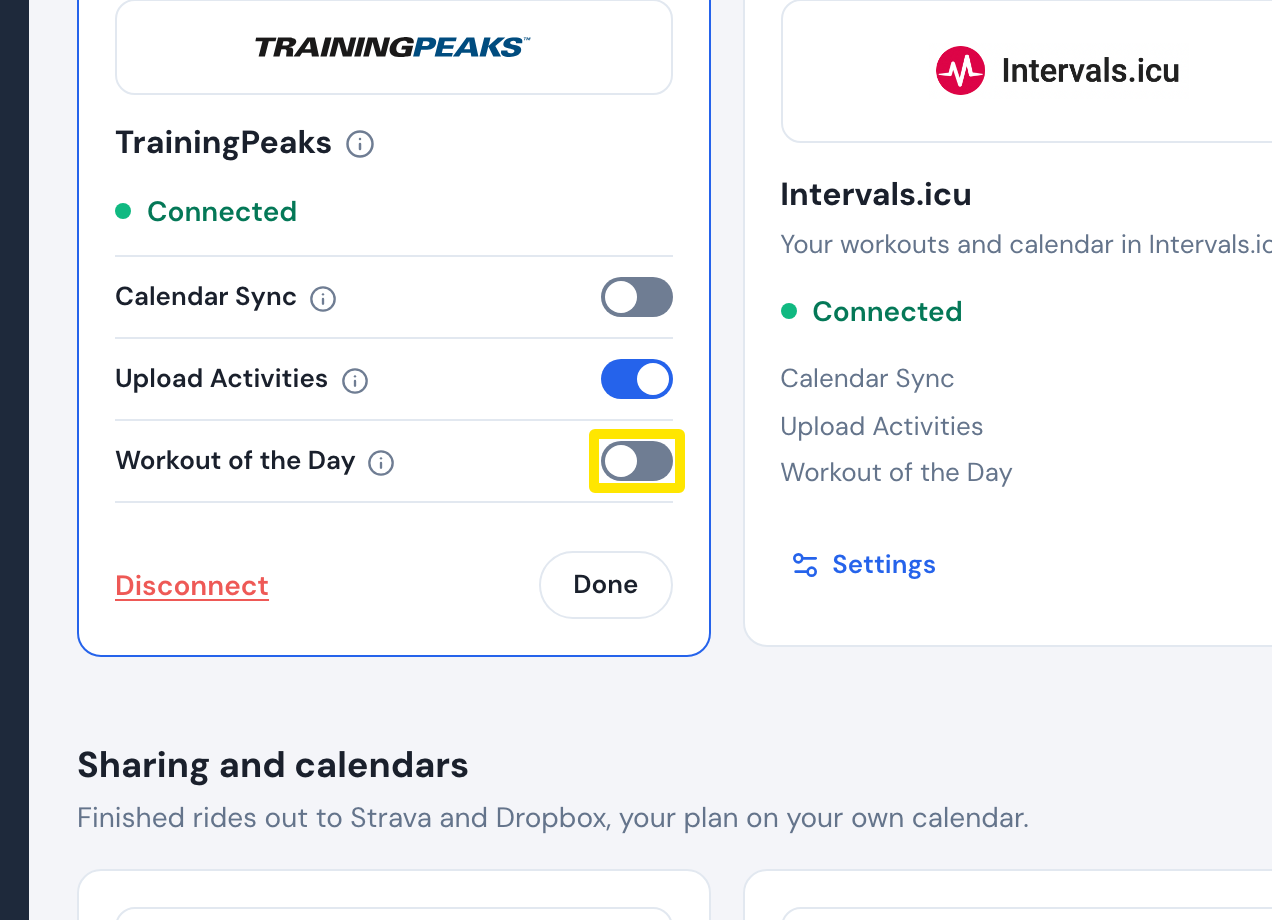 Where: Website · Connections · open it
- Or use the gear menu → App Plan source, then in Select plan source choose TrainingPeaks WOD or Intervals.icu WOD and click Save.
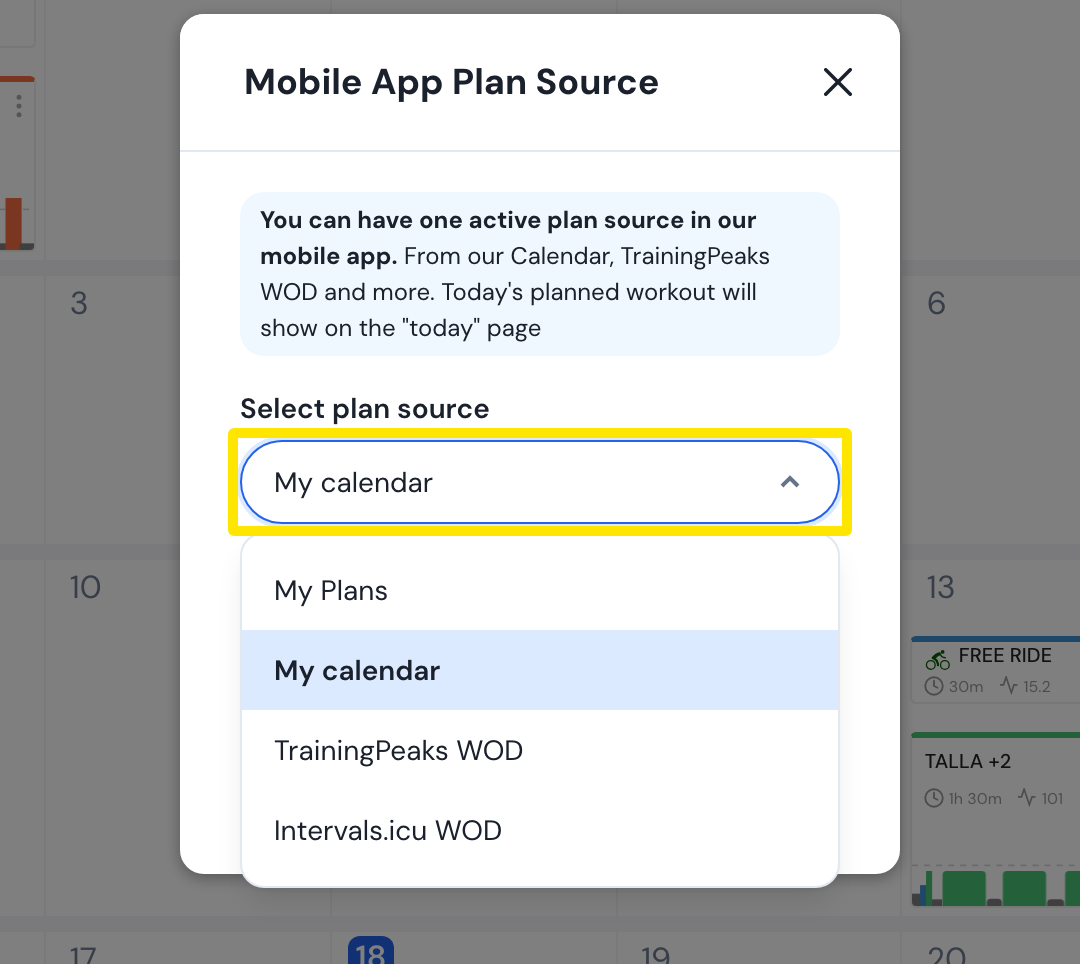 Where: Website · My Calendar · open it
- Open the mobile app and refresh the Today tab by pulling it down or tapping the refresh button.
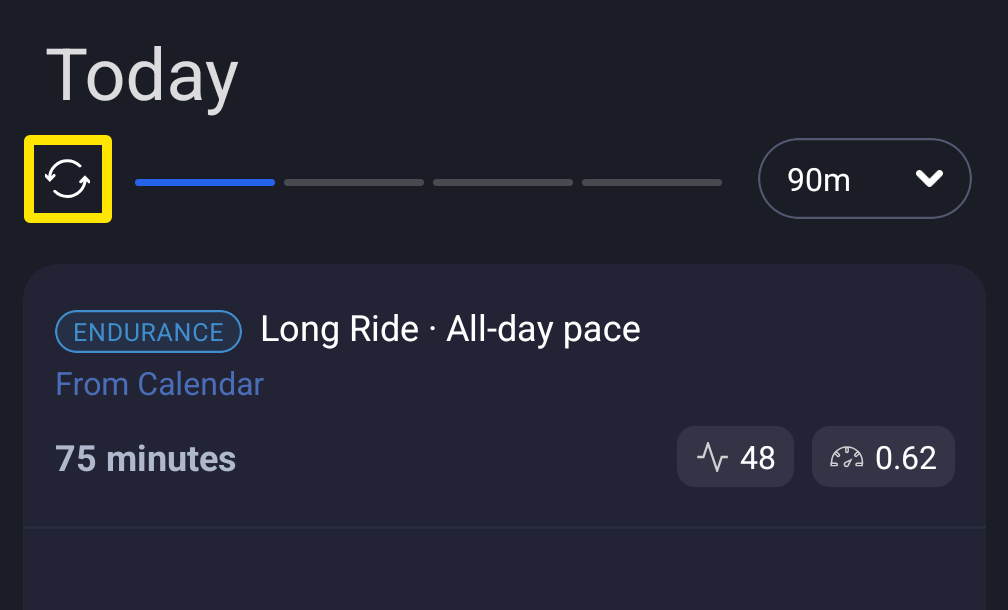 Where: Mobile app · Today tab
For TrainingPeaks, your workouts appear as the plan list TrainingPeaks - Workout of the Day. Workout of the Day needs a paid TrainerDay account. It shows not-completed workouts from yesterday over the next 5 days, and they don't appear on the website's calendar or in My Workouts. Only one plan source can be active at a time.
Import Intervals.icu workouts as files
If you want to keep the workouts in your own library instead:
- In Intervals.icu, export the workouts as ZWO files.
- On the website, click Create Workout and open Create from File.
- Click Upload ZWO, ERG, MRC for one workout, or Upload ZIP of ZWO files for many (up to 100 workouts, 5 MB).
- Choose Into a new list or Into one of my lists, then click Import.
Use a plan your coach built in TrainerDay
- Open the plan from Training Plans and click Send To Calendar.
- Keep the days as designed or turn on Change Training Days, then click Send To Calendar. It starts next Monday.
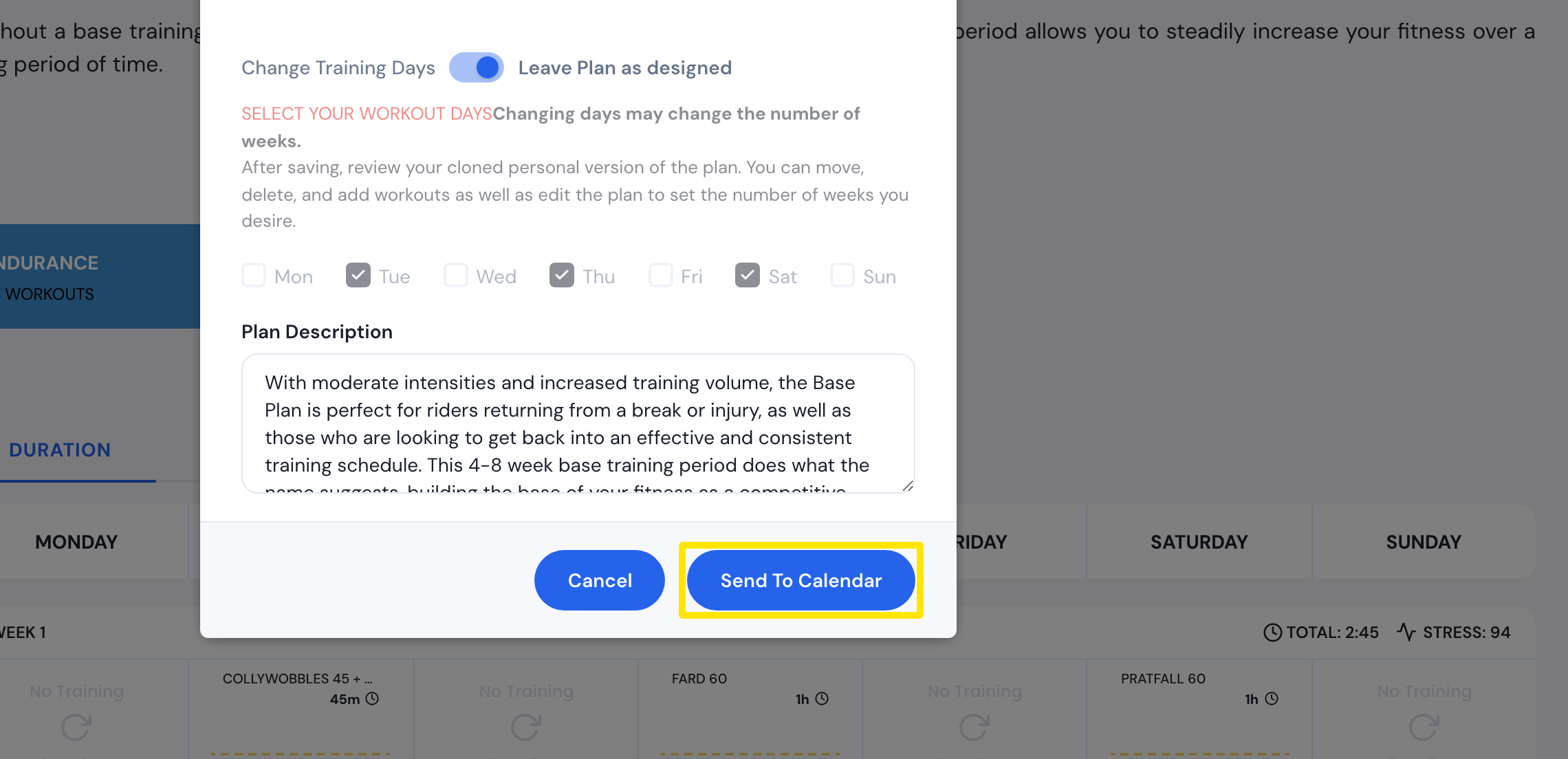 Where: Website · Training Plans → a plan → Send To Calendar · open it
My calendar is the default app plan source, so those workouts show in the app. To ride a plan in order instead, choose My Plans under App Plan source.