

View Your Live Trainerday Training On A Big Screen
Alex VanLaningham · Founder of TrainerDay ·
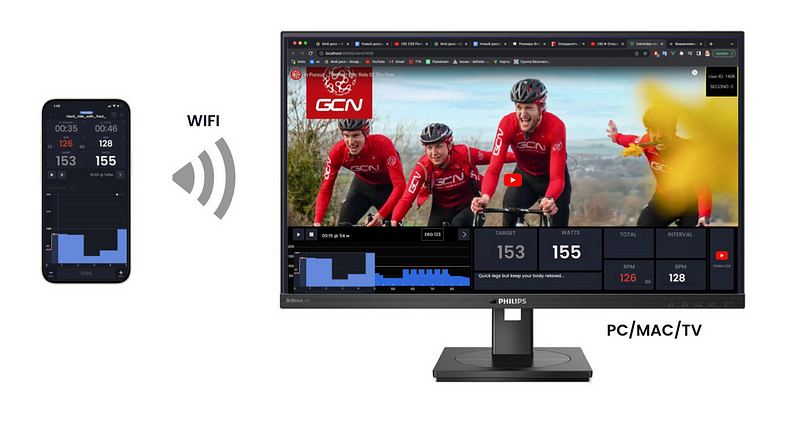
Riding with your phone propped on the handlebars works, but the numbers are small. The TrainerDay live page lets you follow the same ride on a computer, laptop or a big screen connected to one: power, heart rate, cadence and the workout chart, updated as you pedal. It can even play YouTube above your numbers.
Where to find it:
- Website → Live viewer → Sign In · open it
- Mobile app: Settings tab → Other Options → View Workout in Real-time on PC or Mac
- Desktop app: does not send data to the live page
Open the live page
- On the computer, open https://ride.trainerday.com in a browser.
- If the page says Welcome to TrainerDay Live, click Sign In and log in with the same TrainerDay account you use in the phone app.
 Where: Website · Live viewer (not signed in) · open it
To get the address onto the computer, in the phone app go to Settings → Other Options → View Workout in Real-time on PC or Mac and tap here to copy URL. The setting is always on.
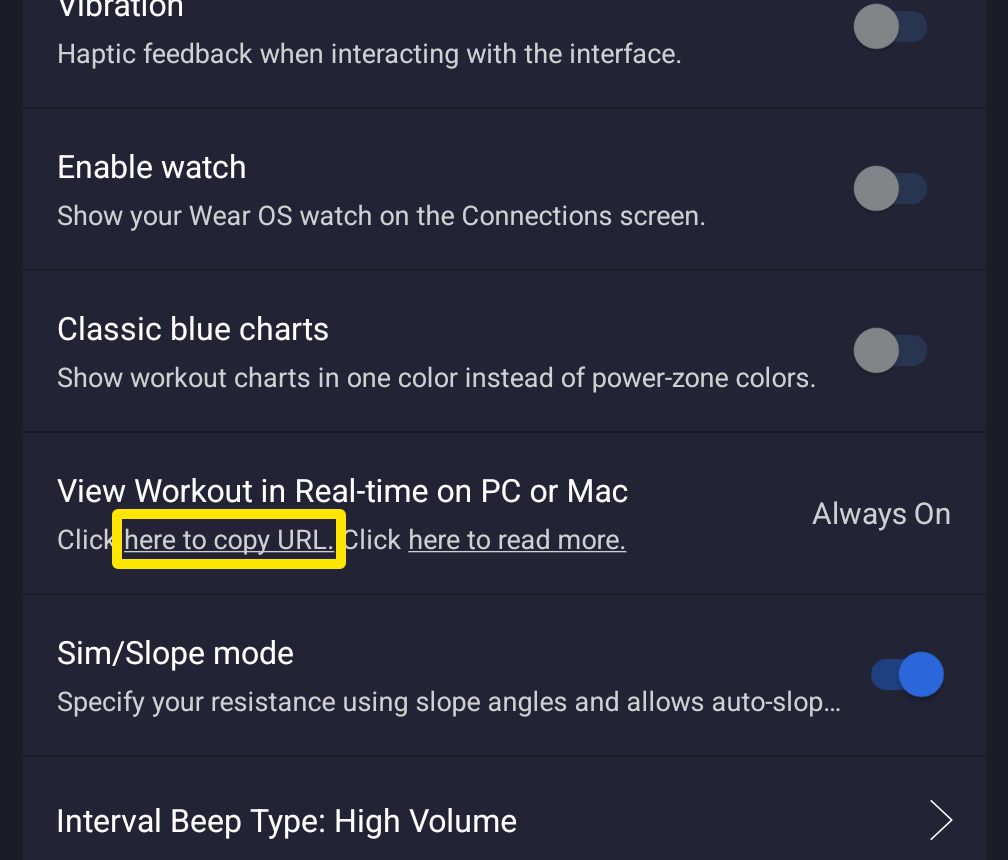 Where: Mobile app · Settings tab → Other Options
Ride on your phone
- In the phone app, go to Settings → Add Devices and connect your trainer and sensors. A sensor the phone isn't connected to shows 0 on the live page too.
- Start your workout in the TrainerDay app (iPhone or Android). The computer shows it live.
- Keep the phone and the computer online. If you open the page mid-workout, it draws the ride so far. If it still shows zeros, reload it.
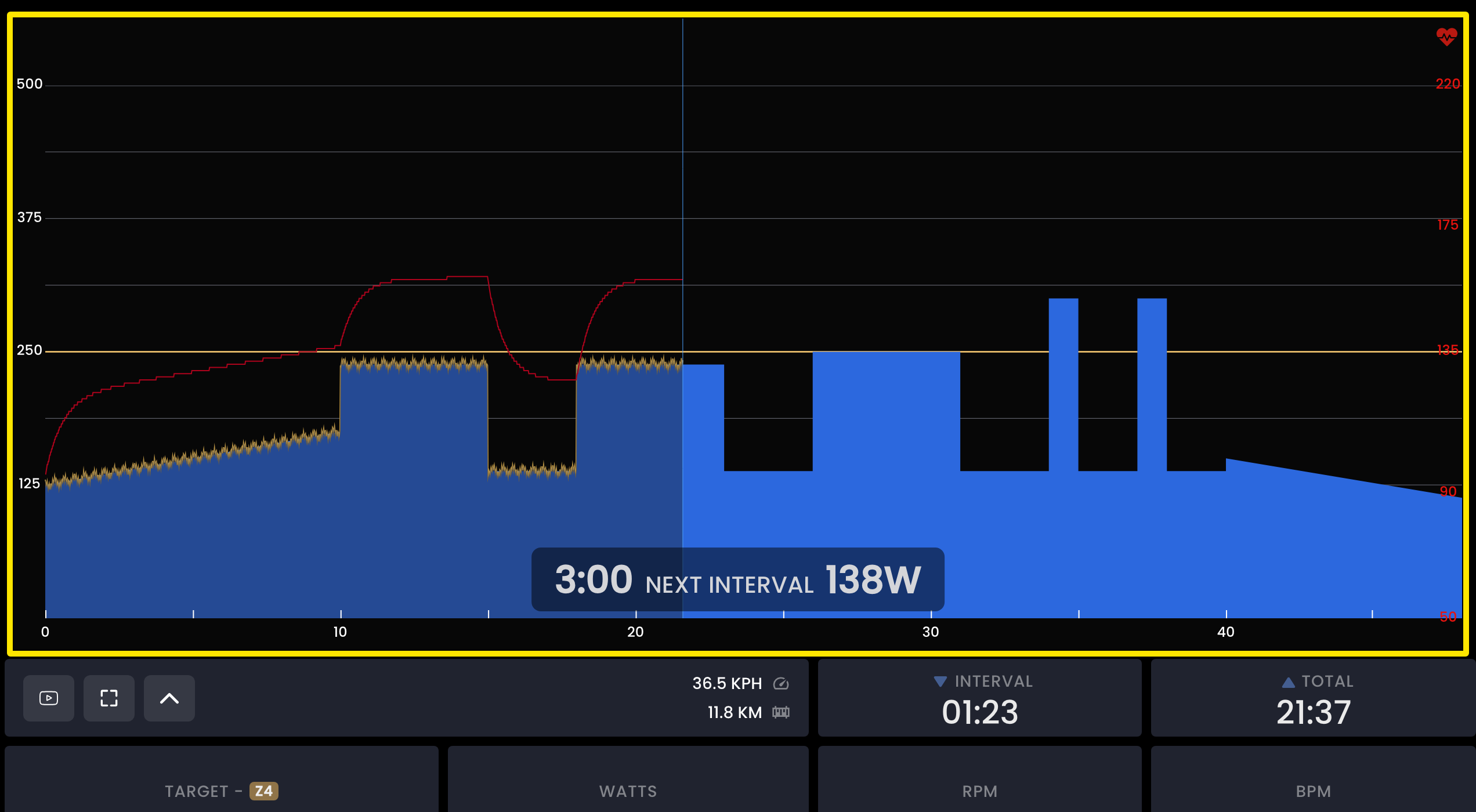 Where: Website · Live viewer · open it
The page works out calories/kilojoules, average cadence, and interval cadence and heart-rate averages itself, so these can differ slightly from the phone app.
Add YouTube
The live page can't float over another video, but it can play YouTube itself:
- Click the YouTube button in the toolbar.
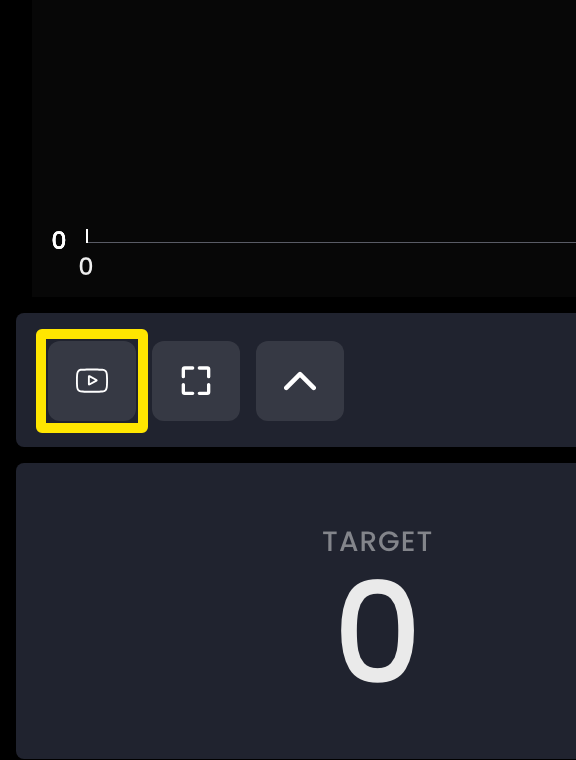 Where: Website · Live viewer · open it
- Pick a video from the list, or add one with Add Video/Playlist to Library. It plays above your ride numbers, which stay in the bar under the video.
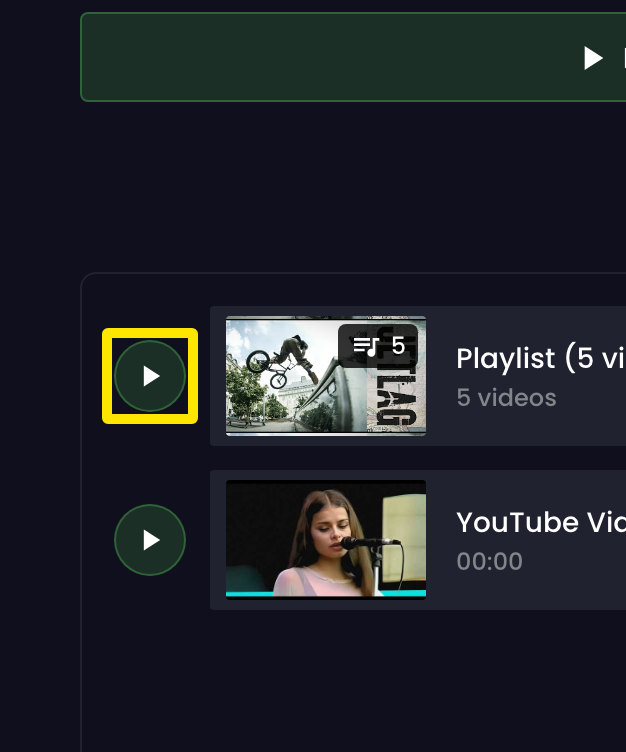 Where: Website · Live viewer · open it
Riding on the desktop app instead
If the big screen's computer runs the desktop app, ride there directly: Today tab → Ride Now, then press G to fill the screen. Its Media button plays YouTube, your own videos or a website. Rides in the desktop app don't appear on the live page. You can also mirror your phone's screen to a TV with your phone's own screen mirroring.