

How do I upgrade from monthly to yearly?
Upgrade your TrainerDay monthly subscription to yearly on the website's Manage your subscription page, with what you already paid credited and your data kept.
- On the website, click the gear icon at the top of the left menu and choose Account.
- Under Account Information, click Manage your subscription (app.trainerday.com/account/subscription).
 Where: Website · Account · open it
- In the Actions column, click Upgrade to Yearly (marked Best value!).
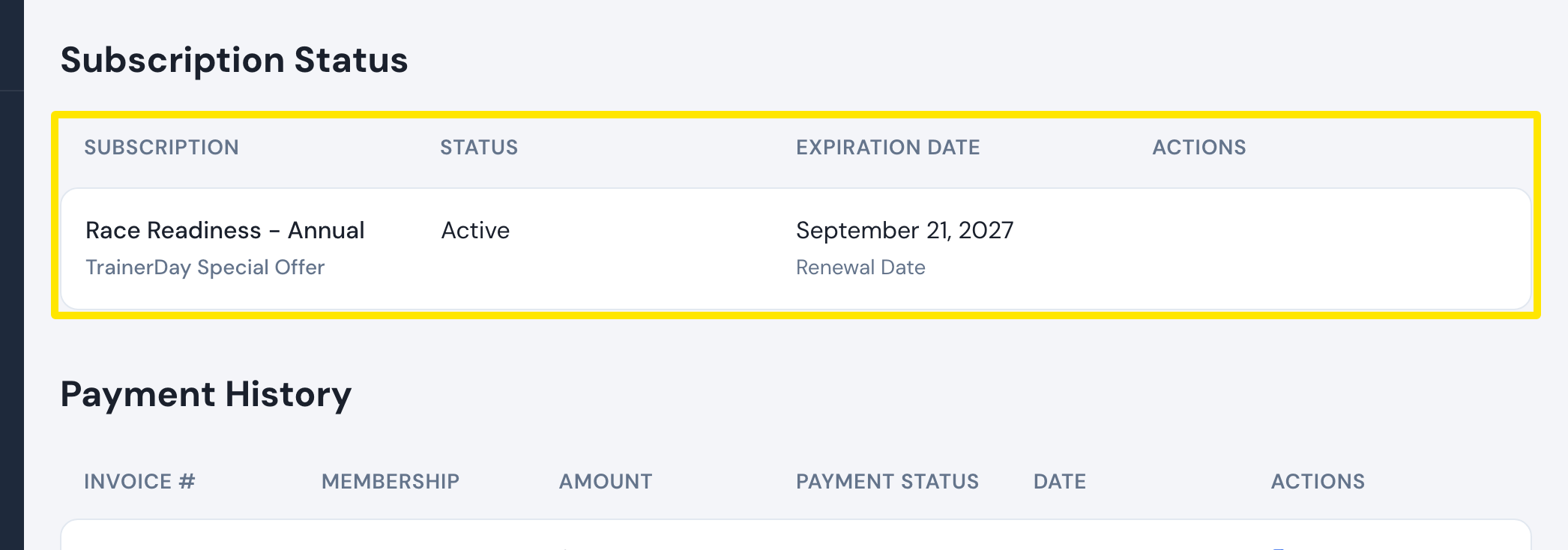 Where: Website · Manage your subscription · open it
- The Upgrade to Annual Subscription window shows what you pay. Pick your card and press Upgrade. A PayPal subscription is sent to PayPal to approve.
Good to know: Card subscriptions get credit for the unused part of the month and the year starts now. PayPal moves to the yearly price at its next payment. An App Store or Google Play monthly plan can't be upgraded: cancel it in the store, then subscribe yearly. Nothing from it is credited.
Works on: Website (upgrade). Mobile app: yearly plan via in-app purchase. Desktop app: not available.