

How do I make my indoor speed and distance match my bike computer?
On the TrainerDay website, open Account and set your Weight, Bike weight and Drag coefficient in the Speed & distance card so your indoor speed and distance come out closer to your bike computer.
- On the TrainerDay website, click the gear icon at the top of the left sidebar and choose Account (app.trainerday.com/account/settings).
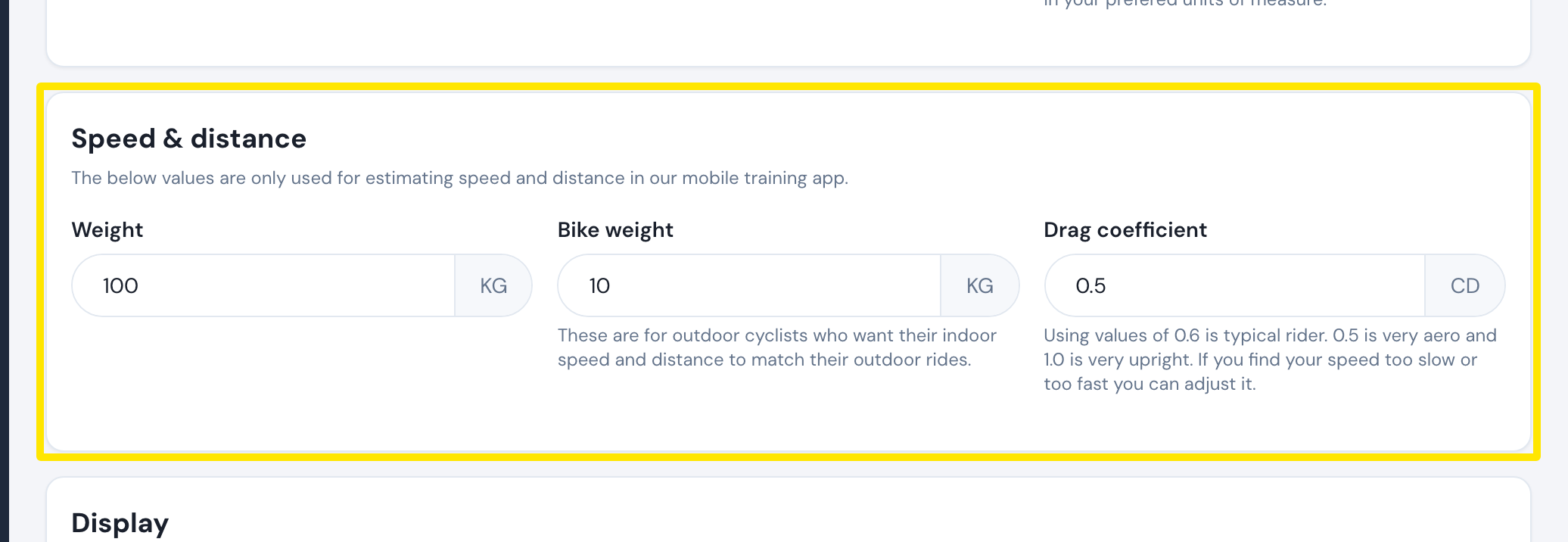 Where: Website · Account · open it
- In the Speed & distance card, check that Weight is your real weight.
- Set Bike weight to the weight of your outdoor bike.
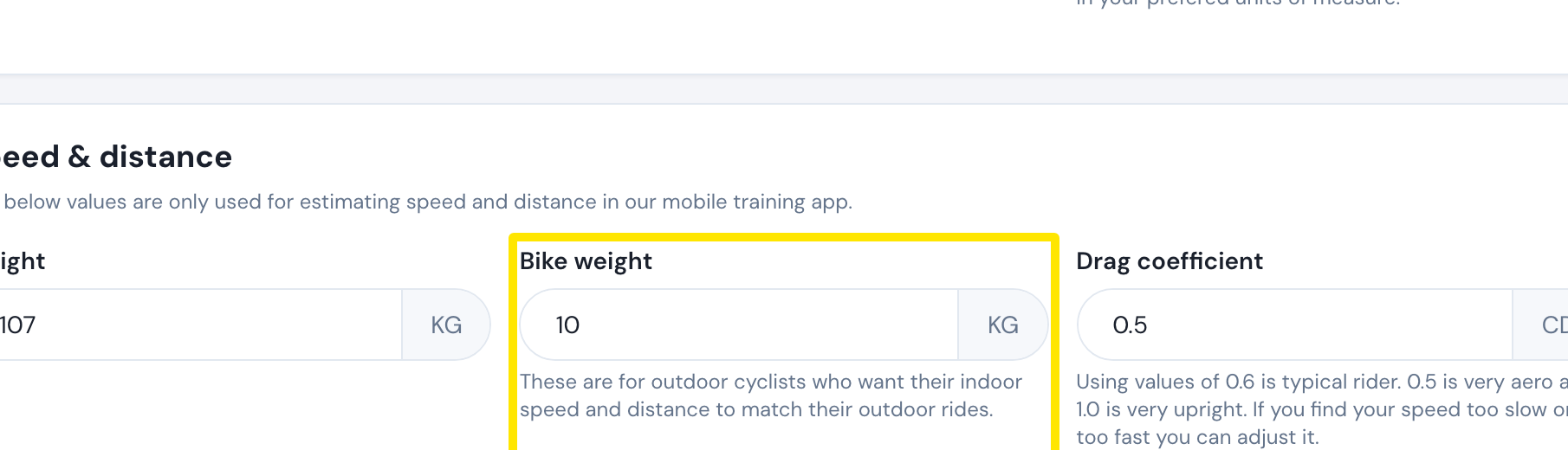 Where: Website · Account (gear icon → Account) → Speed & distance · open it
- Change Drag coefficient: a lower value (0.5) gives higher speed and longer distance, a higher value (0.7) lower speed. 0.6 is a typical rider.
- Click Update Profile.
- After your next ride, click My Activities in the left sidebar to compare its Speed and Distance.
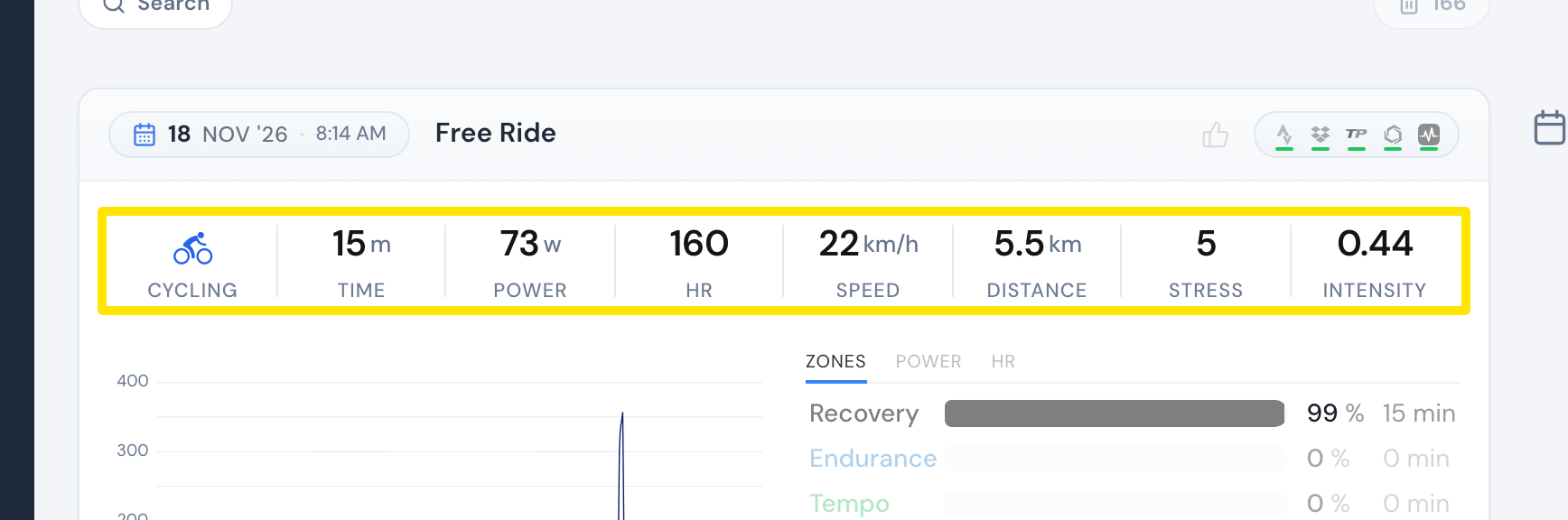 Where: Website · My Activities · open it
Good to know: Speed comes from your power, not your gears, so it matches your bike computer only if you always ride the same gears. Saved rides are never recalculated, so new values apply only to rides recorded afterwards.
Works on: Set it on the website; the phone app uses the website's drag coefficient. A drag coefficient changed in the desktop app's Settings → Weights and CDA is kept on that computer only.