

How do I use my phone as a remote control for the desktop app?
Start a workout in the TrainerDay desktop app, then open Remote Control in the mobile app (Today tab or Settings) to pause, skip, change mode and adjust power from your phone.
- On the computer, open the TrainerDay desktop app, sign in and start a workout.
- On the phone, open the TrainerDay app signed in with the same TrainerDay account.
- Tap Remote Control on the Today tab (it shows when the desktop app is found), or go to Settings → Remote Control.
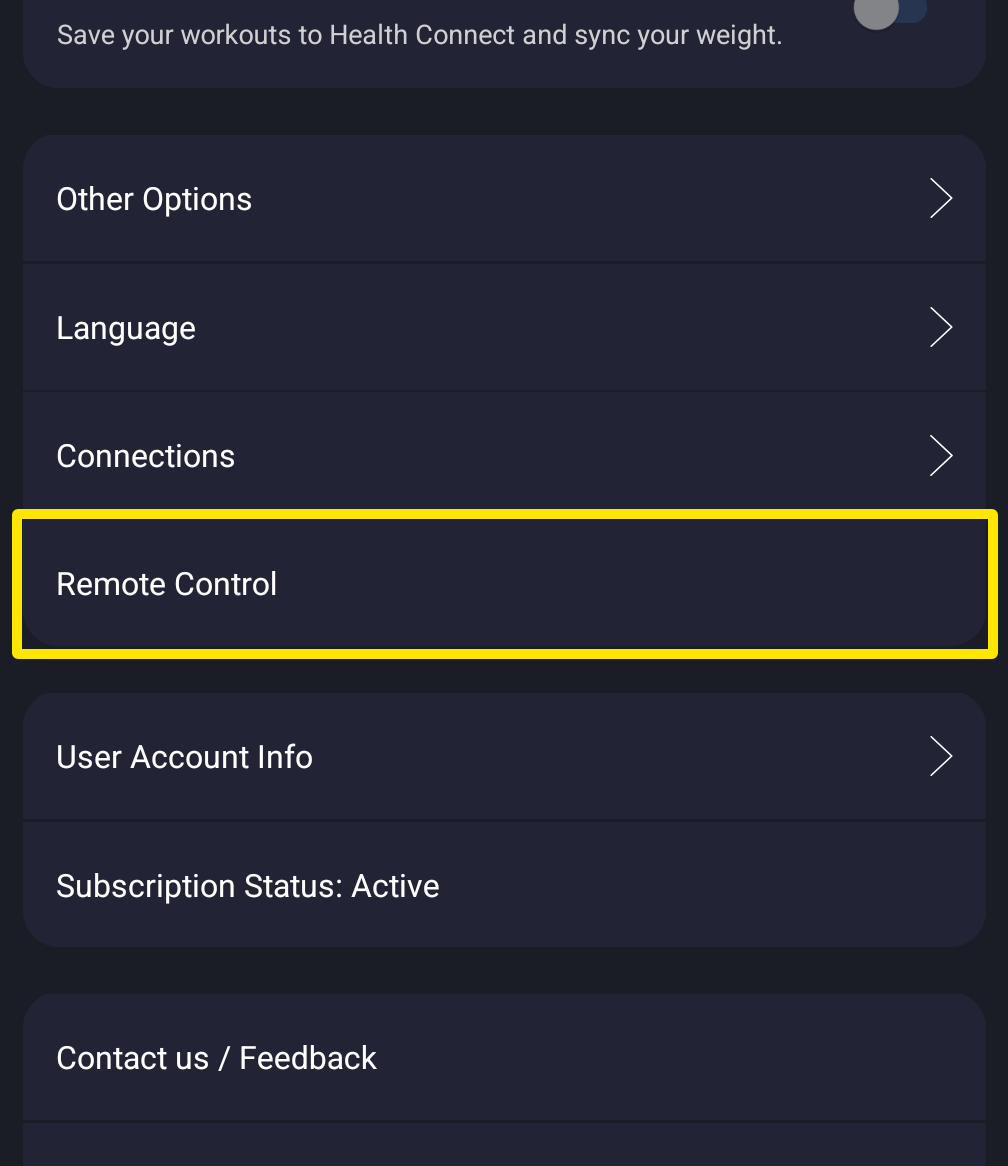 Where: Mobile app · Settings tab
- Use Pause/Resume, Skip, HR+ / ERG / SLOPE, − Power / + Power, Zoom Chart and Fullscreen to control the desktop workout.
Good to know: The remote works over the internet, so both phone and computer need internet. While it is open, the phone disconnects its own Bluetooth devices so the desktop keeps the trainer, and reconnects them when you close it.
Works on: Phone app (iOS and Android) controlling the desktop app (Windows, Mac); there is no remote for the website or another phone.