

How do I switch a workout between indoor and outdoor versions?
On the TrainerDay website, switch a planned workout between indoor and outdoor from its 3-dots menu on My Calendar or from the view button above its chart; for a workout not on your calendar, pick the version in Send To.
- On the website, open My Calendar and click the 3-dots button on the planned workout. Choose Convert to Outdoor, or Convert to Indoor on an outdoor or heart-rate workout. The card then shows an Outdoor badge.
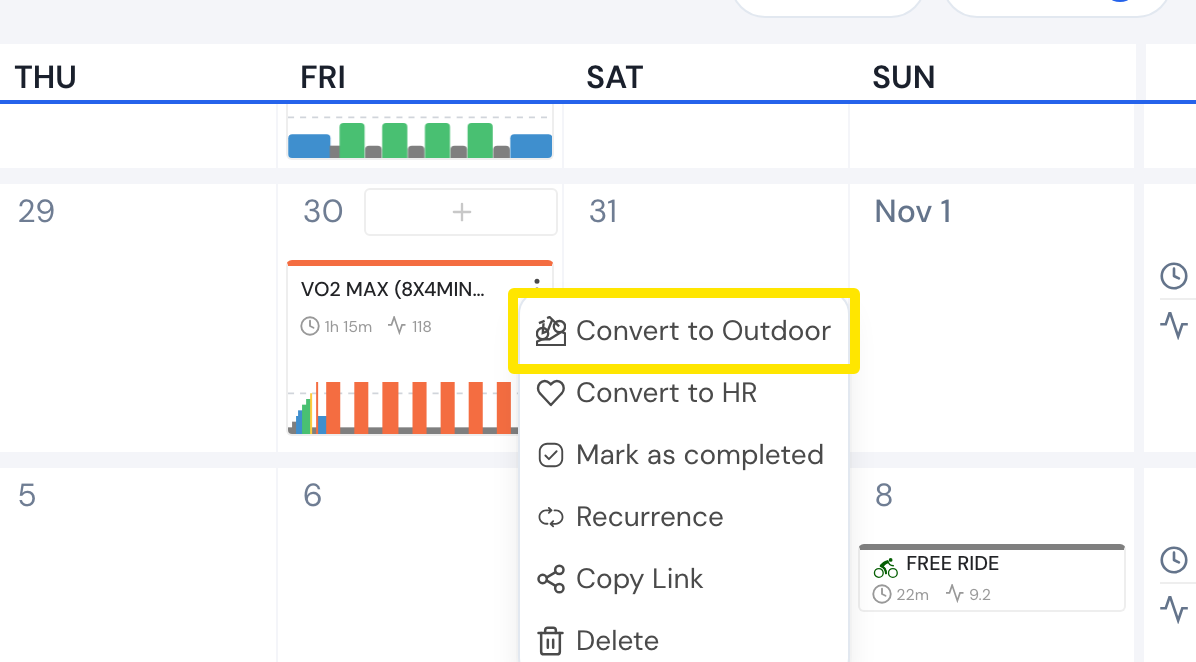 Where: Website · My Calendar · open it
- Or, on My Calendar, click the planned workout to open it. Click the view button above the chart and choose Original · Indoor, Simplified · Outdoor or Heart Rate · Outdoor. This choice is saved to the calendar workout.
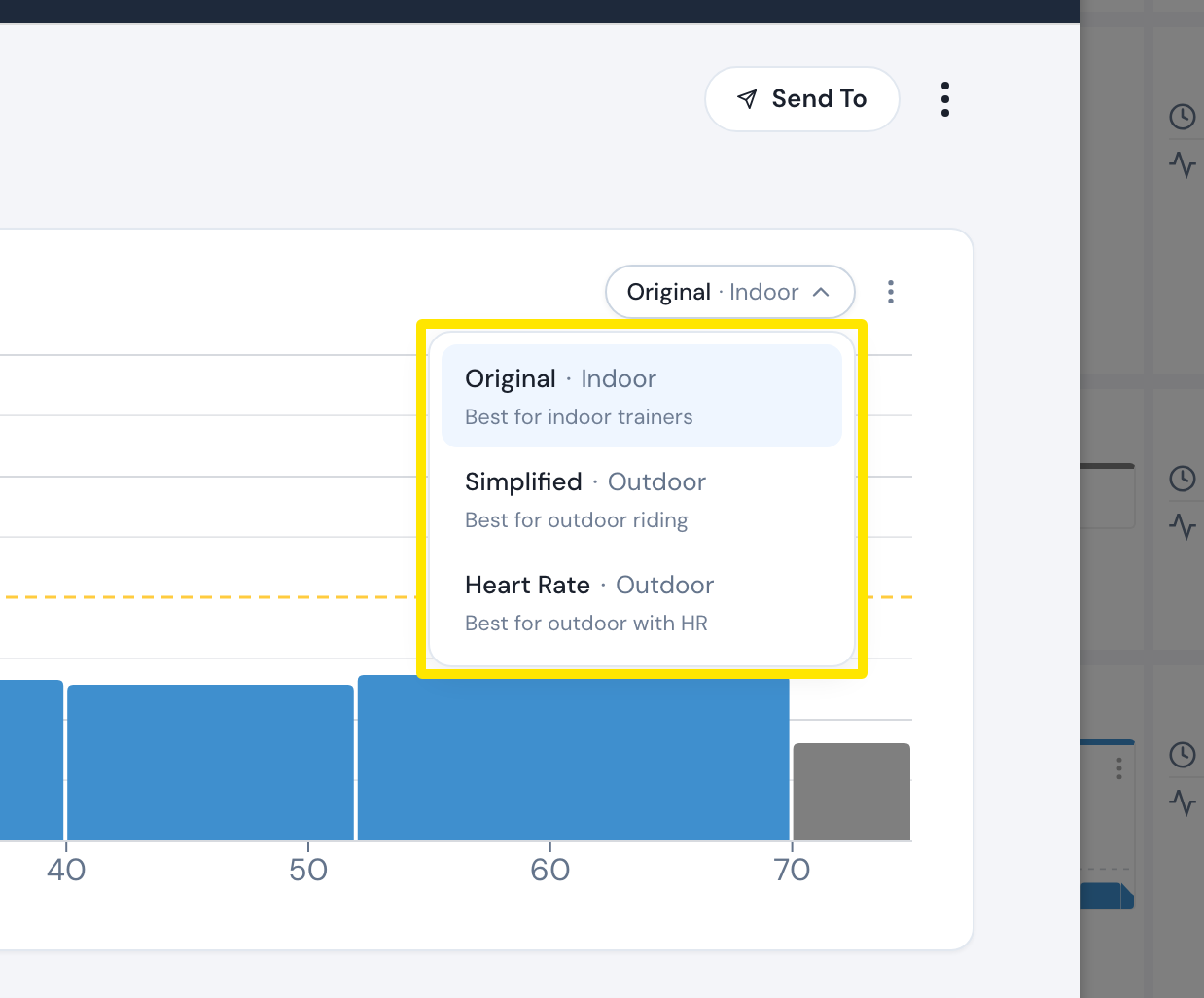 Where: Website · My Calendar → click a planned workout · open it
- For a workout not on your calendar, open it and click Send To. Choose the app, keep Power, pick Original (indoor) or Simplified (outdoor) in the format menu, then click Send.
Good to know: The outdoor version is always simplified but has the same total time. To keep every interval outdoors, use Original. The convert options work for bike, swim and rowing workouts and are greyed out on a free account.
Works on: Website (calendar and Send To); mobile app Send To has an Outdoor / Indoor picker; desktop app Send To has Indoor and Outdoor choices.