

How do I get a refund for my subscription?
Where you paid decides how you get a refund: for a website payment, find it under Payment History on the TrainerDay website and email [email protected]; App Store and Google Play purchases are refunded through the store.
Bought through the App Store or Google Play? Those refunds go through the store: see How do I get a refund for a subscription bought through Google Play?. Apple refunds App Store purchases.
- On the TrainerDay website, click the gear icon at the top of the left menu and choose Account.
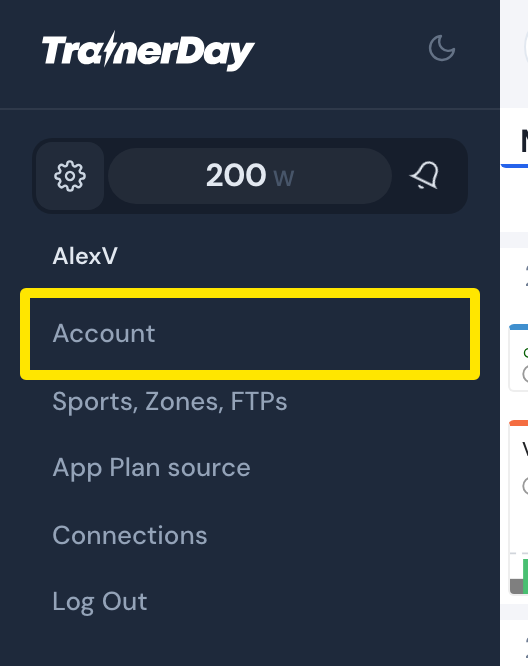 Where: Website · left menu → gear icon
- Under Account Information, click Manage your subscription.
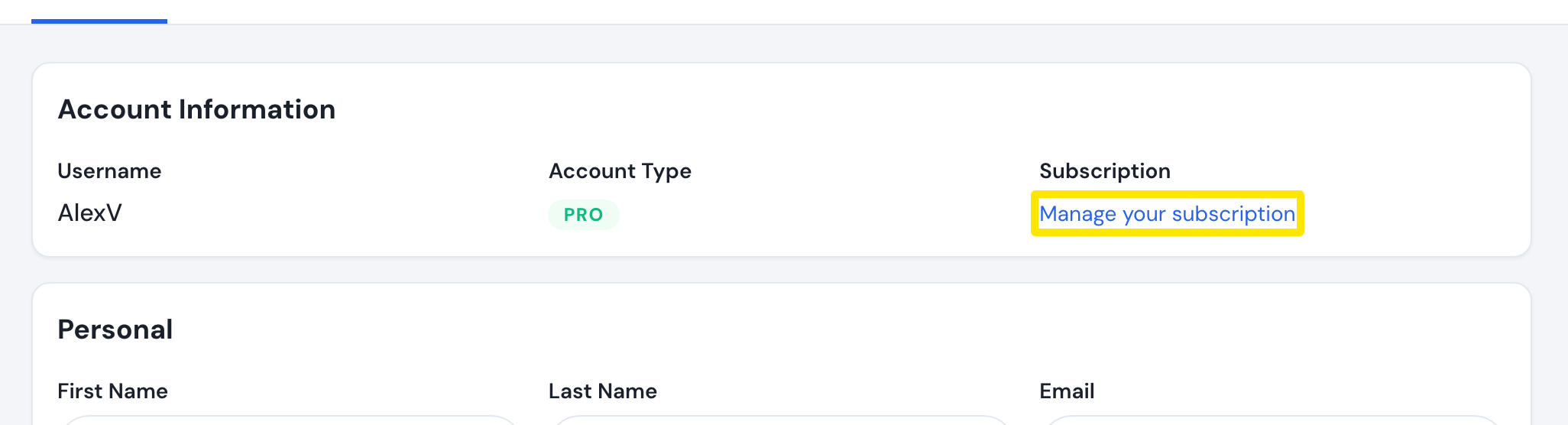 Where: Website · Account · open it
- In Payment History, find the payment (Invoice #, Amount, Date). View Receipt opens its receipt.
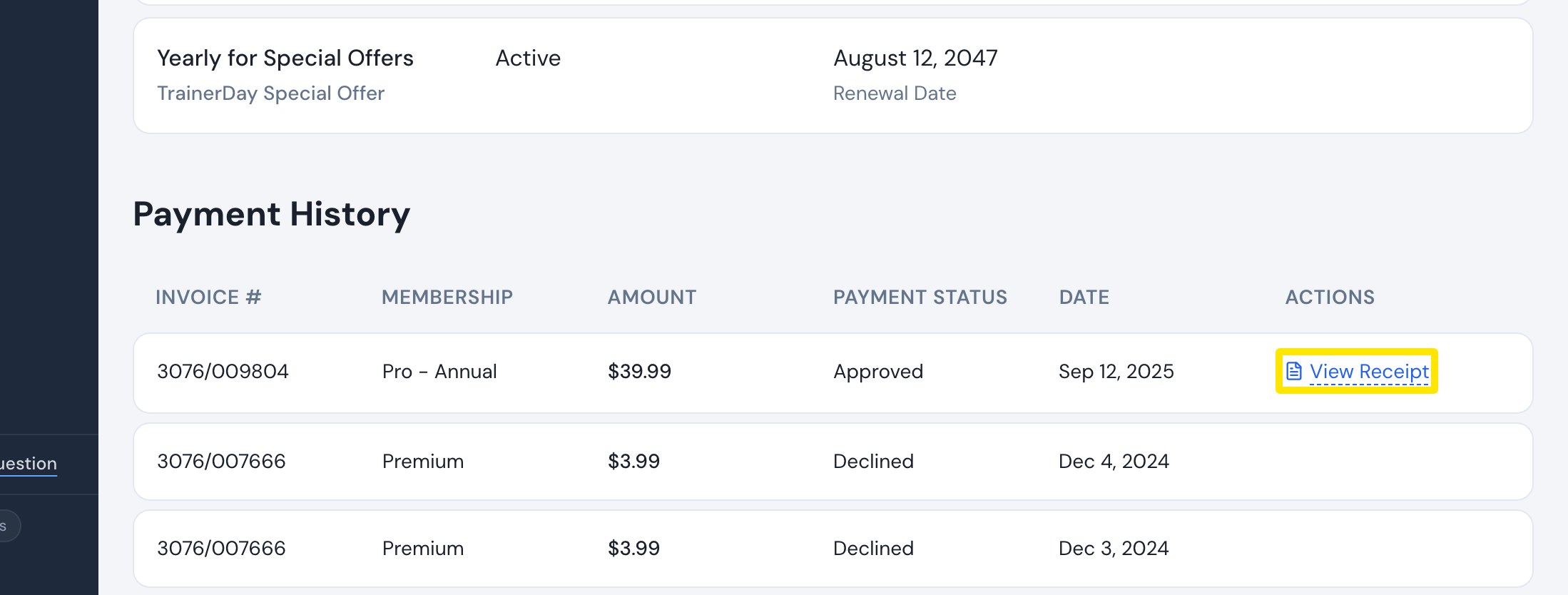 Where: Website · Manage your subscription · open it
- From your account email, write to [email protected] (or use the form at trainerday.com/contact-us) with the invoice number or date. There is no refund button: TrainerDay makes the refund.
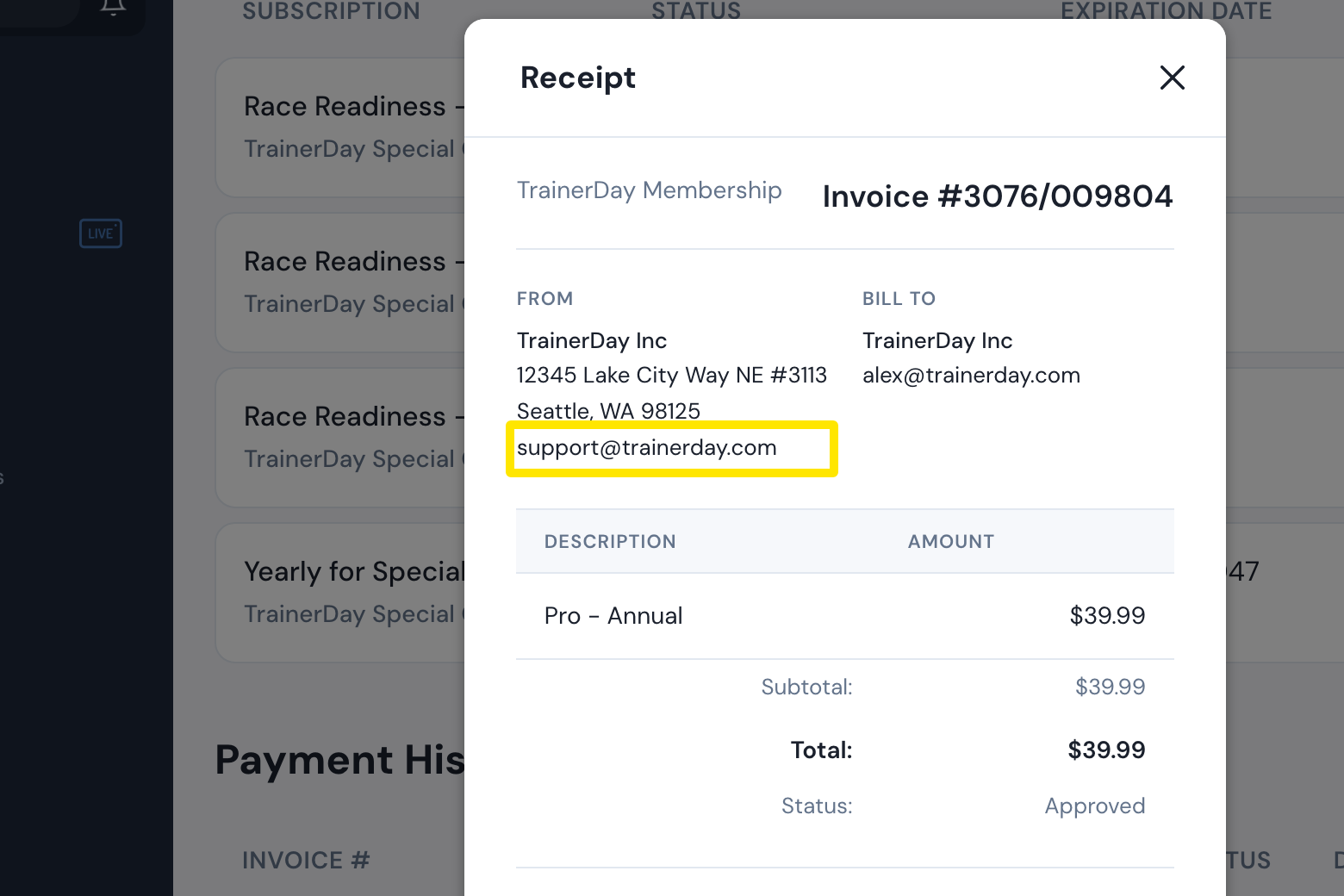 Where: Website · Manage your subscription · open it
- Don't want it to renew? Back on the Manage your subscription page, click Cancel subscription in the Actions column, then press Cancel Subscription.
Good to know: A refund does not cancel the subscription by itself, so renewals continue unless you also cancel.
Works on: Website. The mobile app sends you to the App Store or Google Play; the desktop app has no billing screen.